
You don't need to download folder icons for a Mac: Apple's own are already on it. In Finder, press ⇧⌘G and go to /System/Library/CoreServices/CoreTypes.bundle/Contents/Resources. Open an icon in Preview, copy it, then paste it onto a folder's small icon in Get Info (⌘I). macOS Tahoe also has emoji and symbols for folders built in.
Searching for "Mac folder icons free download" leads to icon packs, wallpaper sites and apps that want to be installed. Before any of that, look at what's free and already on your Mac.
Apple's folder icons, already on your Mac
macOS keeps the icons Finder uses in one folder. It holds about 260 of them, including the special folder icons you see in your home folder:
- DocumentsFolderIcon, DownloadsFolder, DesktopFolderIcon
- MusicFolderIcon, MovieFolderIcon, PicturesFolderIcon
- ApplicationsFolderIcon, UtilitiesFolder, DeveloperFolderIcon, LibraryFolderIcon
- SmartFolderIcon, GenericFolderIcon (the plain blue folder)
They match your macOS version, so a folder with one of them fits right in. To use one:
- In Finder, choose Go › Go to Folder… (⇧⌘G).
- Paste
/System/Library/CoreServices/CoreTypes.bundle/Contents/Resourcesand press Return. - Find an icon whose name contains "Folder" and double-click it to open it in Preview. If Preview shows several sizes in its sidebar, click the biggest.
- Choose Edit › Copy (⌘C).
- Select your own folder in Finder and press ⌘I to open Get Info.
- Click the small icon at the top left of the Info window so it's highlighted, and press ⌘V.
Only copy from that folder. Don't move, rename or delete anything in it: macOS uses those files.
To put the usual folder back, open Get Info again, click the small icon and choose Edit › Cut (⌘X).
Emoji and symbols on macOS Tahoe
macOS Tahoe 26 has a free set of folder icons built into Finder:
- Right-click a folder and choose Customize Folder….
- Click a colored circle to change its color.
- Choose a symbol from the list, or click Emoji and pick any emoji.
The emoji or symbol goes on the front of the folder. Clear in the same window removes it. Sonoma and Sequoia don't have Customize Folder.
Downloading icons from the web
If you do want an icon pack, a few things keep it safe and simple:
- Download pictures, not apps. You need a PNG or ICNS image file, nothing more. You never need to install anything to change an icon.
- Square, at least 512 × 512 pixels, with a clear background, looks sharpest and most like a real Mac icon.
- Check the license if the icons are for work or something you'll share.
Then use the image exactly like Apple's: open it in Preview, copy it, and paste it onto the small icon in the folder's Get Info window. To make an icon from your own photo or logo, see how to make custom folder icons on a Mac.
Colors and icons without hunting for files
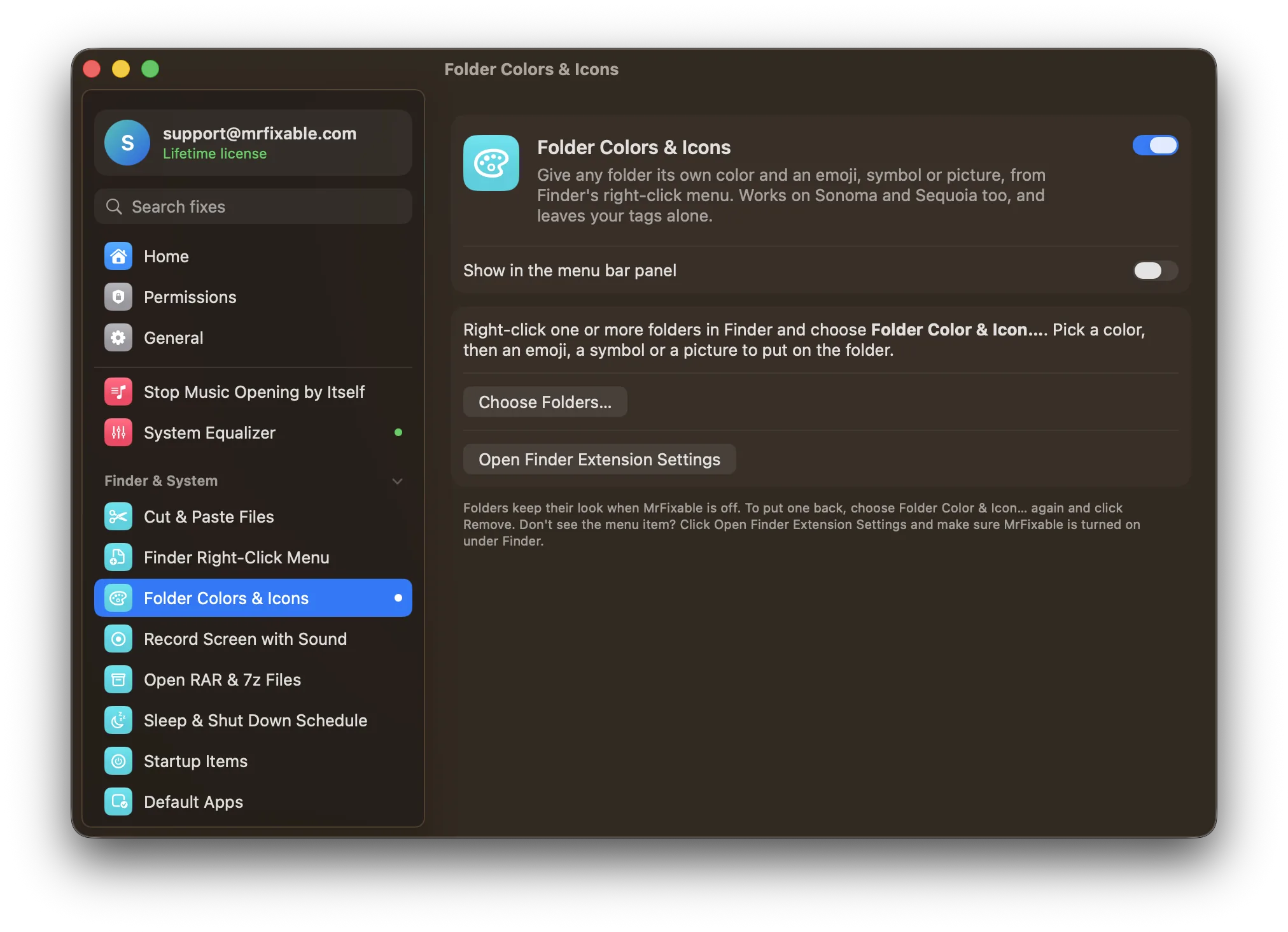
Folder Colors & Icons in MrFixable adds Folder Color & Icon… to Finder's right-click menu, so you don't need any icon files:
- Color: fourteen to choose from, or any color from the color picker. The folder keeps the shading of your macOS version's own folder icon.
- On the folder: an emoji, one of 50 symbols for things people keep in folders (documents, photos, music, money, code, travel and more), or a picture of your own.
- See it live, then click Apply, for one folder or several at once.
- Remove puts the usual folder back.
It works the same on Sonoma, Sequoia and Tahoe, and the folders keep their look when MrFixable is off. There's more on the built-in options in how to change folder icons and colors on a Mac.
Questions
Where can I download free folder icons for a Mac?
Start with the ones already on your Mac, in /System/Library/CoreServices/CoreTypes.bundle/Contents/Resources: open that path with Go › Go to Folder… in Finder. Apple's Documents, Downloads, Music and other folder icons are there. If you download a pack, take only PNG or ICNS image files, never an app or installer.
How do I change Mac folder icons?
Copy the new icon first: open the image in Preview and press ⌘C. Then select the folder in Finder, press ⌘I, click the small icon at the top left of the Info window and press ⌘V. On macOS Tahoe you can also right-click the folder and choose Customize Folder… for an emoji or symbol.
How do I change a Mac folder icon's color?
On macOS Tahoe, right-click the folder, choose Customize Folder… and click a colored circle. On Sonoma and Sequoia, open Get Info, copy the small folder icon, choose File › New from Clipboard in Preview, recolor it with Tools › Adjust Color…, then copy it and paste it back in Get Info.