
To keep your Mac awake for a while, open Terminal and type caffeinate -d. Your Mac and its display stay awake until you press ⌃C. For a lasting change, set the display to turn off later, or never, in System Settings › Lock Screen, and remember to change it back when you're done.
A big download stops halfway because your Mac went to sleep. A presentation goes dark while you're talking. You could change your sleep settings, but then you have to remember to change them back.
How do I use caffeinate on a Mac?
macOS includes a Terminal command that keeps the Mac awake for as long as it runs:
caffeinate -d
Press Control-C to stop it, and your Mac sleeps normally again. To keep it awake for a set time, give it a number of seconds:
caffeinate -d -t 3600
That's one hour. The -d keeps the display on too. To keep only the Mac awake and let the display sleep, use -i instead.
How do I change when my Mac sleeps?
You can also change when the display turns off in System Settings › Lock Screen, and on a MacBook, look at System Settings › Battery › Options for what happens on the power adapter. These change your Mac's behavior permanently, until you set them back.
Questions
How do I keep my Mac awake with the lid closed?
Connect it to power and an external display, with an external keyboard or mouse to use it. Then it keeps running with the lid closed. Otherwise, closing the lid puts a MacBook to sleep, even while caffeinate runs.
How do I keep my Mac awake until a download finishes?
Put caffeinate -i in front of a Terminal command, and the Mac stays awake until that command ends. For a download in your browser, run caffeinate -i on its own and press ⌃C when the download is done. The display can sleep in the meantime.
How do I stop my MacBook sleeping when it's plugged in?
Open System Settings › Battery › Options and turn on Prevent automatic sleeping on power adapter when the display is off. The display still turns off, but the Mac keeps working while it's on power.
One click, from the menu bar
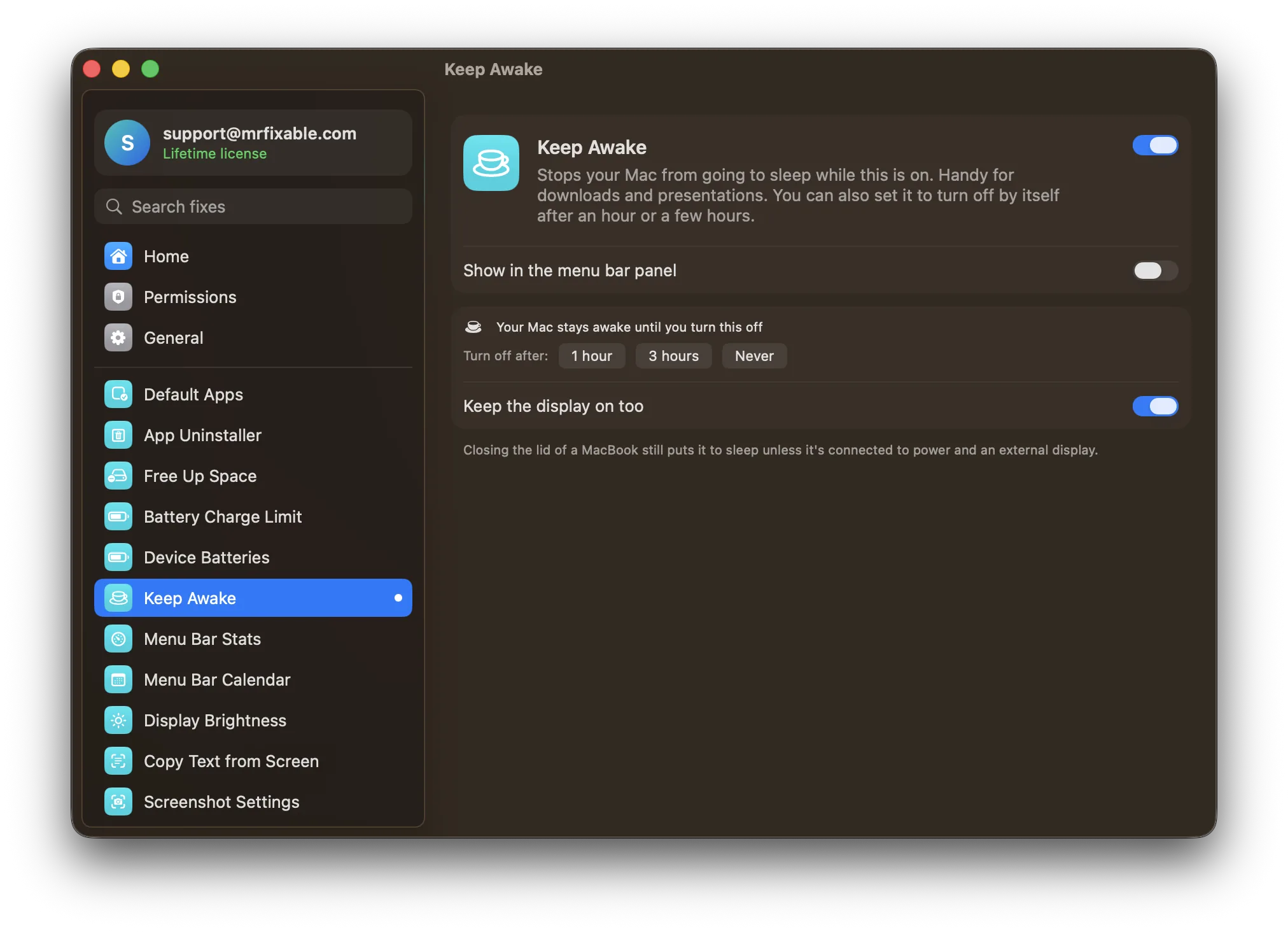
Keep Awake in MrFixable keeps your Mac awake while it's on, with a switch in the menu bar. It can turn itself off after an hour or a few hours, so you never forget it.
For talks and screen sharing, Presentation Mode does more in one click: it keeps the screen on, hides your desktop icons and the Dock, and highlights the pointer so everyone can follow it.