
To turn off sleep mode on a MacBook, open System Settings › Battery › Options and turn on Prevent automatic sleeping on power adapter when the display is off. To keep the screen on too, choose Never for the display in System Settings › Lock Screen. On a desktop Mac, the switch is in System Settings › Energy.
These are lasting changes: your Mac behaves this way until you set it back. For a few hours of staying awake, a download or a presentation, the caffeinate command or a menu bar switch is easier. Both are at the end of this guide.
Two settings: the display and the Mac
macOS has two separate timers, and most confusion comes from mixing them up:
- The display turns off after a few minutes without use. That's set in System Settings › Lock Screen.
- The Mac itself goes to sleep soon after the display turns off, unless you tell it not to. That's the Prevent automatic sleeping switch, in Battery › Options on a MacBook and in Energy on a desktop Mac.
With the second switch on, the screen goes dark but downloads, backups and music keep going. With the display set to Never as well, nothing turns off at all.
How to stop a MacBook sleeping when it's plugged in
- Choose Apple menu › System Settings.
- Click Battery in the sidebar, then click Options….
- Turn on Prevent automatic sleeping on power adapter when the display is off, then click Done.
- To keep the screen on too, click Lock Screen in the sidebar and choose a longer time, or Never, next to Turn display off on power adapter when inactive.
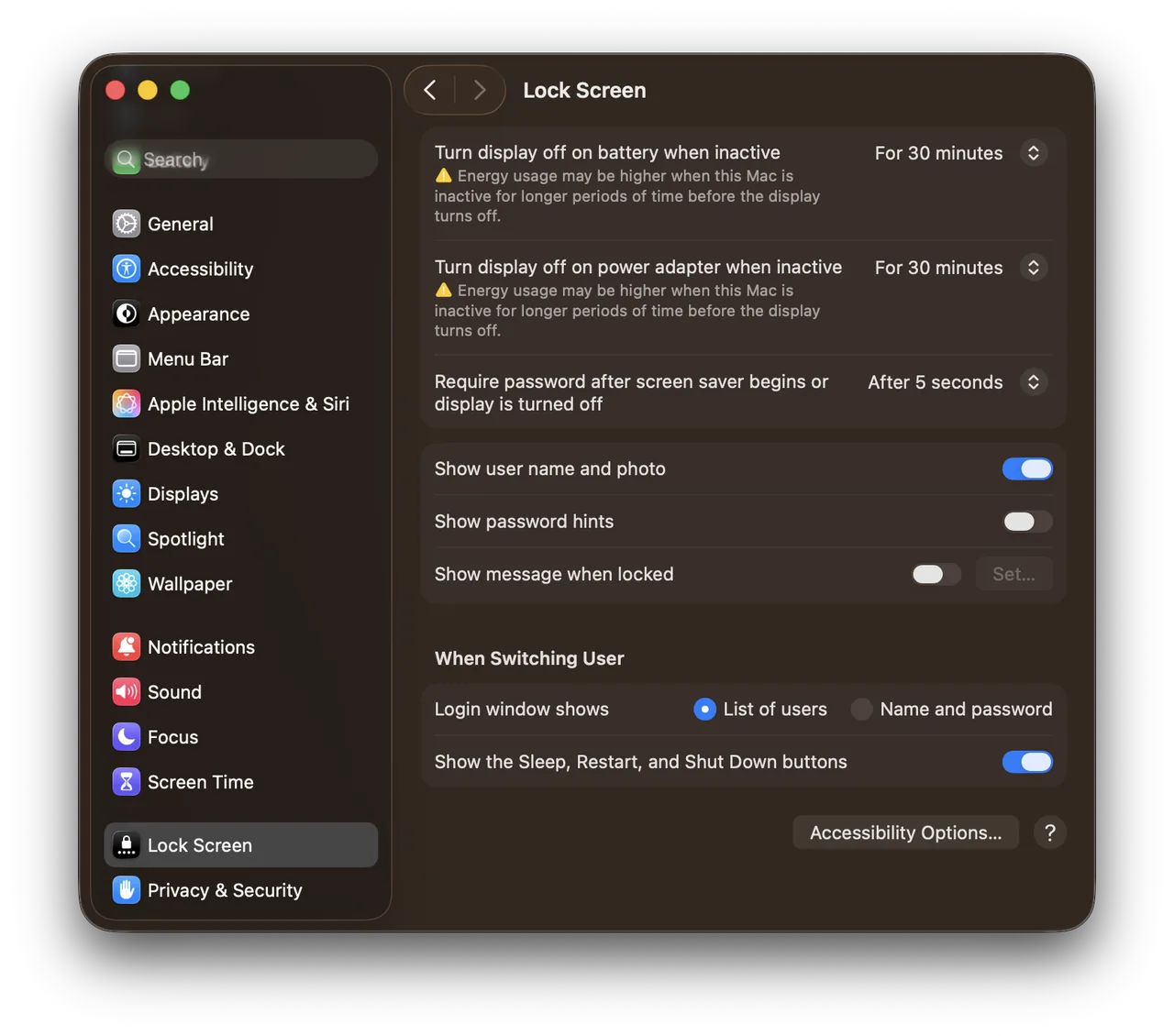
Real screenshot from a MacBook Pro (13-inch, M1, 2020) running macOS 26.1, taken October 22, 2026.
The switch only works while the power adapter is connected. On battery, your MacBook sleeps as before.
How to stop a desktop Mac sleeping
On an iMac, Mac mini, Mac Studio or Mac Pro:
- Choose Apple menu › System Settings.
- Click Energy in the sidebar.
- Turn on Prevent automatic sleeping when the display is off.
- To keep the screen on too, click Lock Screen and set the display's Turn display off time to a longer time, or Never.
How to keep a MacBook awake on battery
There's no switch for that. On battery, a MacBook sleeps soon after its display turns off, so the only setting is the display's: in System Settings › Lock Screen, choose a longer time next to Turn display off on battery when inactive.
A Mac that stays awake on battery runs down faster, so for something like a long download, keep it awake only until the download is done, with caffeinate or Keep Awake below.
How do I keep a MacBook awake with the lid closed?
Use closed-display mode: connect your MacBook to power and an external display, plus an external keyboard and a mouse or trackpad. Then close the lid, and the Mac keeps running on the external display. Without all of these, closing the lid always puts a MacBook to sleep, whatever your settings say.
- Connect the power adapter. It has to stay connected.
- Connect the external display.
- Connect a keyboard and a mouse or trackpad, by USB or Bluetooth.
- Close the lid. If the Mac goes to sleep, press a key or click the mouse to wake it, and it carries on with the lid closed.
Remember the screen lock
With the display set to Never, your Mac also stops locking itself when you walk away, because by default it locks when the display turns off. Lock it by hand with ⌃⌘Q (Control-Command-Q) when you leave it, or set a time again once you're done.
Without changing your settings
If you only need your Mac awake for a while, leave System Settings alone:
- In Terminal,
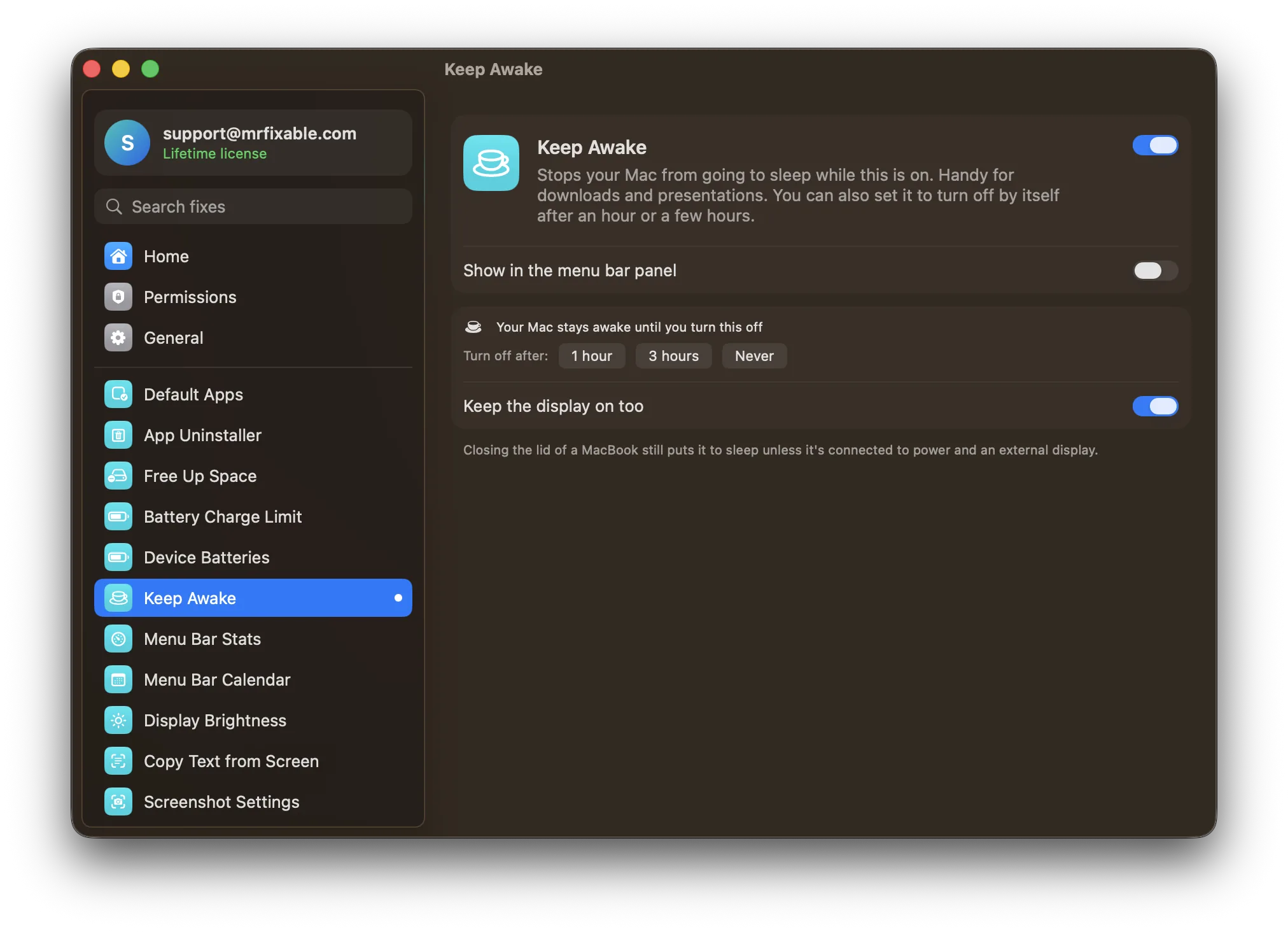
caffeinate -dkeeps the Mac and its display awake until you press ⌃C. See how to use caffeinate on a Mac for every option. - In the menu bar, Keep Awake in MrFixable keeps your Mac awake while it's on. Choose 1 hour, 3 hours or Never, and turn off Keep the display on too if the screen may sleep. It turns itself off when the time is up, and your sleep settings never change.
Neither keeps a MacBook awake with the lid closed, unless it's in closed-display mode as above.
Questions
How do I keep my Mac awake always?
Turn on Prevent automatic sleeping on power adapter when the display is off in System Settings › Battery › Options, or in System Settings › Energy on a desktop Mac. Then set the display to turn off Never in System Settings › Lock Screen. It only works while the Mac is on power.
How do I stop my Mac sleeping when I close the lid?
Connect it to power, an external display, and an external keyboard and mouse or trackpad. That's closed-display mode, and it's the only built-in way. With nothing connected, a MacBook always sleeps when you close the lid, even with caffeinate or Keep Awake running.
How can I keep my MacBook from going to sleep?
Plugged in, turn on Prevent automatic sleeping on power adapter when the display is off in System Settings › Battery › Options. On battery there's no such switch, so run caffeinate -i in Terminal, or turn on Keep Awake, and the MacBook stays awake until you stop it.