
To caffeinate a Mac, open Terminal, type caffeinate -d and press Return. Your Mac and its display stay awake until you press ⌃C (Control-C) or close the window. Add -t 3600 to stop by itself after an hour. caffeinate is built into macOS, so there's nothing to install, and your sleep settings don't change.
caffeinate is a small command that comes with every Mac. While it runs, it tells macOS not to sleep, the same way a video app does while a film plays. When it stops, your Mac goes back to its usual sleep settings.
How to use caffeinate, step by step
- Press ⌘Space (Command-Space), type Terminal and press Return. Terminal is also in Applications › Utilities.
- Type
caffeinate -dand press Return. Nothing seems to happen. That's normal: the command is running. - Leave the Terminal window open. You can minimize it and use other apps as usual.
- When you're done, click the Terminal window and press ⌃C. Your Mac can sleep again.
Closing the Terminal window stops caffeinate too. Terminal asks first whether you want to end what's running in it.
What the caffeinate options mean
| Type | To keep awake |
|---|---|
caffeinate -d |
The display, and with it the Mac |
caffeinate -i |
The Mac, while the display can still turn off. Plain caffeinate does the same |
caffeinate -s |
The Mac, but only while it's connected to power |
caffeinate -m |
The disk |
caffeinate -u |
Tells macOS you're using the Mac, which turns the display on. Without a time, it lasts 5 seconds |
Two more options say when to stop:
-tfollowed by a number of seconds:caffeinate -d -t 3600stops after one hour. Use 7200 for two hours, 28800 for eight.-wfollowed by a process ID: caffeinate stops when that app or process quits.
Useful caffeinate commands
Keep the Mac awake for two hours, then let it sleep:
caffeinate -d -t 7200
Keep the Mac awake until a Terminal command finishes. Put caffeinate in front of the command. This copies your Movies folder to a backup drive called Backup and keeps the Mac awake until the copy is done:
caffeinate -i cp -R ~/Movies /Volumes/Backup/
caffeinate stops by itself when the copy ends.
Keep the Mac awake until an app quits, for example while a video exports:
- Open Activity Monitor (⌘Space, type Activity Monitor, press Return).
- Find the app in the list and note the number in its PID column, for example 4512.
- In Terminal, type
caffeinate -i -w 4512and press Return.
When the app quits, caffeinate stops and your Mac can sleep again.
How to check that caffeinate is working
Open a second Terminal window (⌘N) and type pmset -g. On the sleep line, macOS lists what is keeping the Mac awake, for example sleep prevented by caffeinate. For the full list of apps holding sleep off, and why, type pmset -g assertions.
What caffeinate can't do
- It doesn't keep a closed MacBook awake. Closing the lid puts a MacBook to sleep, even with caffeinate running, unless the Mac is connected to power and an external display. See how to turn off sleep mode on a Mac for closed-display mode.
- It stops when Terminal does. If you quit Terminal or close its window, your Mac sleeps again on its usual schedule.
- It's easy to forget. Without
-t, caffeinate runs until you stop it. On battery, a Mac left awake overnight can run flat.
Keep Awake: caffeinate from the menu bar
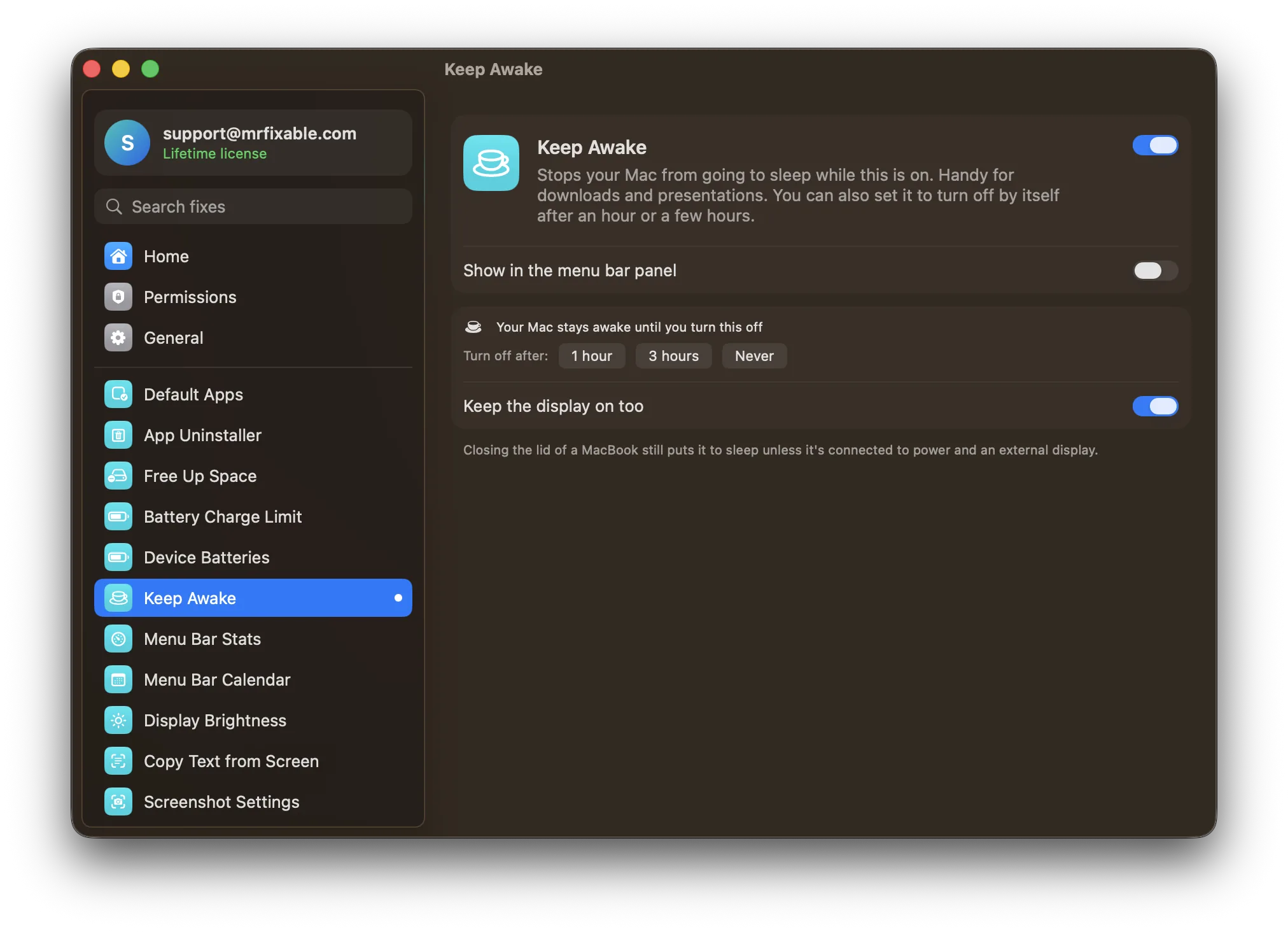
Keep Awake in MrFixable does what caffeinate does, with a switch in the menu bar instead of a Terminal window:
- Turn it on and choose 1 hour, 3 hours or Never next to Turn off after. MrFixable's menu shows the time your Mac will be allowed to sleep again.
- Keep the display on too is on at first, like
caffeinate -d. Turn it off and the screen can sleep while the Mac keeps working, likecaffeinate -i. - Nothing to remember. With a time set, it turns itself off, and the switch goes off with it.
- Your settings stay as they are. Nothing in System Settings changes, and when you quit MrFixable, your Mac can sleep normally. A timer you set is remembered for next time.
Like caffeinate, it can't keep a MacBook awake with the lid closed unless it's connected to power and an external display.
Questions
How do I stop my Mac from sleeping?
For a while, run caffeinate -d in Terminal and press ⌃C when you're done, or turn on Keep Awake in MrFixable. For a lasting change, open System Settings › Lock Screen to set when the display turns off, and on a MacBook, look in System Settings › Battery › Options.
How do I keep my Mac awake while downloading?
Run caffeinate -i in Terminal before the download starts, and press ⌃C once it has finished. The -i keeps the Mac working but lets the display turn off, which saves power. In Keep Awake, turn off Keep the display on too for the same effect.
How do I keep my Mac awake longer?
Give caffeinate a time in seconds: caffeinate -d -t 7200 keeps your Mac awake for two hours, then stops by itself. To change it for good, choose a longer time, or Never, under the Turn display off settings in System Settings › Lock Screen.
Are there apps to keep a Mac awake?
Yes. Amphetamine is a popular free app with many options, such as triggers that keep the Mac awake while a certain app is running. Keep Awake in MrFixable is a simple menu bar switch with a timer, and it comes with MrFixable's other fixes.
Sources
- caffeinate(8) manual page, Apple open source (PowerManagement)
- pmset(1) manual page, Apple open source (PowerManagement)
- Open or quit Terminal on Mac
- Keyboard shortcuts in Terminal on Mac
- Mac keyboard shortcuts
- Activity Monitor User Guide for Mac
- Change Lock Screen settings on Mac
- Change Battery settings on a Mac laptop
- Amphetamine on the Mac App Store