
To schedule a shutdown on a Mac, open Terminal, type sudo pmset repeat shutdown MTWRFSU 23:00:00 and enter your password: your Mac then shuts down at 11 PM every day. Put sleep in place of shutdown to have it sleep instead. Since macOS Ventura, System Settings has no schedule, so Terminal is the only built-in way.
Older versions of macOS had a Schedule… button in Energy Saver (in Battery on Mac laptops): shut down at midnight every weekday, start up at 7 in the morning. macOS Ventura removed it, and System Settings has nothing in its place.
The feature still exists underneath, in Terminal.
How do I schedule a shutdown with Terminal?
Open Terminal and type one of these, then your administrator password:
- Shut down every day at 11 PM:
sudo pmset repeat shutdown MTWRFSU 23:00:00 - Sleep on weekdays at 10 PM:
sudo pmset repeat sleep MTWRF 22:00:00 - Start up or wake every weekday at 7 AM:
sudo pmset repeat wakeorpoweron MTWRF 07:00:00
The letters are the days: Monday, Tuesday, Wednesday, ThuRsday, Friday, Saturday, SUnday. To see the schedule, run pmset -g sched. To clear it, run sudo pmset repeat cancel.
The catches:
- Only one shutdown or sleep time and one wake time. You can't, for example, shut down at 11 on weekdays and at 1 on weekends.
- It needs your password each time you change it.
Questions
How do I make my Mac sleep right now?
Choose Apple menu › Sleep, or close a MacBook's lid. In Terminal, pmset sleepnow does the same.
Can I set a sleep timer on a Mac?
Yes, in Terminal. sudo shutdown -s +30 puts your Mac to sleep in 30 minutes, and sudo shutdown -h +60 shuts it down in an hour. Change the number for a different wait.
A schedule with a warning
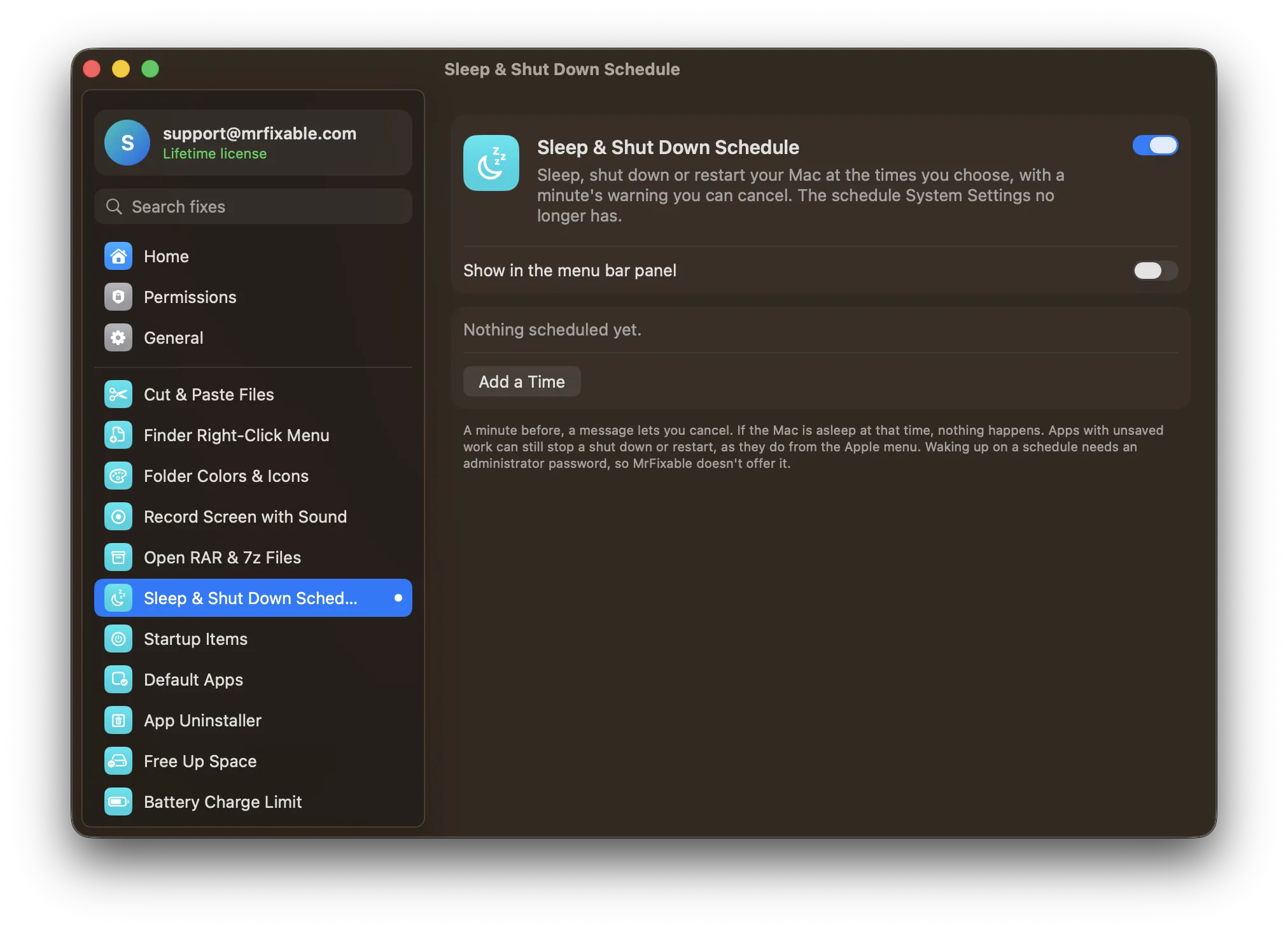
Sleep & Shut Down Schedule in MrFixable brings back a schedule you set with a few clicks, no Terminal and no password:
- Sleep, shut down or restart, at any time, on the days you pick.
- As many times as you like: weekdays at 11, weekends at 1.
- A minute's warning each time, with a Cancel button, so it never cuts you off mid-film.
Apps with unsaved work can still stop a shut down, as they do when you choose Shut Down from the Apple menu. Waking the Mac up on a schedule needs an administrator, so for that, use the wakeorpoweron command above.
The opposite: keeping your Mac awake
For a long download or a presentation, Keep Awake stops your Mac from sleeping while it's on. See how to keep a Mac awake.