
System & FinderSleep & Shut Down Schedule
Mac sleep timer and shutdown schedule
A Mac has no sleep timer in System Settings, since macOS Ventura removed the old Energy Saver schedule. In Terminal, sudo pmset repeat sleep MTWRFSU 23:00:00 sets one daily sleep time. Sleep & Shut Down Schedule lets you add as many sleep, shut down or restart times as you like, each with a one-minute warning you can cancel.
Try free for 14 daysBuy for $19.99 Lifetime license
One of 68 fixes in MrFixable. Lifetime license, no subscription. Updated October 22, 2026. Works on macOS 14.2 Sonoma and later. Checked on macOS 26 Tahoe.
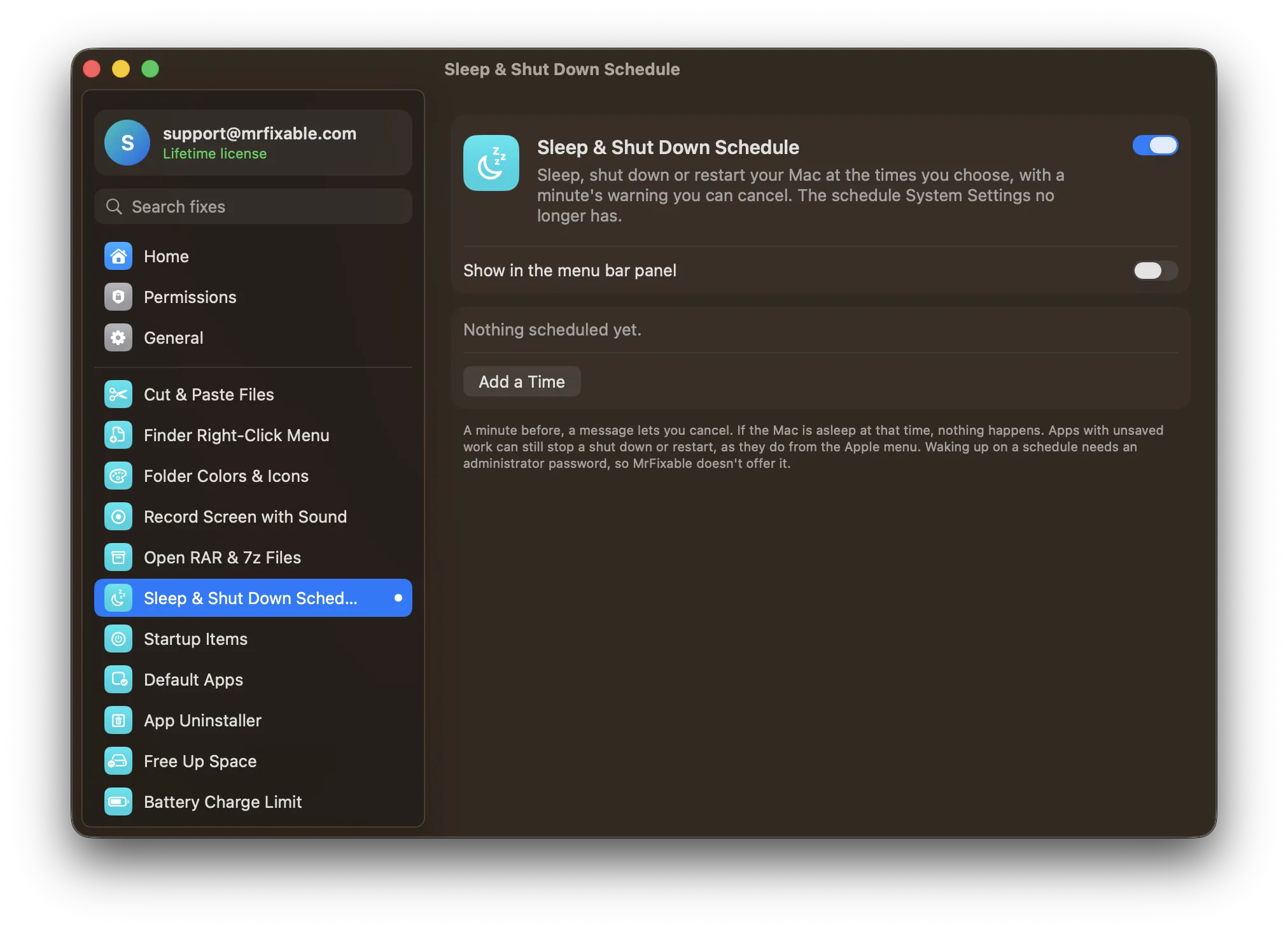
What Sleep & Shut Down Schedule does
The problem
Energy Saver used to have a Schedule button for sleep and shut down. macOS Ventura removed it, and the only built-in way left is the pmset command in Terminal, which needs your password and allows only one sleep or shut down time.
With Sleep & Shut Down Schedule
Pick sleep, shut down or restart, a time and the days, and your Mac does it on schedule. A minute before, a message counts down with a Cancel button.
- As many times as you likeAdd a time for each thing you want: shut down at 11 on weekdays, sleep at 1 on weekends. Each one can be Sleep, Shut Down or Restart, on any days of the week.
- A minute's warningA message counts down 60 seconds before each one. Click Cancel to stop it, or click the button beside it to do it right away.
- No password, no TerminalSet it all with a few clicks. Shut down and restart work like choosing them from the Apple menu, so apps with unsaved work can still ask you to save.
Good to know
It works with clock times, not countdowns. For a one-off timer, use Terminal: sudo shutdown -s +30 puts the Mac to sleep in 30 minutes.
The first time you add a shut down or restart, macOS asks whether MrFixable may control System Events, which is how it asks your Mac to shut down or restart.
MrFixable has to be running. If the Mac is asleep at the set time, nothing happens.
It can't wake or start up your Mac on a schedule, because that needs an administrator password. For that, use sudo pmset repeat wakeorpoweron in Terminal.
Questions
How do I make my Mac sleep?
Choose Apple menu › Sleep. Other ways: 1. Close a MacBook's lid. 2. Press ⌥⌘ and the power button, or ⌥⌘ and Media Eject on older keyboards. 3. To sleep at the same time every day, add a Sleep time in Sleep & Shut Down Schedule and pick the days.How do I set a shut down timer on a Mac?
Use the shutdown command in Terminal. 1. Open Terminal. 2. Type sudo shutdown -h +60 and press Return to shut down in 60 minutes. 3. Type your password. Change 60 to any number of minutes. To cancel, type sudo kill followed by the process number that shutdown printed.How do I schedule a shutdown on a Mac?
Add a Shut Down time in Sleep & Shut Down Schedule. 1. Open MrFixable and click Sleep & Shut Down Schedule. 2. Click Add a Time. 3. Choose Shut Down. 4. Set the time and click the days. 5. Allow MrFixable to control System Events when macOS asks. A minute before, you can cancel.How do I schedule sleep on a Mac?
Use Terminal for one time, or MrFixable for several. 1. In Terminal, type sudo pmset repeat sleep MTWRFSU 23:00:00 and your password. The letters are the days, with R for Thursday and U for Sunday. 2. Or, in Sleep & Shut Down Schedule, click Add a Time, choose Sleep and set the time and days.How do I schedule a restart on a Mac?
Add a Restart time in Sleep & Shut Down Schedule. 1. Click Add a Time. 2. Choose Restart. 3. Set the time and days. Restart works like Apple menu › Restart, so an app with unsaved work can stop it and ask you to save. Built in, sudo pmset repeat restart MTWRF 03:00:00 sets one.