
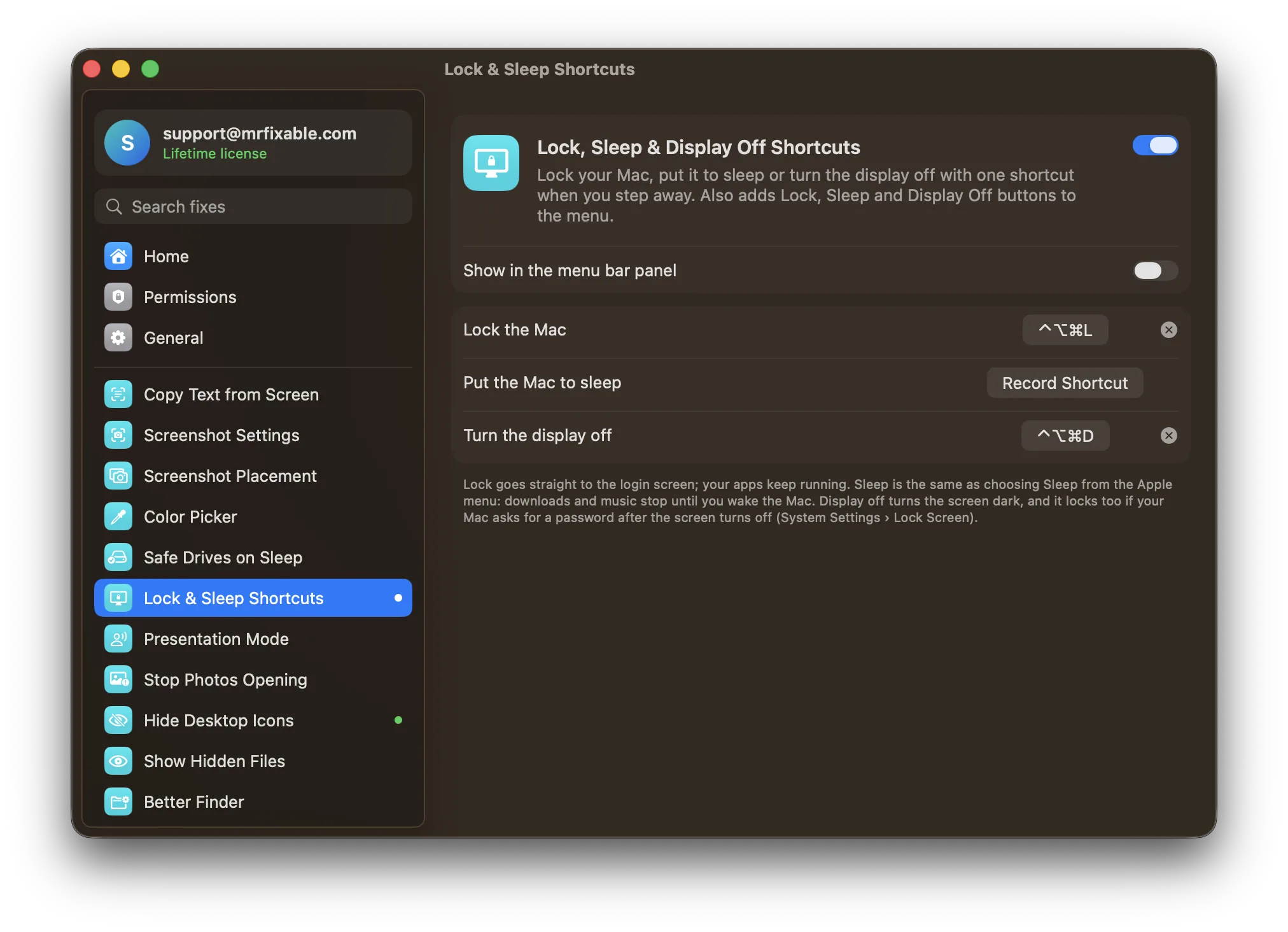
To make your Mac lock screen ask for a password right away, open System Settings › Lock Screen and set Require password after screen saver begins or display is turned off to Immediately. Then the Mac locks whenever the display turns off or it sleeps. MrFixable adds shortcuts that lock the Mac or turn the display off at once.
Your Mac may be set to wait a few minutes before it asks for your password after the screen turns off. That gap is handy at home and a risk at work, in a café or in a shared office: someone who wakes the Mac in time is straight in.
How to make your Mac ask for a password right away
- Open the Apple menu and choose System Settings.
- Click Lock Screen in the sidebar.
- Find Require password after screen saver begins or display is turned off.
- Choose Immediately from its pop-up menu. If macOS asks for your password to confirm, type it.
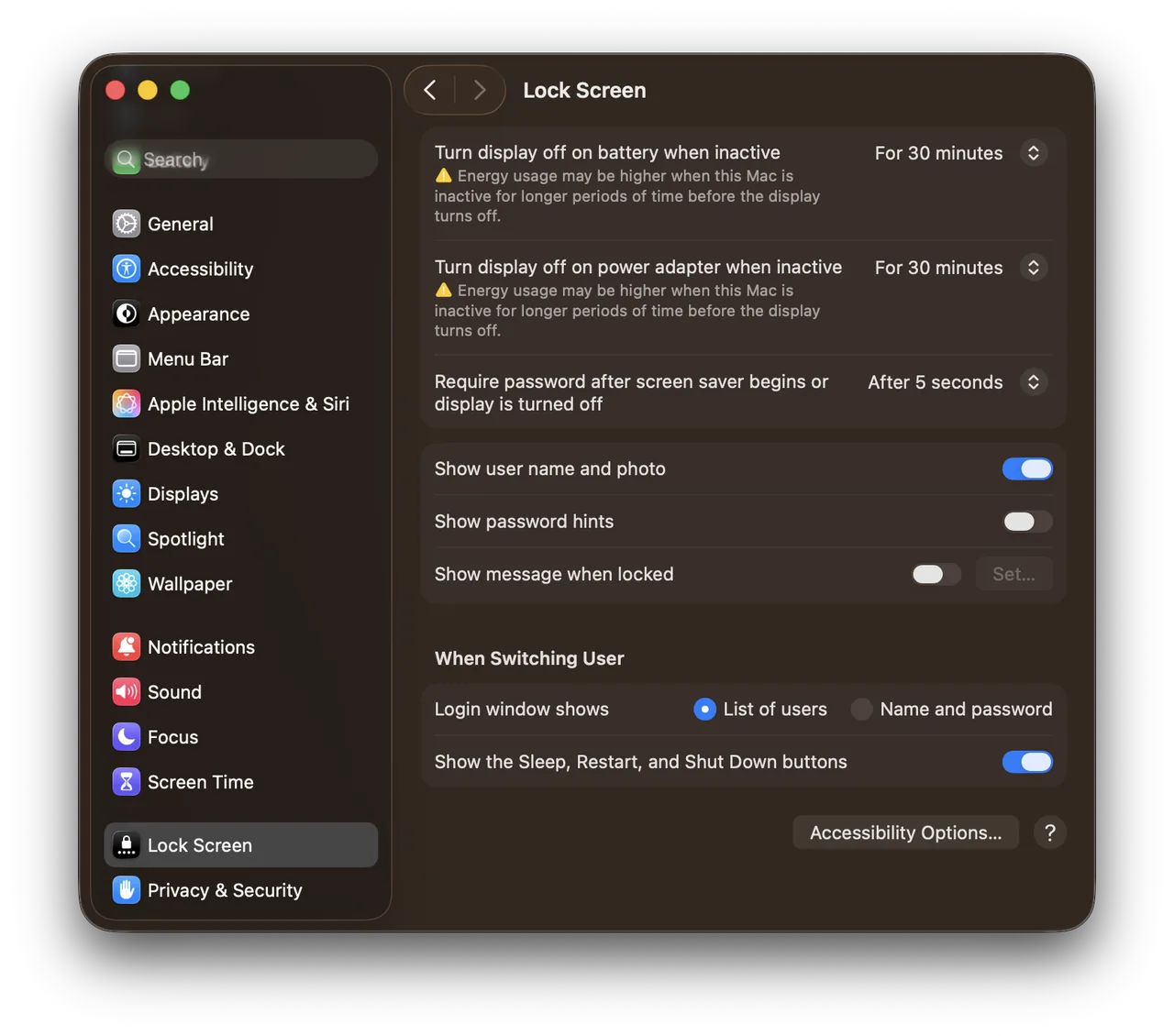
Real screenshot from a MacBook Pro (13-inch, M1, 2020) running macOS 26.1, taken October 22, 2026.
Now, as soon as the display turns off or the Mac goes to sleep, you need your password or Touch ID to get back in.
Choose how soon the display turns off
The password setting only kicks in once the display is off, so the other half is how long the Mac waits when you walk away without locking it. In the same System Settings › Lock Screen page:
- Set Turn display off on battery when inactive (on a MacBook) to a short time, such as a few minutes.
- Set Turn display off on power adapter when inactive to a time you're happy with.
Shorter times lock the Mac sooner, but the screen may turn off while you're reading. A few minutes is a fair middle ground.
What people see on the lock screen
The Lock Screen settings also control the login window:
- Show message when locked puts a short message on the lock screen, such as a phone number in case you lose your Mac.
- Login window shows chooses between a List of users and Name and password. Name and password asks for both, so nobody sees the account names.
- Show password hints shows your password hint in the login window. Leave it off on a shared or work Mac.
Lock it yourself when you walk away
The setting above covers the times you forget. When you leave on purpose, lock the Mac straight away:
- Press ⌃⌘Q (Control-Command-Q).
- Or choose Lock Screen from the Apple menu.
- Or, on a keyboard with Touch ID, press the Touch ID key once.
- Or set a Hot Corner to Lock Screen in System Settings › Desktop & Dock › Hot Corners.
The Mac lock screen shortcut guide goes through each one.
Lock or turn off the display with one shortcut
Lock, Sleep & Display Off Shortcuts in MrFixable gives you shortcuts that work with the setting above:
- ⌃⌥⌘L locks the Mac right away and goes straight to the login screen. Your apps keep running.
- ⌃⌥⌘D turns the display off. With Immediately set, that locks the Mac too, and music or downloads carry on.
- A sleep shortcut you choose yourself puts the whole Mac to sleep.
You can change the keys in the fix's settings, and the MrFixable menu gets Lock Now, Sleep and Display Off buttons. MrFixable costs $19.99 once (lifetime license) and has a 14-day free trial.
Questions
How do I lock my Mac screen with a shortcut?
Press ⌃⌘Q (Control-Command-Q). The Mac goes to the lock screen right away and always asks for your password or Touch ID to get back in, whatever the Lock Screen settings say. Your apps stay open. You can also choose Lock Screen from the Apple menu, or use a Hot Corner.
How do I lock my MacBook screen with a shortcut?
Press ⌃⌘Q, or press the Touch ID key once on a MacBook that has one. Closing the lid also works: the MacBook goes to sleep, and with Require password set to Immediately in System Settings › Lock Screen, it asks for your password as soon as you open it again.
How do I turn off my Mac display without sleep?
Press ⌃⇧ and the power button on a keyboard without Touch ID, or set a Hot Corner to Put Display to Sleep. Apps, downloads and music keep running. With Require password set to Immediately, the Mac is locked too. See how to turn off a Mac display without sleep.