
System & FinderSystem Stats in Menu Bar
Mac task manager in the menu bar
The Mac task manager is Activity Monitor: press ⌘Space (Command-Space), type Activity Monitor and press Return. To force quit a frozen app, press ⌥⌘Esc (Option-Command-Escape). System Stats in Menu Bar keeps CPU, GPU, temperature and memory in your menu bar, and one click lists the apps using the most, with a Quit button.
Try free for 14 daysBuy for $19.99 Lifetime license
One of 68 fixes in MrFixable. Lifetime license, no subscription. Updated October 22, 2026. Works on macOS 14.2 Sonoma and later. Checked on macOS 26 Tahoe.
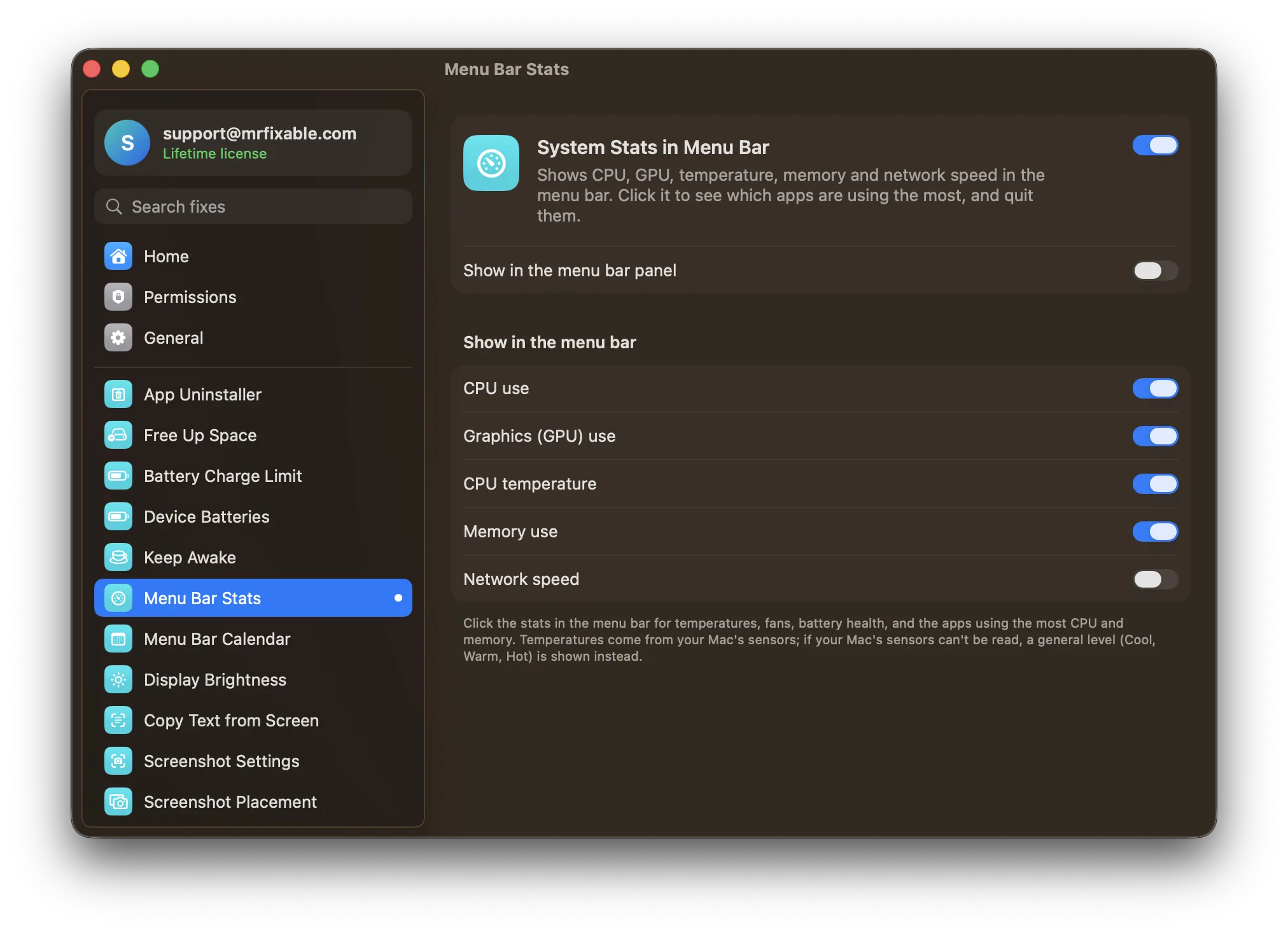
What System Stats in Menu Bar does
The problem
When your Mac gets slow or its fan spins up, macOS doesn't tell you why. Activity Monitor, the Mac's task manager, has the answer, but only once you open it and sort the right column.
With System Stats in Menu Bar
Your menu bar shows CPU, GPU, temperature and memory use, updated every 2 seconds. Click it to see the apps using the most, and quit one right there.
- Choose what to showCPU, GPU, CPU temperature and memory are on to begin with, and network speed is one switch away. If your Mac's sensors can't be read, a general level like Cool, Warm or Hot shows instead.
- Find what's slowing you downClick the stats to see the six apps using the most CPU and the six using the most memory, with each app's helpers counted together. Quit any of them, or Force Quit one that doesn't respond.
- More detail on clickThe panel also shows GPU temperature, fan speeds and network speed, and on a MacBook, the battery's temperature, health and cycle count. Open Activity Monitor is one click away for everything else.
Good to know
Parts of macOS, like Finder and the Dock, have no Quit button, because stopping them can cause problems.
Rows stay in place while your pointer is over the list, so you don't quit the wrong app.
⌥⌘Esc is the Mac's version of Ctrl+Alt+Delete: it opens Force Quit Applications, which still works with this fix on.
Apps are only measured while the panel is open. Switch the fix off and the stats leave your menu bar.
Questions
How do I open Task Manager on a Mac?
Press ⌘Space to open Spotlight, type Activity Monitor and press Return. You can also open Finder, go to Applications › Utilities and double-click Activity Monitor. For a frozen app, press ⌥⌘Esc to open Force Quit Applications instead. System Stats in Menu Bar puts the busiest apps one click from the menu bar.Is there a task manager for Mac?
Yes. The Mac's task manager is called Activity Monitor, in Applications › Utilities. It lists every app and process with its CPU, memory, energy, disk and network use, and can quit them. For quick force quits, ⌥⌘Esc works like Ctrl+Alt+Delete on Windows. Activity Monitor shows nothing until you open it, though.What is the Mac version of Task Manager?
Activity Monitor is the Mac version of Task Manager. It's a built-in app in Applications › Utilities that shows how much CPU, memory, energy, disk and network each app and process uses, and lets you quit or force quit them. Force Quit Applications, opened with ⌥⌘Esc, is the quicker way to close a frozen app.How do I use Task Manager on a Mac?
Open Activity Monitor with ⌘Space. Click the CPU or Memory tab, then click the % CPU or Memory column to sort by the biggest users. Select an app, click the Stop button (an X) in the toolbar, and choose Quit or Force Quit. System Stats in Menu Bar shows the top six of each list, with a Quit button.How do I get Task Manager on a Mac?
Activity Monitor is already on every Mac, in Applications › Utilities. To keep it handy, open it, Control-click its icon in the Dock and choose Options › Keep in Dock. Or turn on System Stats in Menu Bar, which keeps CPU, GPU, temperature and memory in the menu bar and lists the busiest apps.How do I check Task Manager on a Mac?
Open Activity Monitor and look at the CPU tab: the % CPU column shows which apps are working hardest, and the CPU Load graph at the bottom shows the whole Mac. The Memory tab's Memory Pressure graph shows whether you're short of memory. System Stats in Menu Bar keeps those numbers visible all the time.
Sources
Guides
- How to check your Mac's CPU temperature and fan speedHow to check CPU temperature on a Mac: what Terminal shows on Apple silicon and Intel, when a Mac is too hot, and a live reading in your menu bar.
- How to use the Mac task manager, Activity MonitorHow to use Activity Monitor, the Mac task manager: find what's using your CPU, memory and battery, quit a stuck process, and watch it all from the Dock.
- How to open Task Manager on a Mac (and force quit apps)The Mac's Task Manager is Activity Monitor, and its Ctrl-Alt-Delete is ⌥⌘⎋. How to open both, end a frozen app, and see what's slowing your Mac down.
- How to stop apps opening at startup on a MacRemove startup apps on a Mac in System Settings › General › Login Items & Extensions, and find out what the background items listed by developer really are.
Compare
- Coming from Windows?On Windows: Task Manager and Ctrl-Alt-Delete. System Stats in Menu Bar brings it to your Mac. See every Windows habit and its Mac fix.
- System Stats in Menu Bar vs iStat MenusiStat Menus is a detailed menu bar system monitor from Bjango, $11.99 for a single license with a 14-day free trial. MrFixable's System Stats in Menu Bar covers the core: CPU, GPU, temperature, memory and network speed in the menu bar, plus the apps using the most, with a Quit button. iStat Menus shows far more.