
macOS has no built-in way to see your Mac's CPU temperature in degrees, and Activity Monitor doesn't show it. On an Intel Mac, Terminal's sudo powermetrics --samplers smc command shows it. On Apple silicon, Terminal only reports a thermal pressure level, such as Nominal. To see the temperature itself, you need an app that reads the Mac's sensors.
Your Mac has dozens of temperature sensors, and macOS watches them all the time to decide how fast the fans spin and when to slow the processor down. It just doesn't show you the numbers.
Why doesn't Activity Monitor show the temperature?
Activity Monitor, the Mac's task manager and performance monitor, shows how hard each app makes the processor work, but not how hot it gets. The two are linked: an app using a lot of CPU for a long time is usually what makes a Mac hot. Its CPU tab finds that app: see how to use Activity Monitor.
Check the temperature in Terminal on an Intel Mac
- Open Terminal: press ⌘Space, type Terminal and press Return.
- Type this and press Return:
sudo powermetrics --samplers smc -n 1 - Enter your administrator password. Nothing appears while you type it: that's normal.
- Look for the CPU die temperature line, in degrees Celsius. Fan speeds are listed too.
The -n 1 takes one reading and stops. Leave it out to keep reading, and press ⌃C to stop.
Check thermal pressure on Apple silicon
Macs with Apple silicon (M1 and later) don't offer that reading: the command in the step above stops with an error. What macOS does report is thermal pressure, how much heat is holding the Mac back:
- In Terminal, type
sudo powermetrics --samplers thermal -n 1and press Return. - Enter your administrator password.
- Read the pressure level. Nominal means the Mac isn't too hot. Anything else means macOS is starting to slow the chip down to cool it.
To check which Mac you have, choose Apple menu › About This Mac. Chip with an M name means Apple silicon; Processor with Intel means an Intel Mac.
Is my Mac too hot?
There isn't one number that's "too hot": Apple doesn't publish a maximum for its chips. They're designed to run warm under load, and macOS protects them on its own. When the chip gets too hot, macOS slows it down and spins up the fans. You notice it as a loud fan or a slower Mac, not as damage.
What Apple does publish is the room temperature a Mac is made for: 10° to 35° C (50° to 95° F), in each Mac's technical specifications. Above that, it heats up faster.
The signs that heat is worth looking into:
- The fans run loud while you're doing nothing demanding.
- The Mac feels slow, and in Activity Monitor's CPU tab, kernel_task uses a lot. That's macOS slowing other apps to cool things down.
- The bottom of a MacBook is hot to the touch for a long time.
How to cool your Mac down
- Find the busy app. In Activity Monitor's CPU tab, sort by % CPU. Quit anything near the top you aren't using, such as a stuck browser tab or an export you forgot.
- Give it air. Use a MacBook on a hard, flat surface, not on a bed, a cushion or your lap under a blanket, which block the air it needs.
- Keep it out of the sun and away from heaters.
MacBook Air models with Apple silicon have no fan at all. They stay silent and slow down a little instead when they get hot, which is how they're designed.
The temperature in your menu bar
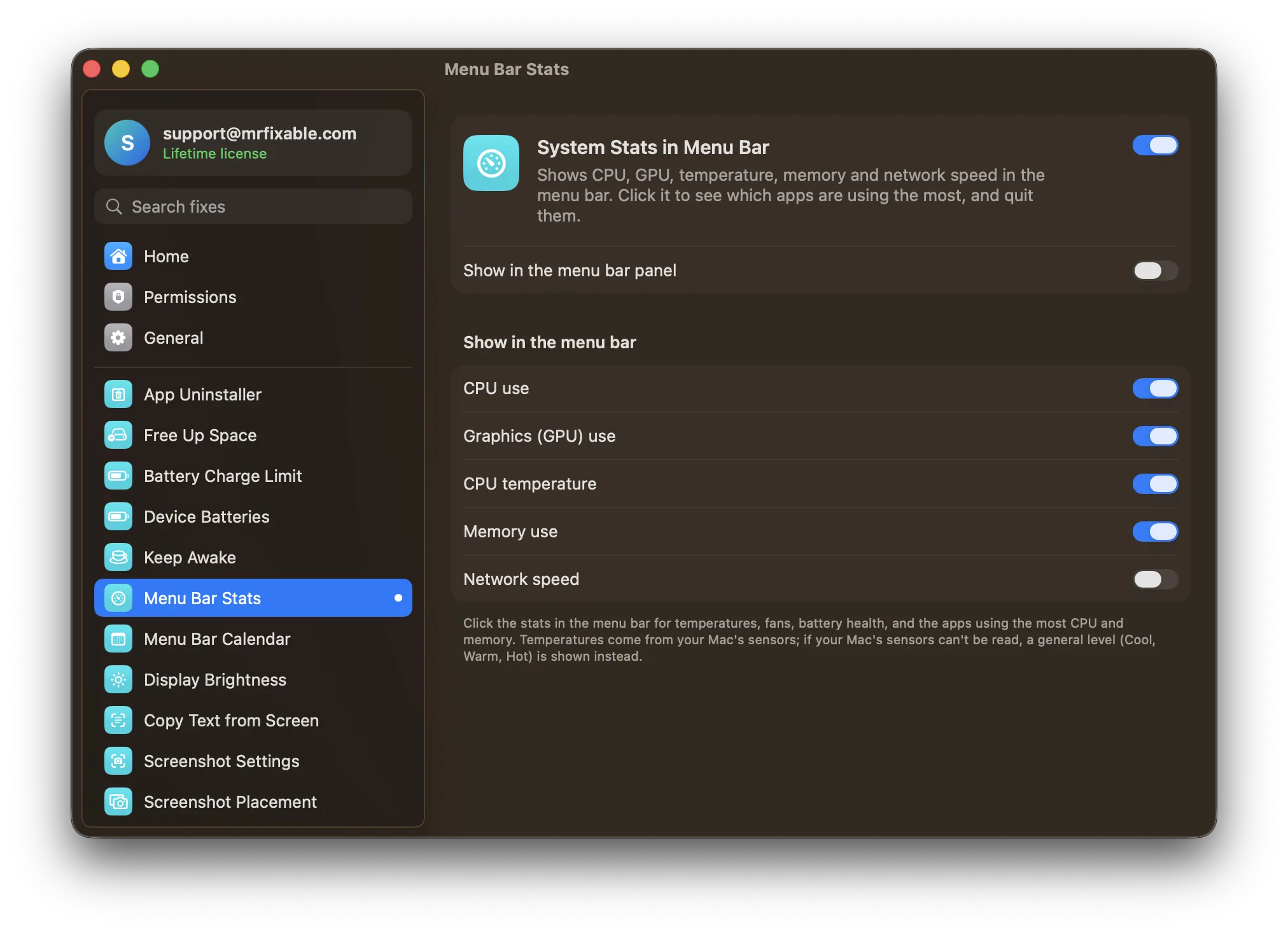
System Stats in Menu Bar in MrFixable reads your Mac's sensors, on Apple silicon and Intel, and shows the CPU temperature in the menu bar, next to CPU, GPU and memory use. No Terminal and no password.
- Click it for more: the GPU temperature, the speed of each fan in rpm, and your battery's temperature, health and cycle count on a MacBook.
- The apps using the most CPU are listed in the same panel, with a Quit button, so you can stop whatever is heating your Mac up.
- Each reading is a switch: show only the temperature in the menu bar if that's all you want.
If your Mac's sensors can't be read, it shows macOS's own general level instead: Cool, Warm, Hot or Very hot.
Questions
Does Activity Monitor show CPU temperature?
No. Activity Monitor shows how much of the processor each app uses, in its CPU tab, but no temperature. The CPU tab is still useful when your Mac is hot: sort by % CPU, and the app at the top is usually the one heating it up. For degrees, use Terminal or an app.
How do I check my Mac's fan speed?
On an Intel Mac, run sudo powermetrics --samplers smc -n 1 in Terminal, which lists each fan's speed. macOS has no built-in way to see it on Apple silicon. System Stats in Menu Bar shows every fan's speed in rpm when you click it, on any Mac that has fans.
Why is my Mac so hot?
Usually an app is keeping the processor busy. Open Activity Monitor, click the CPU tab and sort by % CPU to find it, then quit it if you don't need it. Blocked air vents, a soft surface, sunlight or a hot room make it worse, so check those too.