
The Mac task manager is Activity Monitor. Press ⌘Space, type Activity Monitor and press Return. Click the CPU, Memory or Energy tab, then click the % CPU, Memory or Energy Impact column title to put the busiest apps at the top. To end one, select it, click the Stop button (ⓧ) and choose Quit.
Activity Monitor shows a lot of numbers, and most of them don't matter day to day. This guide covers the few that tell you why your Mac is slow, hot or running out of battery, and what to do about it. To open it and force quit a frozen app, see how to open Task Manager on a Mac.
Find what's slowing your Mac down
- Open Activity Monitor and click the CPU tab.
- Click the % CPU column title until the arrow points down. The apps working hardest are now at the top.
- Watch the list for a few seconds. Something that stays near the top while you aren't using it is the likely cause.
A few things that help you read it:
- Over 100% is normal. 100% means one processor core fully busy, so an app using several cores can show 250%.
- kernel_task is macOS itself. When it's high, macOS is often slowing other apps down on purpose because the Mac is hot. Quitting the app that made it hot brings it down.
- Search with the field in the top-right corner to find one app, for example Chrome. Its helper processes show up too.
- View › All Processes shows everything, including parts of macOS. View › My Processes shows only what you started.
Check whether your Mac is short of memory
Click the Memory tab and look at the Memory Pressure graph at the bottom:
- Green: your Mac is using its memory well. Nothing to do.
- Yellow: it's getting short. Quit apps you don't need, starting with those at the top of the Memory column.
- Red: your Mac needs more memory than it has, and it slows down. Quit apps, or close browser tabs, which each take memory of their own.
"Memory Used" being close to your Mac's total is normal: macOS puts spare memory to work. The pressure graph is the number that counts.
Find what's draining your battery
Click the Energy tab:
- Energy Impact is how much power each app uses right now. Sort by it to find the hungry ones.
- 12 hr Power shows which apps used the most over the last 12 hours, even ones you've since quit.
- Preventing Sleep says Yes for apps that are keeping your Mac awake. If your Mac won't sleep, look here first.
How do I end a process in Activity Monitor?
Select the process in the list, click the Stop button (ⓧ) in the toolbar, and choose Quit or Force Quit. Quit is the same as ⌘Q in the app: it can ask you to save. Force Quit ends it at once, so unsaved work in it is lost. Try Quit first.
- Select the app or process. A stuck one says (Not Responding) in red.
- Click the Stop button (ⓧ) in the toolbar.
- Click Quit. If nothing happens after a few seconds, do it again and click Force Quit.
Leave parts of macOS alone. kernel_task can't be quit, and force quitting WindowServer closes all your apps and logs you out. If you don't recognize a name, search for it before you end it.
Keep an eye on it from the Dock
Activity Monitor only helps while it's open. Two ways to keep it in view:
- CPU in the Dock icon: choose View › Dock Icon › Show CPU Usage. The Activity Monitor icon turns into a live graph.
- A small floating graph: choose Window › CPU History or Window › CPU Usage.
To keep Activity Monitor one click away, right-click its Dock icon and choose Options › Keep in Dock.
The stats in your menu bar, all the time
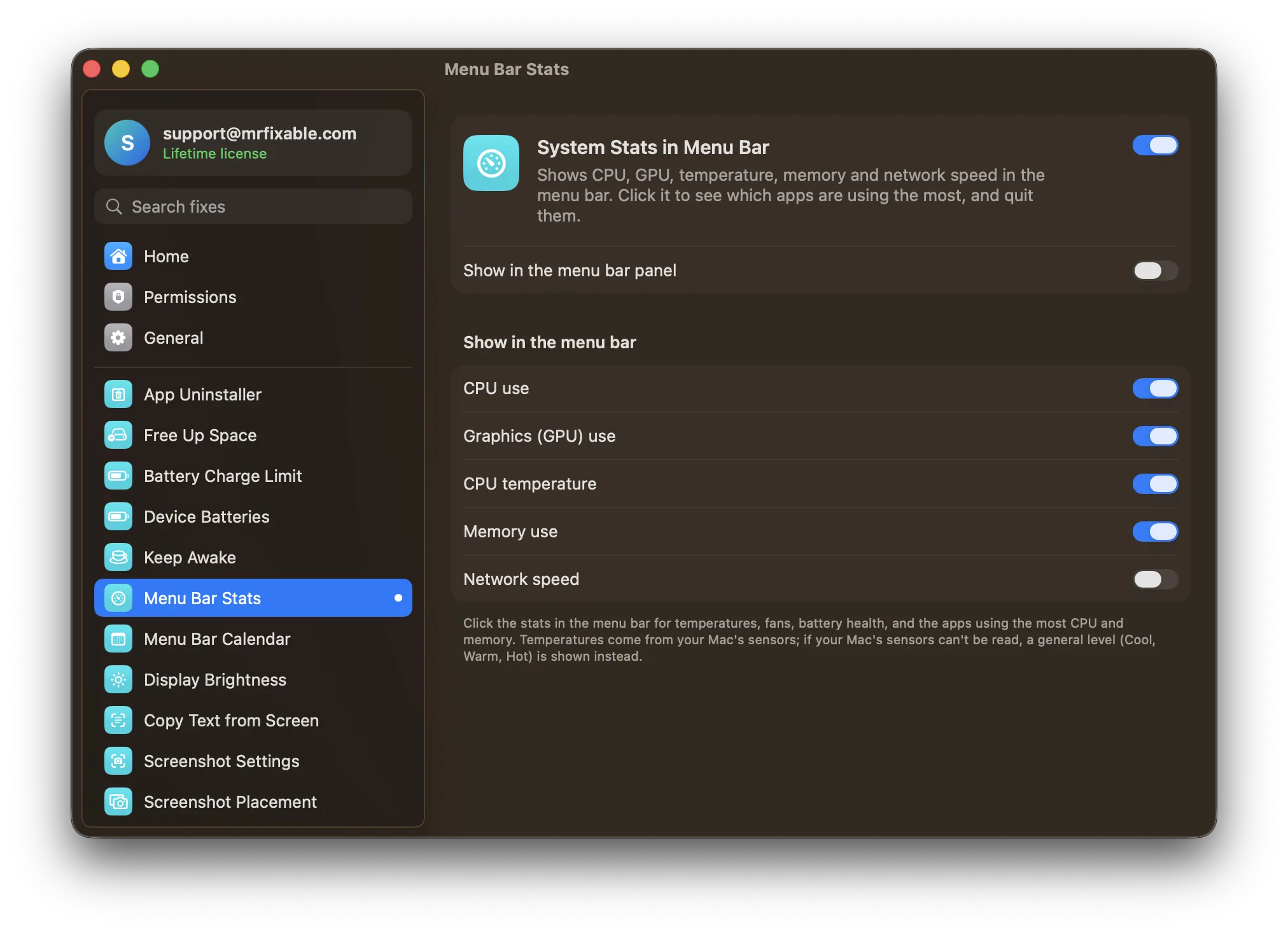
System Stats in Menu Bar in MrFixable keeps the numbers you'd open Activity Monitor for in your menu bar, updated every 2 seconds:
- CPU, GPU, CPU temperature and memory use, each one a switch. Network speed can be added too.
- Click it to see the six apps using the most CPU and the six using the most memory, with a Quit button next to each. If an app doesn't quit, the button turns into Force Quit.
- Rows stay in place while your pointer is over the list, so the app you're about to quit doesn't slide away.
- Parts of macOS get no Quit button, so you can't stop something important by accident.
- Fan speeds and battery health are in the same panel on Macs that have fans and a battery, with an Open Activity Monitor button for everything else.
It doesn't replace Activity Monitor: it tells you when to open it, and handles the common case, a busy app you want to quit, from the menu bar.
Questions
What is the Mac version of Task Manager?
Activity Monitor, in Applications › Utilities. It lists every running app and process with how much processor, memory, energy, disk and network each one uses, and it can quit them. For a frozen app, Force Quit Applications (⌥⌘⎋) is quicker. Both come with every Mac.
How do I access Task Manager on a Mac?
Press ⌘Space, type Activity Monitor and press Return. You can also open Finder, choose Go › Utilities (⇧⌘U) and double-click Activity Monitor. To keep it handy, right-click its Dock icon while it's open and choose Options › Keep in Dock.
Is there a Task Manager shortcut on a Mac?
Not for Activity Monitor itself: pressing ⌘Space and typing its name is the quickest way, and keeping it in the Dock makes it one click. The shortcut most people want is ⌥⌘⎋ (Option-Command-Esc), which opens Force Quit Applications, the Mac's version of Ctrl-Alt-Delete for a frozen app.
Sources
- What’s it called on my Mac?
- Mac keyboard shortcuts
- Activity Monitor User Guide for Mac
- View information about Mac processes in Activity Monitor
- Quit an app or process in Activity Monitor on Mac
- If kernel_task is using a large percentage of your Mac CPU
- Check if your Mac needs more RAM in Activity Monitor
- View memory usage in Activity Monitor on Mac
- View energy consumption in Activity Monitor on Mac
- View CPU activity in Activity Monitor on Mac
- Use the Dock on Mac
- How to force an app to quit on Mac