
A Mac's Task Manager is called Activity Monitor. To open it, press ⌘Space, type Activity Monitor and press Return, or find it in Applications › Utilities. For a frozen app, the Mac's Ctrl-Alt-Delete is ⌥⌘⎋ (Option-Command-Esc), which opens Force Quit Applications: select the app and click Force Quit.
On Windows, Ctrl-Alt-Delete opens Task Manager: you see what's running, what's using the processor and memory, and you click End task on whatever froze. A Mac has all of this, split between two places with different names.
What is Ctrl-Alt-Delete on a Mac?
When an app stops responding, press Option-Command-Esc (⌥⌘⎋). The Force Quit Applications window opens: pick the app and click Force Quit. This is the Mac's Ctrl-Alt-Delete, and it works even when the frozen app won't let you do anything else.
Two other ways:
- Click the Apple menu › Force Quit…
- Right-click the app's Dock icon, hold Option, and choose Force Quit.
Force Quit doesn't let the app save, so unsaved work in it is lost. If the app still responds, quit it normally with ⌘Q first.
Where is Task Manager on a Mac?
To see everything that's running, open Activity Monitor: press ⌘Space, type Activity Monitor and press Return. (It also lives in Applications › Utilities.)
- The CPU, Memory, Energy, Disk and Network tabs work like the columns in Task Manager. Click a column title to sort by it, for example % CPU to find what's making your Mac hot or slow.
- To end something, select it and click the ⓧ button in the toolbar, then Quit (or Force Quit if it's stuck). That's End Task.
There's no built-in shortcut that opens Activity Monitor directly. To keep it one click away, open it, right-click its Dock icon and choose Options › Keep in Dock.
Questions
What if Force Quit doesn't work?
If the whole Mac is frozen and ⌥⌘⎋ does nothing, press and hold the power button (Touch ID on newer MacBooks) for about 10 seconds until the Mac turns off. Then press it again to start up. Unsaved work in open apps is lost.
What does Memory Pressure mean in Activity Monitor?
It's the graph at the bottom of the Memory tab. Green means your Mac has enough memory for what you're doing. Yellow or red means it's running short, and quitting apps you don't need, or ones using a lot of memory, helps.
Keeping an eye on it all the time
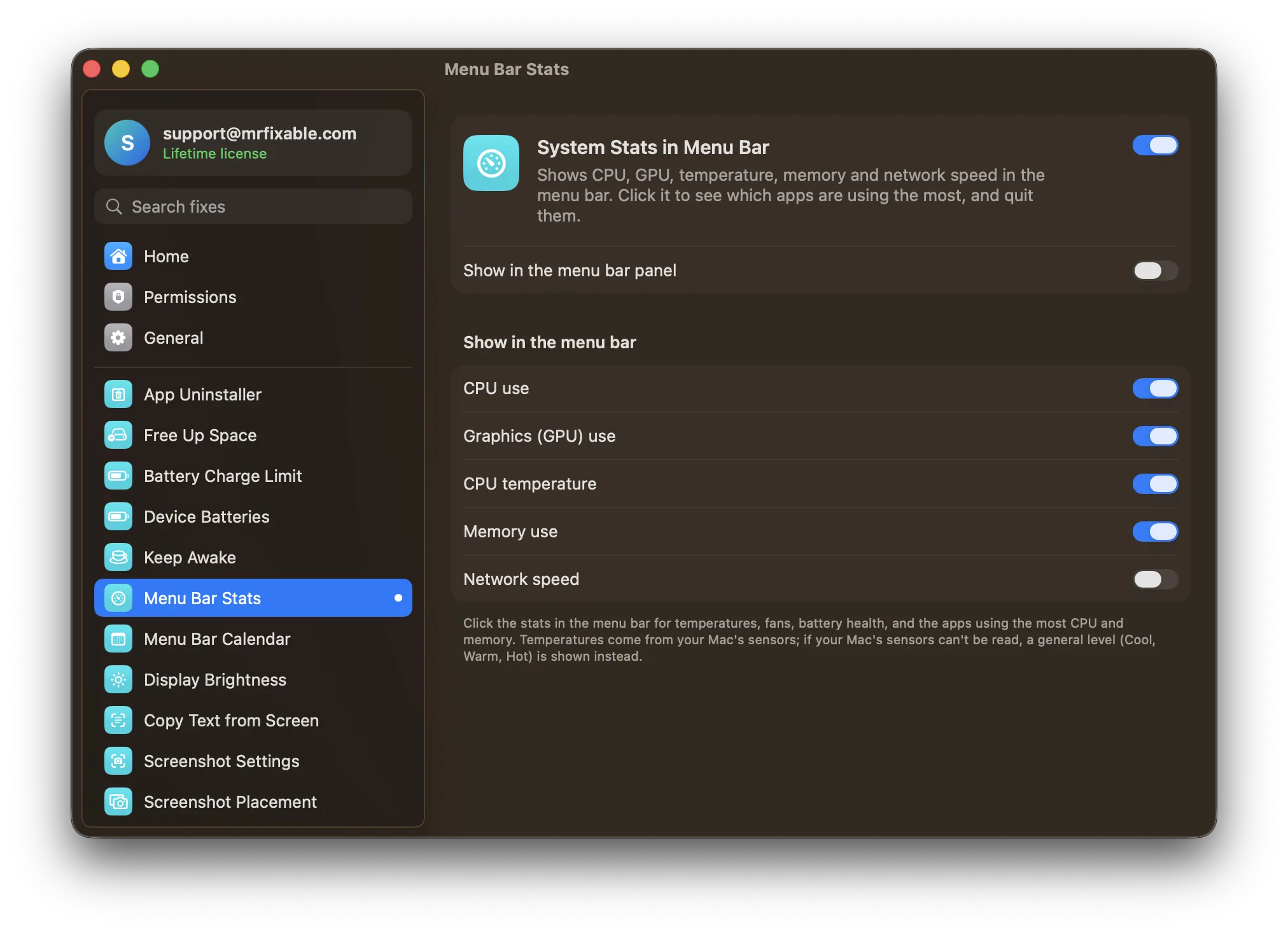
Activity Monitor tells you what's wrong only once you open it. System Stats in Menu Bar in MrFixable keeps the essentials in your menu bar: CPU, GPU, temperature, memory and network speed. Click it to see which apps are using the most right now, and quit one from there, so a fan that suddenly spins up is never a mystery.
Coming from Windows? See everything else that works differently on a Mac, and how to fix it.