
To take a screenshot on a Mac, press ⇧⌘3 for the whole screen, ⇧⌘4 to drag over part of it, or ⇧⌘5 for every option. Screenshots are saved on your desktop by default; change the folder in ⇧⌘5 › Options › Save to. Macs have no Print Screen key, so these shortcuts, all starting with ⇧⌘ (Shift-Command), replace it.
The shortcuts
| Press | To capture |
|---|---|
| ⇧⌘3 | The whole screen |
| ⇧⌘4, then drag | Part of the screen |
| ⇧⌘4, then Space, then click a window | One window |
| ⇧⌘5 | The Screenshot toolbar: every option, plus screen recording |
Add Control (⌃⇧⌘3 or ⌃⇧⌘4) to copy the screenshot to the clipboard instead of saving a file, ready to paste into a message or document. That's the closest thing to Print Screen on Windows.
On a Windows keyboard, the Print Screen key does nothing on a Mac by default. To use it, open System Settings › Keyboard › Keyboard Shortcuts › Screenshots, click the shortcut you want, and press Print Screen.
Where are screenshots saved on a Mac?
By default, screenshots are saved on your desktop, named "Screenshot" with the date and time. For a few seconds after you take one, a thumbnail floats in the corner of the screen: click it to mark up the screenshot, or drag it straight into an app.
How do I change where screenshots are saved?
- Press ⇧⌘5.
- Click Options.
- Under Save to, choose Documents, Clipboard, an app, or Other Location… for any folder.
From then on, every screenshot goes there.
The settings that are hard to change
Some screenshot settings are buried, or need Terminal commands:
- The format. Screenshots are PNG files, which can be large. JPG or HEIC are much smaller.
- The shadow around window screenshots, which adds a wide empty border. (Holding Option while clicking the window leaves it out, one screenshot at a time.)
- The floating thumbnail. While it's showing, the screenshot isn't saved yet, which can be a nuisance when you take several in a row. You can turn it off in ⇧⌘5 › Options.
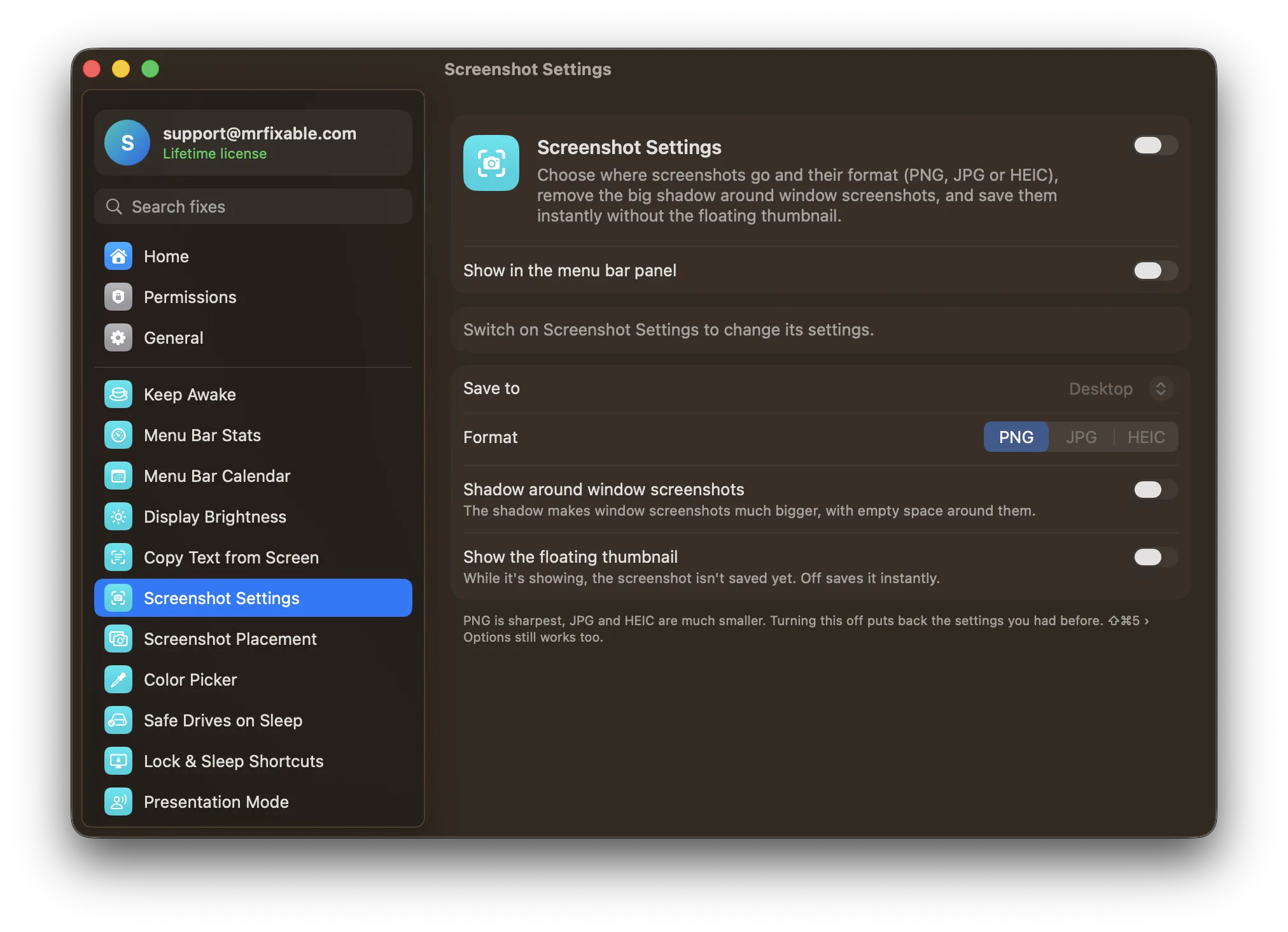
Screenshot Settings in MrFixable puts all of these in one place: choose the folder, the format (PNG, JPG or HEIC), turn off the window shadow, and save instantly without the floating thumbnail. Turning it off puts back the settings you had before.
Questions
Where are my screenshots going?
Press ⇧⌘5 and click Options: the place ticked under Save to is where they go. If Clipboard is ticked, screenshots aren't saved as files at all, only copied. You can also search for "Screenshot" with Spotlight (⌘Space) to find recent ones.
Why is my Mac screenshot shortcut not working?
Open System Settings › Keyboard › Keyboard Shortcuts › Screenshots and check that the shortcuts are turned on and set to the keys you expect. Another app can also take over a screenshot shortcut for itself, so try again with that app quit.
Can I change the screenshot format without an app?
Yes, in Terminal: defaults write com.apple.screencapture type jpg switches to JPG (use heic, or png to go back), and killall SystemUIServer makes it take effect. ⇧⌘5's Options has no PNG or JPG choice.
Why do screenshots from my second monitor show up on my MacBook's desktop?
macOS shows desktop files only on your main display, so every screenshot saved to the Desktop appears there, whichever screen you took it on. Screenshots on the Screen You Took Them puts each one, and its preview, on the screen where you took it.
Copy the text in a screenshot
Taking a screenshot just to grab the text in it, from a video, an image or a PDF you can't select? Copy Text from Screen lets you drag over any part of the screen and copies the text in it. It all happens on your Mac.
Coming from Windows? See everything that works differently on a Mac.