
System & FinderScreenshots on the Screen You Took Them
Mac screenshot on a second monitor
To take a Mac screenshot of a second monitor, press ⇧⌘4 and drag across that screen, or press ⇧⌘3 to save one file per screen. macOS puts them all on the main display’s desktop, though. Screenshots on the Screen You Took Them puts each one on the desktop of the monitor you took it on, with its preview there too.
Try free for 14 daysBuy for $19.99 Lifetime license
One of 68 fixes in MrFixable. Lifetime license, no subscription. Updated October 22, 2026. Works on macOS 14.2 Sonoma and later. Checked on macOS 26 Tahoe.
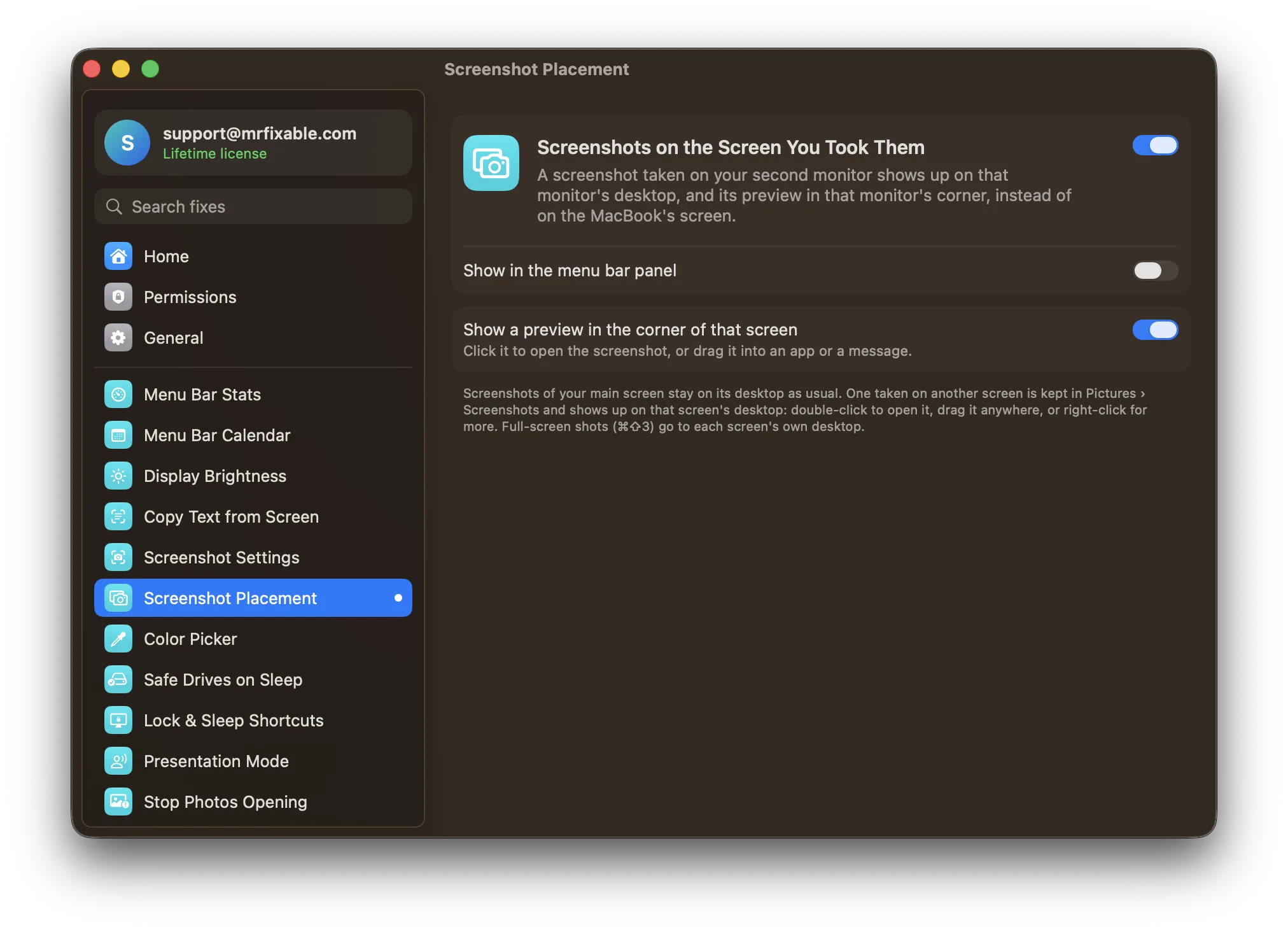
What Screenshots on the Screen You Took Them does
The problem
You take a screenshot on your external monitor, and it appears on your MacBook’s desktop instead. The floating preview shows up on the other screen too, so you have to look away from what you’re doing to find it.
With Screenshots on the Screen You Took Them
A screenshot taken on another screen shows up on that screen’s desktop, and its preview appears in that screen’s corner. Screenshots of your main screen stay on its desktop as usual.
- On the right desktopA screenshot from another screen is kept in Pictures › Screenshots and shows as an icon on that screen’s desktop. Double-click to open it, or drag it anywhere.
- Right-click like a desktop fileOpen it, show it in Finder, copy it, remove it from that desktop (the file stays), or move it to the Trash.
- Preview where you’re lookingThe preview appears in the corner of the screen you took the screenshot on. Click it to open the screenshot, or drag it into an app or a message. You can turn the preview off.
- Full-screen shots too⇧⌘3 makes one file per screen, and each goes to its own screen’s desktop.
- Knows your monitorsUnplug a monitor and its screenshots wait. Plug it back in and they show on its desktop again.
Good to know
No special permissions. If your screenshots are saved on the Desktop, macOS may ask once to let MrFixable read the Desktop folder.
Screenshots saved on the Desktop, the macOS default, move to the right screen’s desktop. If you save them to another folder, they stay there, and the preview still appears on the screen you took them on.
While it’s on, MrFixable shows its own preview instead of macOS’s, so the file is saved at once. Switch it off and macOS’s own preview comes back.
Questions
How do I take a screenshot of my second monitor on a Mac?
Press ⇧⌘4 and drag across the second monitor. 1. Press Shift, Command and 4 together. 2. Move the pointer onto the second monitor. 3. Drag over the part you want and let go. To capture everything, press ⇧⌘3 instead: macOS saves one file for each screen you have connected.Why do screenshots from my second monitor end up on my MacBook’s desktop?
Because macOS shows the files in your Desktop folder only on your main display. Every screenshot saved to the Desktop appears there, whichever screen you took it on. Screenshots on the Screen You Took Them moves screenshots from other screens to Pictures › Screenshots and shows them on the desktop of the screen you took them on.How do I screenshot only one screen with two monitors?
Use ⇧⌘4 instead of ⇧⌘3. 1. Press ⇧⌘4. 2. Drag across the screen you want, from corner to corner. Or, to capture a single window: 1. Press ⇧⌘4. 2. Press the Space bar. 3. Click the window. ⇧⌘3 always captures every screen, as one file per screen.Where are screenshots from the second screen saved?
In Pictures › Screenshots, while this fix is on. They also show as icons on the desktop of the screen you took them on, so you can open or drag them right away. Screenshots of your main screen stay in the Desktop folder as usual. Without the fix, every screenshot goes to the Desktop folder.How do I change where Mac screenshots are saved?
Use the Screenshot toolbar. 1. Press ⇧⌘5. 2. Click Options. 3. Under Save to, choose a folder, or click Other Location to pick your own. New screenshots go there from now on. If you save them somewhere other than the Desktop, the fix leaves them there and still shows the preview on the right screen.How do I turn off the screenshot preview on a Mac?
Press ⇧⌘5, click Options and deselect Show Floating Thumbnail. With Screenshots on the Screen You Took Them on, macOS’s own preview is replaced by MrFixable’s, which appears on the screen you took the screenshot on. To turn that off too, deselect Show a preview in the corner of that screen in the fix’s settings.Can I still use ⇧⌘4 and ⇧⌘5?
Yes. Take screenshots the way you always do, with ⇧⌘3, ⇧⌘4, ⇧⌘5 or the Screenshot app. The fix only changes where they show up afterwards: on the desktop and in the corner of the screen you took them on, instead of on your main display. Nothing else about taking them changes.