
System & FinderScreenshot Settings
Mac screenshot settings
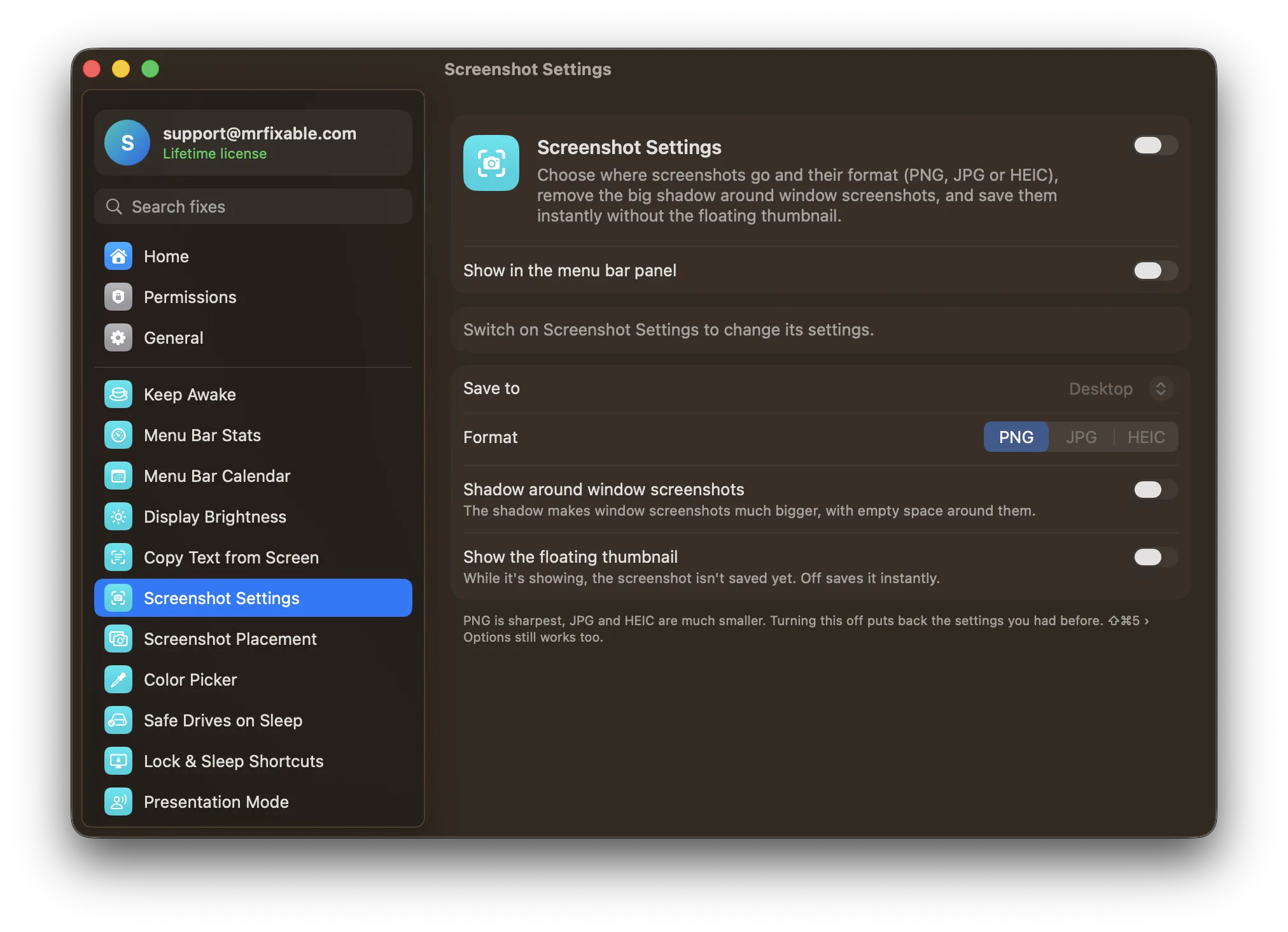
Mac screenshot settings live in ⇧⌘5 › Options: Save to picks the folder, and Show Floating Thumbnail turns off the preview. The file format and the shadow around window screenshots need Terminal commands. Screenshot Settings puts all four in one place: any folder, PNG, JPG or HEIC, no shadow, and screenshots saved the moment you take them.
Try free for 14 daysBuy for $19.99 Lifetime license
One of 68 fixes in MrFixable. Lifetime license, no subscription. Updated October 22, 2026. Works on macOS 14.2 Sonoma and later. Checked on macOS 26 Tahoe.
What Screenshot Settings does
The problem
Screenshots land on your desktop as PNG files, window screenshots get a wide shadow border, and each one waits behind a floating thumbnail for a few seconds before it's saved. ⇧⌘5 › Options changes the folder and turns off the thumbnail, but the format and the shadow need Terminal commands.
With Screenshot Settings
Choose the folder, the format and the shadow in one place, and screenshots are saved the moment you take them. Every screenshot shortcut uses your choices, even when MrFixable isn't running.
- Any folderSave to Desktop, Downloads, Documents, Pictures › Screenshots or any other folder. It starts with wherever your screenshots go now, so nothing moves until you choose.
- PNG, JPG or HEICPNG is sharpest. JPG and HEIC are much smaller, which helps when you send screenshots or keep a lot of them.
- No shadow, no waitWindow screenshots come without the big shadow, and the floating thumbnail is off, so each screenshot is saved instantly. Turn either back on if you like.
Good to know
These are macOS's own screenshot settings, so ⇧⌘3, ⇧⌘4 and ⇧⌘5 all use them, and ⇧⌘5 › Options still works too.
If a screenshot shortcut does nothing, check System Settings › Keyboard › Keyboard Shortcuts › Screenshots, where each shortcut can be turned off.
Switch it off and the settings you had before come back.
Questions
Where are my screenshots going on a Mac?
To your desktop, unless you changed it. Press ⇧⌘5 and click Options: the place with a checkmark under Save to is where they go. If you held ⌃ (Control) with the shortcut, the screenshot went to the clipboard instead, so paste it with ⌘V. Screenshot Settings shows the current folder too.Where are screenshots saved on a Mac?
On the desktop, as PNG files whose names start with Screenshot followed by the date and time. That's macOS's default for ⇧⌘3, ⇧⌘4 and ⇧⌘5. You can pick another folder in ⇧⌘5 › Options › Save to. Screenshot Settings starts from wherever yours go now, so nothing moves until you choose.How do I change the screenshot location on a Mac?
Press ⇧⌘5 to open the Screenshot toolbar. Click Options, then choose Desktop, Documents, Clipboard, Mail, Messages or Preview under Save to, or choose Other Location to pick any folder. Screenshots go there from now on. Screenshot Settings does the same from MrFixable, with Pictures › Screenshots as a ready choice.How do I change the default screenshot location on a Mac?
Press ⇧⌘5, click Options and choose Other Location, then pick a folder. That becomes the default for every screenshot shortcut, ⇧⌘3 and ⇧⌘4 included, until you change it. Screenshot Settings sets the same default, and creates the folder if it doesn't exist yet, such as Pictures › Screenshots.How do I change my Mac's screenshot settings?
Press ⇧⌘5 and click Options to change the save folder, a timer, the pointer and the floating thumbnail. For the file format and the window shadow, macOS has only Terminal commands. Turn on Screenshot Settings to change the folder, PNG, JPG or HEIC, the shadow and the thumbnail in one window.How do I locate screenshots on a Mac?
Look on your desktop first, where macOS saves them by default. If they're not there, open Finder, press ⌘F and search for Screenshot, since each file name starts with that word. Or press ⇧⌘5 and click Options to see which place is checked under Save to.
Sources
Guides
- How to screenshot on a Mac, and where screenshots are savedMac screenshot shortcuts (⇧⌘3, ⇧⌘4, ⇧⌘5), where screenshots are saved, how to change their folder and format, and what to check when a shortcut stops working.
- How to screen record on a Mac with sound and internal audioMac screen recording with no sound? ⇧⌘5 records your microphone but not your Mac's own audio before macOS 27. How to record both, with BlackHole or without.
Compare
- Coming from Windows?On Windows: Print Screen. Screenshot Settings brings it to your Mac. See every Windows habit and its Mac fix.
- Screenshot Settings vs OnyXThe best OnyX alternative for Mac depends on what you use OnyX for. OnyX is a free utility that checks your disk, rebuilds indexes, clears caches and changes many hidden settings. MrFixable covers the everyday parts as simple switches, such as Free Up Space, App Uninstaller, Show Hidden Files and Screenshot Settings, for $19.99 once.
- Screenshot Settings vs TinkerToolTinkerTool is a free Mac app that switches on hidden macOS settings, such as showing hidden files or changing the screenshot format. Several MrFixable fixes change the same settings with one switch each. TinkerTool covers far more settings. MrFixable’s 68 fixes also include features that run, like Window Snapping, which no hidden setting can add.