
Windows & DockInstant Dock
Remove the Mac Dock delay
The Mac Dock delay is the pause before a hidden Dock slides in, and System Settings has no option for it. In Terminal, defaults write com.apple.dock autohide-delay -float 0; killall Dock removes it. Instant Dock does the same with one switch, and lets you choose an Instant, Fast or Normal slide.
Try free for 14 daysBuy for $19.99 Lifetime license
One of 68 fixes in MrFixable. Lifetime license, no subscription. Updated October 22, 2026. Works on macOS 14.2 Sonoma and later. Checked on macOS 26 Tahoe.
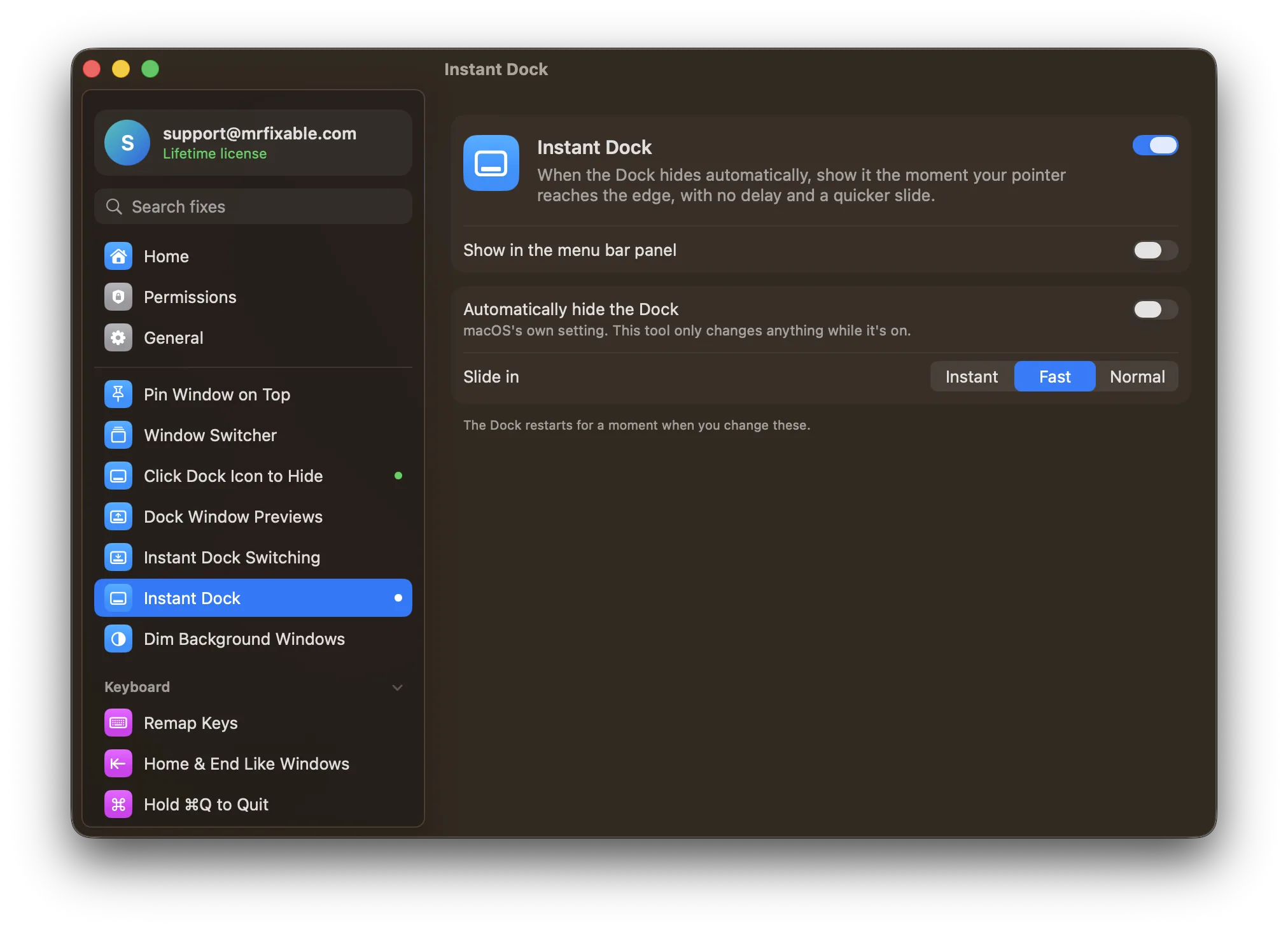
What Instant Dock does
The problem
With the Dock set to hide automatically, it waits a moment after your pointer reaches the edge of the screen, then slides in slowly. System Settings lets you hide the Dock, but has no setting for the delay or the speed. The usual fix is Terminal commands you have to look up and undo by hand.
With Instant Dock
The hidden Dock shows up the moment your pointer reaches the edge, with no delay. It slides in quickly, or instantly if you prefer.
- No waitingThe delay before the Dock appears is set to zero, so it's there as soon as your pointer touches the edge.
- Pick the slideChoose Instant, Fast or Normal for how the Dock slides in. Fast is the default, and Normal keeps macOS's own speed.
- Auto-hide in the same placeAutomatically hide the Dock is right there in the fix's settings. It's macOS's own setting, and this fix only changes anything while it's on.
Good to know
No permissions needed.
The Dock restarts for a moment when you change these settings.
The settings are kept by macOS, so the Dock stays quick even when MrFixable is closed.
Switch it off and the delay and speed you had before come back.
Questions
How do I make the Mac Dock appear faster?
Turn on Instant Dock in MrFixable. If your Dock doesn't hide yet, switch on Automatically hide the Dock in the fix's settings. Then choose Instant, Fast or Normal for the slide. The Dock restarts for a moment, and from then on it appears as soon as your pointer reaches the edge of the screen.How do I stop the Dock from disappearing on a Mac?
Open System Settings › Desktop & Dock and turn off Automatically hide and show the Dock, or press ⌥⌘D (Option-Command-D). The Dock then stays on screen all the time. If you like the extra space but not the wait, keep it hidden and turn on Instant Dock so it appears without a delay.Why is my Mac Dock slow to appear?
With Automatically hide and show the Dock on, macOS waits about half a second after your pointer reaches the edge, then slides the Dock in. That wait is the autohide-delay setting, which System Settings doesn't show. Instant Dock sets it to zero, and its Fast or Instant slide shortens the animation too.Can I change the Mac Dock animation speed?
Yes. The slide speed is the hidden autohide-time-modifier setting. In Terminal, defaults write com.apple.dock autohide-time-modifier -float 0.3; killall Dock speeds it up. In Instant Dock, pick Instant for no slide, Fast for a quick one, or Normal to keep macOS's own speed. Fast is the default.Does it keep working when MrFixable is closed?
Yes. The delay and slide speed are macOS settings, so macOS keeps them and the Dock stays quick even when MrFixable isn't running. Switch Instant Dock off and MrFixable puts back the exact values you had before, including any you set yourself in Terminal. The Dock restarts for a moment.