
Windows & DockKeep Desktops in Order
Mac desktops keep changing order: how to stop it
Mac desktops keep changing order because macOS rearranges Spaces by which one you used most recently. To stop it, open System Settings › Desktop & Dock and, under Mission Control, turn off “Automatically rearrange Spaces based on most recent use”. Keep Desktops in Order switches that same setting off for you.
Try free for 14 daysBuy for $19.99 Lifetime license
One of 68 fixes in MrFixable. Lifetime license, no subscription. Updated October 22, 2026. Works on macOS 14.2 Sonoma and later. Checked on macOS 26 Tahoe.
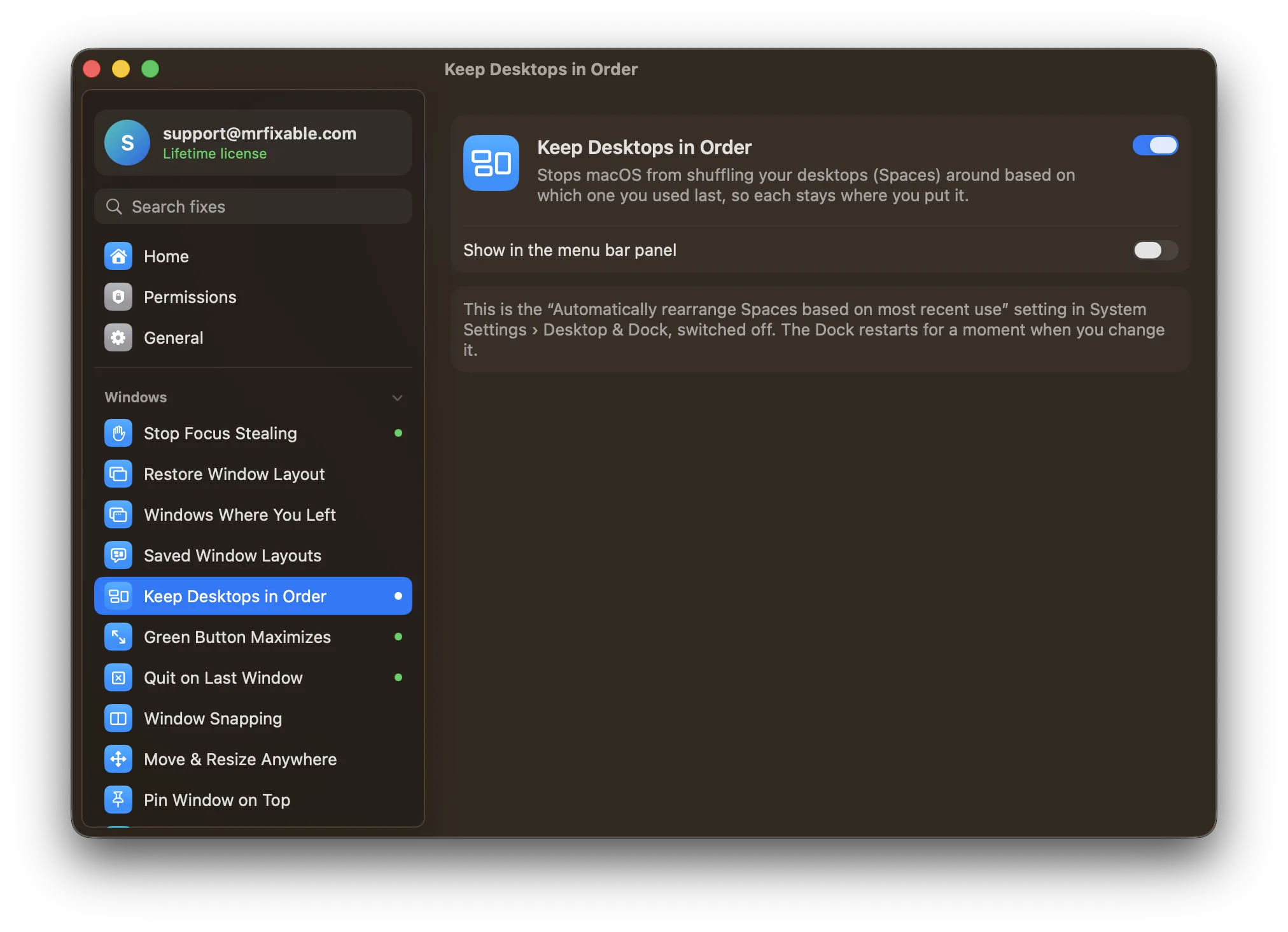
What Keep Desktops in Order does
The problem
macOS moves your desktops (Spaces) around based on which one you used last, so the desktop you keep for email isn't where you left it, and ⌃→ takes you somewhere else each time. The switch for it is on by default, and it's tucked away in System Settings › Desktop & Dock under Mission Control.
With Keep Desktops in Order
Your desktops stay in the order you put them. Desktop 2 is always Desktop 2, so swiping and ⌃← and ⌃→ take you where you expect.
- One switch, no huntingIt switches off macOS's own “Automatically rearrange Spaces based on most recent use” setting for you. No Terminal, and nothing to find in settings.
- Works without MrFixable runningmacOS keeps the setting, so your desktops stay in order even when MrFixable is closed.
- Takes effect right awayThe Dock restarts for a moment when you switch it on or off, and the change applies straight away.
Good to know
No permissions needed.
It changes a macOS setting, so you can also see it in System Settings › Desktop & Dock.
It keeps desktops where they are. To put them in a new order, drag them in Mission Control.
Switch it off and macOS's default comes back: desktops are rearranged by most recent use again.
Questions
How do I change the order of screens on a Mac?
1. Press ⌃↑ (Control-Up Arrow) or F3 to open Mission Control. 2. Drag the desktops in the row along the top into the order you want. 3. Turn on Keep Desktops in Order so they stay that way. To change how your monitors are arranged instead, open System Settings › Displays and click Arrange.Why do my desktops keep changing order on Mac?
macOS has a setting, on by default, that rearranges Spaces based on most recent use. When you jump to a desktop, for example by switching to an app that's on it, macOS can move it next to the one you were on, so the order keeps changing. Turning that setting off, or using Keep Desktops in Order, stops it.How do I stop Spaces from rearranging on Mac?
Open System Settings › Desktop & Dock, scroll to Mission Control and turn off “Automatically rearrange Spaces based on most recent use”. Your desktops then stay in the order you put them. Keep Desktops in Order switches the same setting off for you, and switches it back on when you turn the fix off.What are virtual desktops, or Spaces, on a Mac?
Spaces are macOS's virtual desktops: separate screens of windows you switch between. Open Mission Control with ⌃↑ and click the + at the top right to add one. Move between them with ⌃← and ⌃→, or swipe left or right with three or four fingers on the trackpad.Is this the same as the setting in System Settings?
Yes, it's the same macOS setting. It's in MrFixable so you can find it next to the other window fixes and switch it in one click. Because macOS stores the setting itself, your desktops stay in order even when MrFixable isn't running. Turning the fix off brings back macOS's default.