
System & FinderExternal Display Brightness
Change external monitor brightness on Mac
To change external monitor brightness on a Mac, macOS gives you a slider only for Apple displays and a few others, in Control Center › Display or System Settings › Displays. Most monitors need their own buttons. External Display Brightness adds a slider per monitor to MrFixable's menu and makes your brightness keys work on the screen under the pointer.
Try free for 14 daysBuy for $19.99 Lifetime license
One of 68 fixes in MrFixable. Lifetime license, no subscription. Updated October 22, 2026. Works on macOS 14.2 Sonoma and later. Checked on macOS 26 Tahoe.
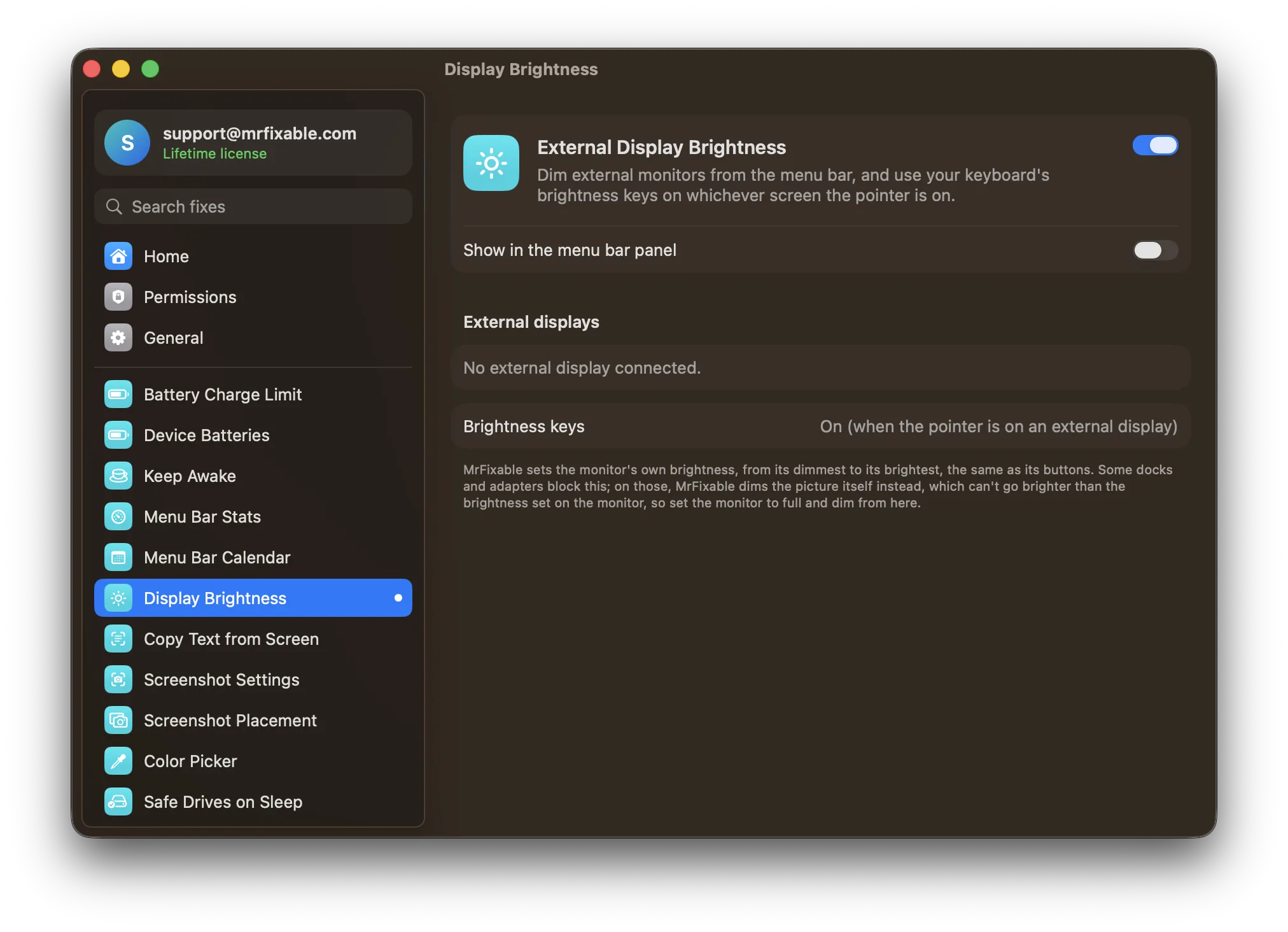
What External Display Brightness does
The problem
Your Mac's brightness keys and Control Center's Display slider work on the built-in screen and Apple's own displays, but not on most other monitors. Those you dim with the awkward buttons behind the screen.
With External Display Brightness
Each external monitor gets a brightness slider in MrFixable's menu, and your keyboard's brightness keys work on whichever screen the pointer is on. An on-screen indicator shows the level, like macOS's own.
- The monitor's real brightnessMrFixable sends the monitor the same DDC/CI commands its buttons do, so it changes the actual backlight, from dimmest to brightest.
- Your brightness keysWith the pointer on an external monitor, the brightness keys change that monitor, in 16 steps. On the built-in screen they work as usual.
- A fallback for any monitorIf a dock or adapter blocks DDC/CI, MrFixable dims the picture itself instead. It never goes fully black, and macOS undoes it when MrFixable quits.
Good to know
The brightness keys need Accessibility access, which macOS requires for an app that reads the keys you press. The sliders work without it.
Changing the monitor's own brightness needs a Mac with Apple silicon. On Intel Macs, and through docks or adapters that block DDC/CI, MrFixable dims the picture instead, which can't go brighter than the monitor's own setting.
Switch it off and any dimming MrFixable did itself is undone. A monitor's own brightness stays where you last set it.
Questions
How do I brighten the screen on a Mac?
Press the brightness up key, F2 on most Mac keyboards, or click Control Center in the menu bar and drag the Display slider. You can also open System Settings › Displays and drag Brightness. These change the built-in screen and Apple displays. For other monitors, use the monitor's buttons or External Display Brightness.How do I adjust the brightness of an external monitor on a Mac?
Turn on External Display Brightness in MrFixable. Open MrFixable's menu and drag the slider for your monitor, or move the pointer onto that monitor and press your brightness keys. It changes the monitor's own backlight, from its dimmest to its brightest, the same as the buttons on the monitor do.How do I control external monitor brightness on a Mac?
With External Display Brightness on, move the pointer onto the external monitor and press the brightness keys. Each press changes that monitor by one of 16 steps, and an on-screen indicator shows the level. On the built-in screen the keys work as usual. The keys need Accessibility access, the sliders don't.Why is display brightness not working on my external monitor?
macOS only controls brightness on Apple displays and a few others. Most monitors accept brightness commands over the cable through a standard called DDC/CI, which macOS doesn't use, but External Display Brightness does. Some docks and adapters block DDC/CI, so connecting the monitor straight to your Mac often helps.Is there an app to control external monitor brightness on a Mac?
Yes. External Display Brightness, part of MrFixable, gives each external monitor a brightness slider and makes your brightness keys work on it. MonitorControl and Lunar are other apps for the same job. They all use DDC/CI, the monitor's own control channel, where the monitor and connection support it.Does it work on Intel Macs?
Partly. Changing the monitor's own backlight needs a Mac with Apple silicon. On Intel Macs, External Display Brightness dims the picture instead, so it can go darker but never brighter than the monitor's own setting. Set the monitor to full brightness once with its buttons, then dim it from your Mac.