
On a Mac, the brightness keys and the Display slider in Control Center only change the built-in screen and Apple's own displays, such as the Studio Display. For any other external monitor, use the buttons on the monitor itself, or an app that sends it DDC/CI commands, the same signals its buttons send, over the display cable.
Plug a monitor into your Mac, press the brightness keys, and only the laptop screen changes. Open Control Center, and the Display slider does the same. At night your external monitor stays blinding unless you reach behind it for its buttons.
Why don't the brightness keys work on an external monitor?
macOS controls the brightness of Apple's own displays, like the Studio Display and Pro Display XDR, plus a few models made with Apple. For every other monitor, it has no slider.
Most monitors can be controlled by a computer, though, through a standard called DDC/CI: the same commands the buttons on the monitor send, sent over the display cable instead. Windows and Linux tools have used it for years. macOS just doesn't offer it.
What you can do built in
- Use the monitor's own buttons. They work, but they're usually awkward menus behind the screen.
- Turn on Night Shift (System Settings › Displays › Night Shift) to make the picture warmer at night. It changes the color, not the brightness.
Questions
How do I make my Mac's screen brighter?
Press the brightness up key (F2 on most Mac keyboards), drag the Display slider in Control Center, or use the slider in System Settings › Displays. These work on the built-in screen and Apple displays.
Why does my Mac's screen keep dimming by itself?
Usually Automatically adjust brightness is on in System Settings › Displays, so the screen follows the light in the room. On a MacBook, Slightly dim the display on battery in System Settings › Battery › Options dims it when you unplug.
Controlling the real brightness
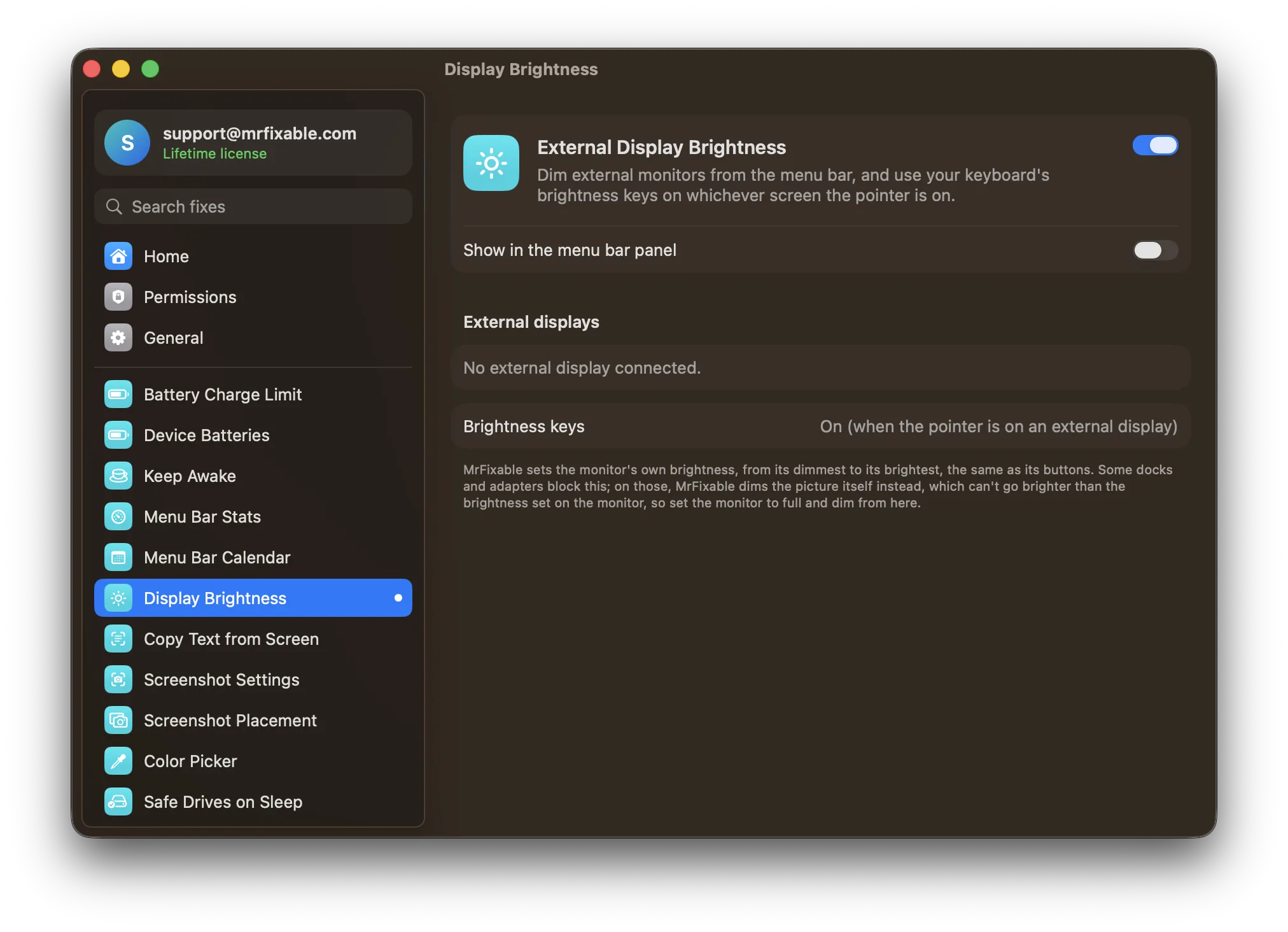
External Display Brightness in MrFixable talks to your monitor over DDC/CI, so it changes the monitor's actual backlight, from its dimmest to its brightest, exactly like the buttons do:
- A brightness slider for each external monitor, in the menu bar.
- Your keyboard's brightness keys work on whichever screen your pointer is on. Built-in screen as usual; external monitor when you're on it.
- An on-screen indicator like macOS's own, when you use the keys.
If your monitor doesn't respond
Some docks, adapters and older HDMI connections don't pass DDC/CI commands through. For those, MrFixable dims the picture itself instead. That can make the screen darker than the monitor's own setting, but not brighter, so set the monitor to full brightness with its buttons once and dim from your Mac from then on. Connecting with USB-C or DisplayPort directly, instead of through a hub, often brings full control back. On Intel Macs, MrFixable always dims the picture this way.