
System & FinderFit More Menu Bar Icons
Mac menu bar manager: fit more icons beside the notch
macOS has no built-in Mac menu bar manager. On macOS 26 Tahoe you can only switch icons on or off in System Settings › Menu Bar, and icons that don’t fit beside the notch are hidden. Fit More Menu Bar Icons narrows the gaps between icons so more fit. Hide Menu Bar Icons can tuck the rest away.
Try free for 14 daysBuy for $19.99 Lifetime license
One of 68 fixes in MrFixable. Lifetime license, no subscription. Updated October 22, 2026. Works on macOS 14.2 Sonoma and later. Checked on macOS 26 Tahoe.
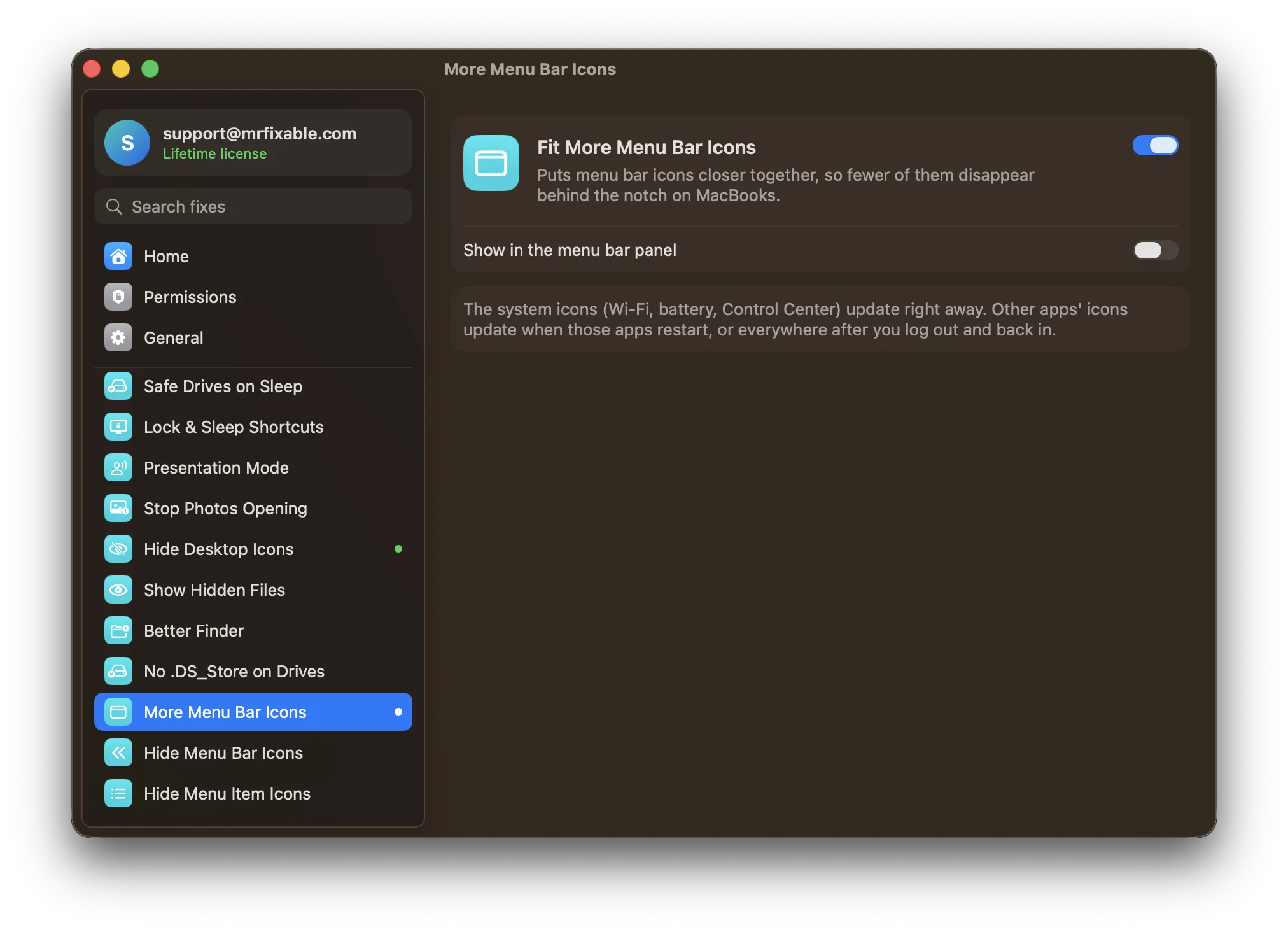
What Fit More Menu Bar Icons does
The problem
On a MacBook with a notch, the menu bar has less room, and icons that don’t fit simply disappear behind the notch, with no way to reach them. macOS leaves wide gaps between icons, and System Settings has no option to make them smaller.
With Fit More Menu Bar Icons
Menu bar icons sit closer together, so more of them fit beside the notch. Nothing is hidden or removed.
- Tighter spacingThe gaps between icons, and the padding around each one, are made much smaller.
- System icons right awayWi-Fi, battery and Control Center update at once. Other apps’ icons update when you restart those apps, or everywhere after you log out and back in.
- Still too many?Hide Menu Bar Icons tucks the ones you rarely use behind an arrow. The two work well together.
Good to know
Useful on any Mac with a crowded menu bar, not just ones with a notch.
On macOS 26 Tahoe, System Settings › Menu Bar lets you switch icons off entirely. This fix keeps them all and makes room instead.
macOS keeps the setting, so it works even when MrFixable isn’t running.
Switch it off and the spacing you had before comes back.
Questions
How do I pin the menu bar on a Mac?
Set the menu bar to never hide. 1. Choose Apple menu › System Settings. 2. Click Menu Bar. 3. Set Automatically hide and show the menu bar to Never. The menu bar now stays on screen, even in full-screen apps. On macOS 14 Sonoma and 15 Sequoia, the setting is in System Settings › Control Center.How do I see hidden icons in the Mac menu bar?
Make room so they come out from behind the notch. 1. Switch to an app with short menus, like Finder. 2. Quit apps you don’t need. 3. Turn off icons you never use in System Settings › Menu Bar. Fit More Menu Bar Icons frees more room by putting the remaining icons closer together.How do I unhide the menu bar on a Mac?
Move the pointer to the top of the screen and it slides down. To keep it showing: 1. Open System Settings › Menu Bar. 2. Set Automatically hide and show the menu bar to Never. If you only want it showing outside full-screen apps, choose In Full Screen Only instead.Why are my MacBook menu bar icons missing?
Your menu bar ran out of room. On a MacBook with a notch, macOS puts the icons that don’t fit behind the notch and doesn’t show them anywhere else. Apps with long menus take even more room. Putting icons closer together, or hiding the ones you rarely use, brings the rest back.How do I change the spacing between menu bar icons on a Mac?
Turn on Fit More Menu Bar Icons. System Settings has no option for it. In Terminal, the same change is defaults -currentHost write -globalDomain NSStatusItemSpacing -int 6, and the same command with NSStatusItemSelectionPadding, then log out and back in. The fix puts back your previous spacing when you turn it off.Is it an alternative to Bartender or Ice?
Not on its own. Fit More Menu Bar Icons only puts icons closer together and hides nothing. Hide Menu Bar Icons is the fix that tucks icons behind an arrow, the core job of Bartender and Ice. If you need finer control over each icon, a dedicated menu bar manager is the better choice.
Sources
Guides
- How to see hidden menu bar icons on a Mac with a notchMenu bar icons missing or hidden behind the notch on a MacBook? How to see hidden icons on the Mac menu bar, make room and fit more icons next to it.
- How to hide menu bar icons on a Mac and stop the notch hiding themToo many menu bar icons, and some vanish behind the MacBook notch? How to hide, move and remove them in macOS, including Tahoe's new Menu Bar settings.
Compare
- Fit More Menu Bar Icons vs BartenderBartender is a paid Mac menu bar manager with many tools: a Bartender Bar, search, triggers, profiles and styles. As a simpler Bartender alternative, MrFixable’s Hide Menu Bar Icons tucks the icons you choose behind an arrow, and Fit More Menu Bar Icons puts icons closer together, so fewer disappear behind the notch.
- Fit More Menu Bar Icons vs Hidden BarHidden Bar is a free, open-source Mac app that hides menu bar icons behind an arrow. MrFixable’s Hide Menu Bar Icons works the same way: ⌘-drag icons left of a divider and click the arrow. Hidden Bar adds a shortcut and an always-hidden section. MrFixable adds Fit More Menu Bar Icons, which puts icons closer together.
- Fit More Menu Bar Icons vs TinkerToolTinkerTool is a free Mac app that switches on hidden macOS settings, such as showing hidden files or changing the screenshot format. Several MrFixable fixes change the same settings with one switch each. TinkerTool covers far more settings. MrFixable’s 68 fixes also include features that run, like Window Snapping, which no hidden setting can add.