
System & FinderHide Menu Bar Icons
Hide menu bar items on Mac
To hide menu bar items on a Mac with macOS 26 Tahoe, open System Settings › Menu Bar and switch items off, but they’re gone until you switch them back on. Hide Menu Bar Icons keeps them close instead: ⌘-drag icons to the left of a divider, and one click on the arrow hides or shows them.
Try free for 14 daysBuy for $19.99 Lifetime license
One of 68 fixes in MrFixable. Lifetime license, no subscription. Updated October 22, 2026. Works on macOS 14.2 Sonoma and later. Checked on macOS 26 Tahoe.
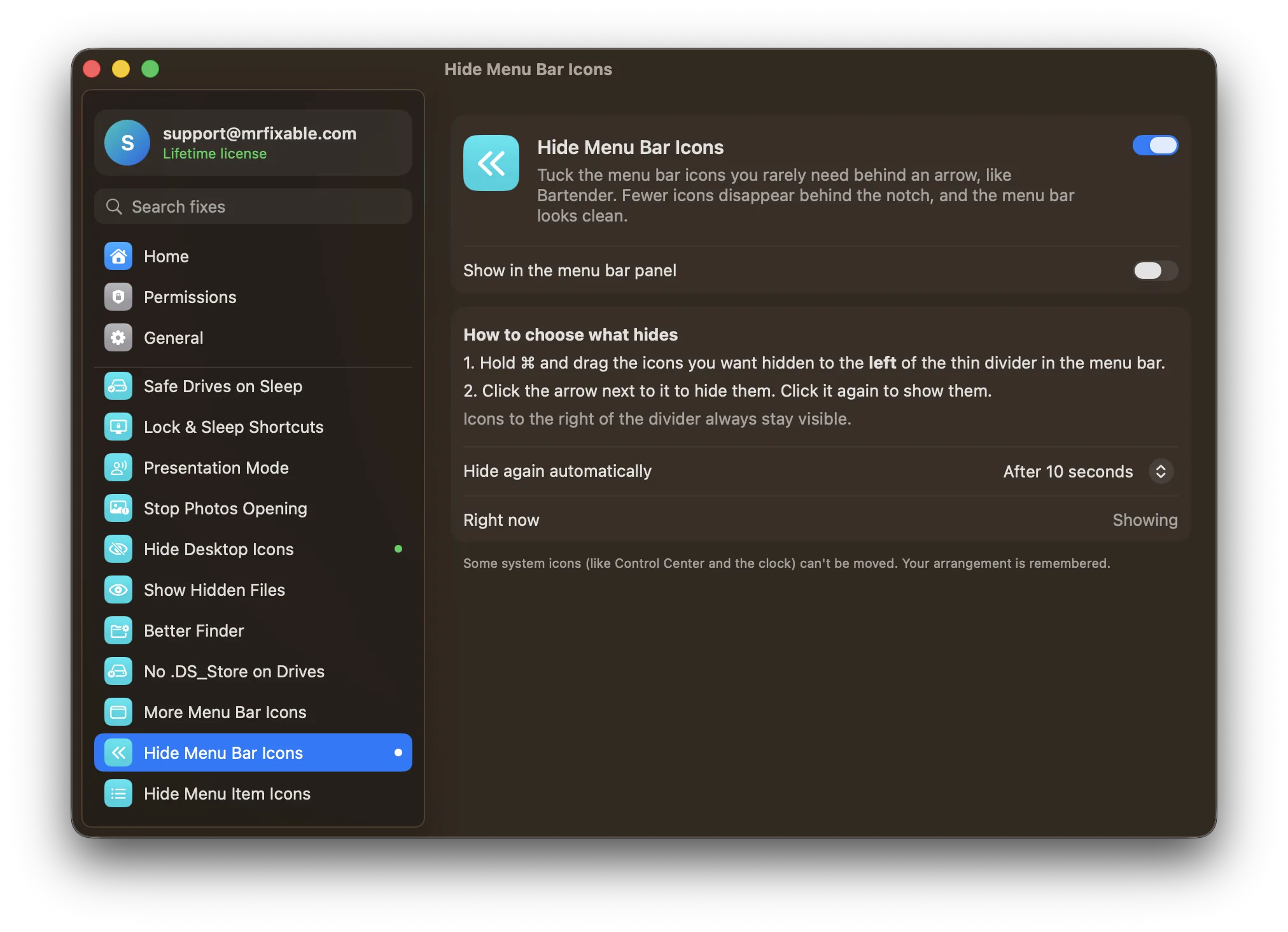
What Hide Menu Bar Icons does
The problem
Every app wants a spot in the menu bar, and on a MacBook with a notch, icons that don’t fit disappear behind it. macOS lets you switch items off in System Settings › Menu Bar, but then the icon is gone when you need it.
With Hide Menu Bar Icons
Icons you rarely use wait behind an arrow, one click away. The menu bar stays clean, and fewer icons get lost behind the notch.
- You choose what hidesHold ⌘ and drag icons to the left of the thin divider. Click the arrow to hide them, and again to show them.
- Hides again by itselfShown icons hide again after 10 seconds, or 5 or 30, or never, as you choose. It waits while your pointer is in the menu bar.
- Your layout is keptYour arrangement is remembered. Icons to the right of the divider always stay visible.
- From MrFixable’s menu tooShow Hidden Icons and Hide Icons buttons sit in MrFixable’s menu, next to the arrow in the menu bar.
Good to know
When you turn it on, every icon shows at first, so you can see the divider and arrange your icons.
Some system icons, like Control Center and the clock, can’t be moved, so they always show.
Needs no special permissions. Switch it off and every icon shows again.
Questions
How do I hide the menu bar on a Mac?
Set it to hide automatically. 1. Choose Apple menu › System Settings. 2. Click Menu Bar. 3. Set Automatically hide and show the menu bar to Always. The menu bar slides away and comes back when you move the pointer to the top of the screen. On macOS 14 and 15, it’s in System Settings › Control Center.How do I hide menu bar items on a Mac?
Switch them off in System Settings › Menu Bar. 1. Open System Settings. 2. Click Menu Bar. 3. Turn off the controls you don’t want, or apps under Allow in the Menu Bar. To keep icons within reach instead, turn on Hide Menu Bar Icons and ⌘-drag them to the left of its divider.How do I show the hidden menu bar icons again?
Click the arrow in the menu bar, or click Show Hidden Icons in MrFixable’s menu. Your hidden icons slide back into view. They hide again after 10 seconds, or 5, 30 or never, as you choose, and they wait while your pointer is in the menu bar. Turning the fix off shows every icon.What is the best Mac menu bar manager?
It depends on how much control you want. Hide Menu Bar Icons covers the core job: icons you choose hide behind an arrow, and one click shows them. It comes with MrFixable’s other fixes. If you want more control over each icon, a dedicated manager like Bartender or Ice is the better pick.Is there a free Mac menu bar manager?
macOS’s own option is free: System Settings › Menu Bar lets you switch items on and off, with no hidden group. MrFixable isn’t free. It has a 14-day free trial, then costs $19.99 once for a lifetime license, which covers Hide Menu Bar Icons and every other fix in the app.Where do menu bar icons go behind the notch?
Nowhere you can reach. When the menu bar runs out of room on a MacBook with a notch, macOS hides the icons that don’t fit behind it, with no list or menu to find them. Hiding the ones you rarely use with Hide Menu Bar Icons frees room for the rest.
Sources
Guides
- How to hide menu bar icons on a Mac and stop the notch hiding themToo many menu bar icons, and some vanish behind the MacBook notch? How to hide, move and remove them in macOS, including Tahoe's new Menu Bar settings.
- How to see hidden menu bar icons on a Mac with a notchMenu bar icons missing or hidden behind the notch on a MacBook? How to see hidden icons on the Mac menu bar, make room and fit more icons next to it.
Compare
- Hide Menu Bar Icons vs BartenderBartender is a paid Mac menu bar manager with many tools: a Bartender Bar, search, triggers, profiles and styles. As a simpler Bartender alternative, MrFixable’s Hide Menu Bar Icons tucks the icons you choose behind an arrow, and Fit More Menu Bar Icons puts icons closer together, so fewer disappear behind the notch.
- Hide Menu Bar Icons vs Hidden BarHidden Bar is a free, open-source Mac app that hides menu bar icons behind an arrow. MrFixable’s Hide Menu Bar Icons works the same way: ⌘-drag icons left of a divider and click the arrow. Hidden Bar adds a shortcut and an always-hidden section. MrFixable adds Fit More Menu Bar Icons, which puts icons closer together.