
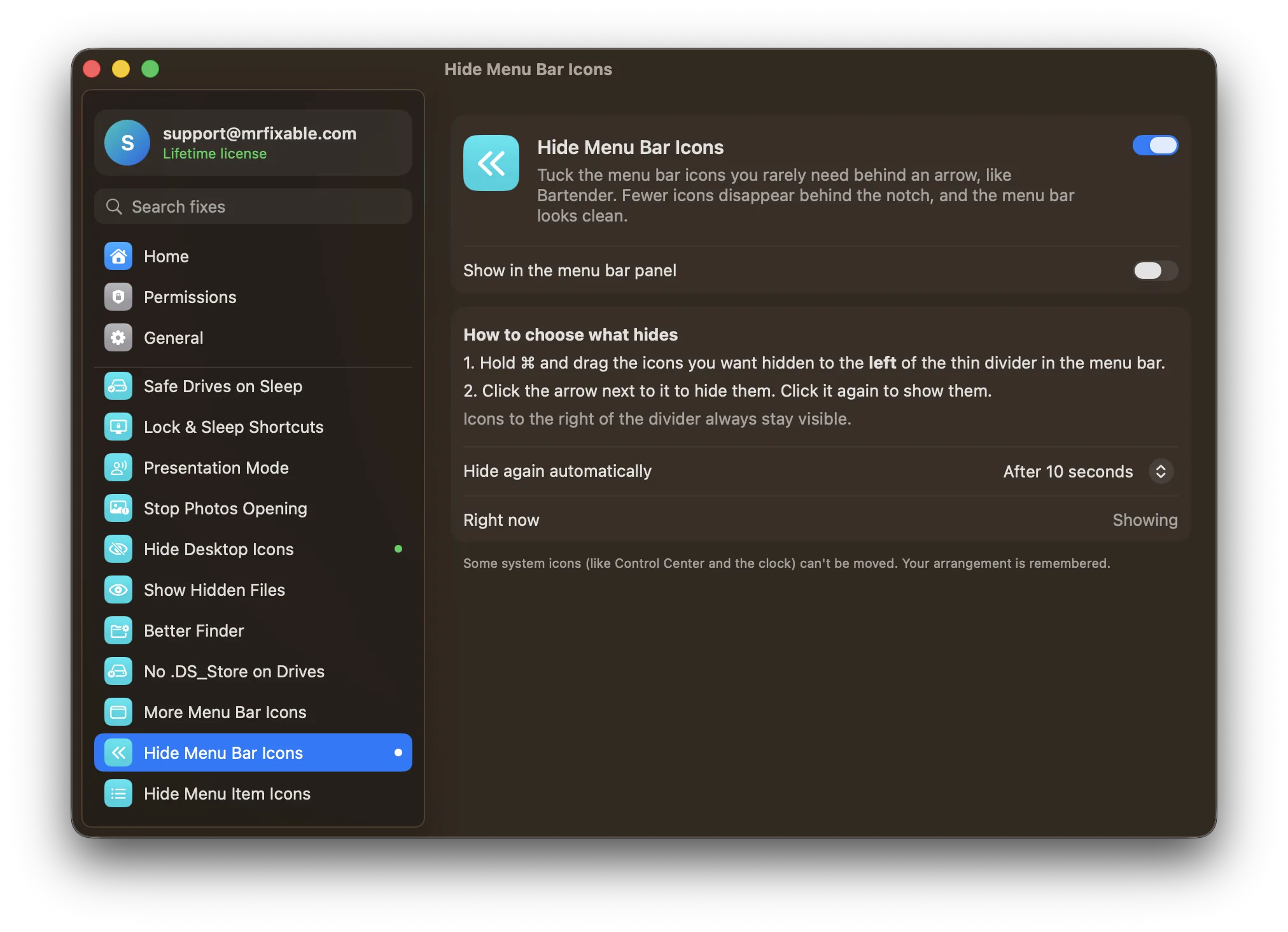
To hide menu bar icons on a Mac, hold ⌘ and drag a system icon off the menu bar. Many apps can leave it from their own settings, and on macOS 26 Tahoe you can switch any app off in System Settings › Menu Bar. Icons that don't fit hide behind the notch, so removing a few brings others back.
Every app wants a spot in the menu bar. On a MacBook with a notch, there's even less room, and when icons don't fit, macOS simply hides them behind the notch, with no way to reach them.
How to remove or rearrange menu bar icons
- Move or remove macOS's own icons: hold ⌘ and drag an icon along the menu bar to move it, or drag it off the menu bar to remove it.
- Choose which system icons show in System Settings › Menu Bar (Control Center on macOS 14 and 15).
- On macOS Tahoe 26, System Settings › Menu Bar has a list of apps allowed in the menu bar, with a switch for each. Turning one off removes its icon completely.
What's missing: a way to keep an icon available but out of sight. Turning it off means you can't click it when you do need it.
Questions
How do I hide the whole menu bar on a Mac?
Set Automatically hide and show the menu bar to Always. On macOS 14 and 15 it's in System Settings › Control Center; on later versions, type "menu bar" in the search field in System Settings. The menu bar then appears only when you move the pointer to the top of the screen.
How do I see icons hidden behind the notch?
macOS has no way to show them, so make room instead. Switch to an app with short menus, like Finder, quit apps you don't need in the menu bar, or remove icons as above. The notch only hides what doesn't fit.
Tuck icons away, reach them in one click
Hide Menu Bar Icons in MrFixable puts the icons you rarely use behind an arrow. Click the arrow to show them, click again to tuck them away. Fewer icons disappear behind the notch, and the menu bar looks clean.
Fit More Menu Bar Icons puts icons closer together, so more of them fit beside the notch.
And on macOS Tahoe, Hide Menu Item Icons removes the small icons Apple added next to almost every menu command, for cleaner menus that are easier to scan.