
System & FinderHide Menu Item Icons
Remove macOS Tahoe menu icons
macOS Tahoe menu icons sit next to almost every command, and macOS 26 has no setting to turn them off. Hide Menu Item Icons removes them in every app that uses standard menus, and each app changes the next time you open it. macOS 27 already hides most of these icons, so this matters mainly on Tahoe.
Try free for 14 daysBuy for $19.99 Lifetime license
One of 68 fixes in MrFixable. Lifetime license, no subscription. Updated October 22, 2026. For macOS 26 Tahoe and later: earlier versions of macOS don't need it, so it only appears there.
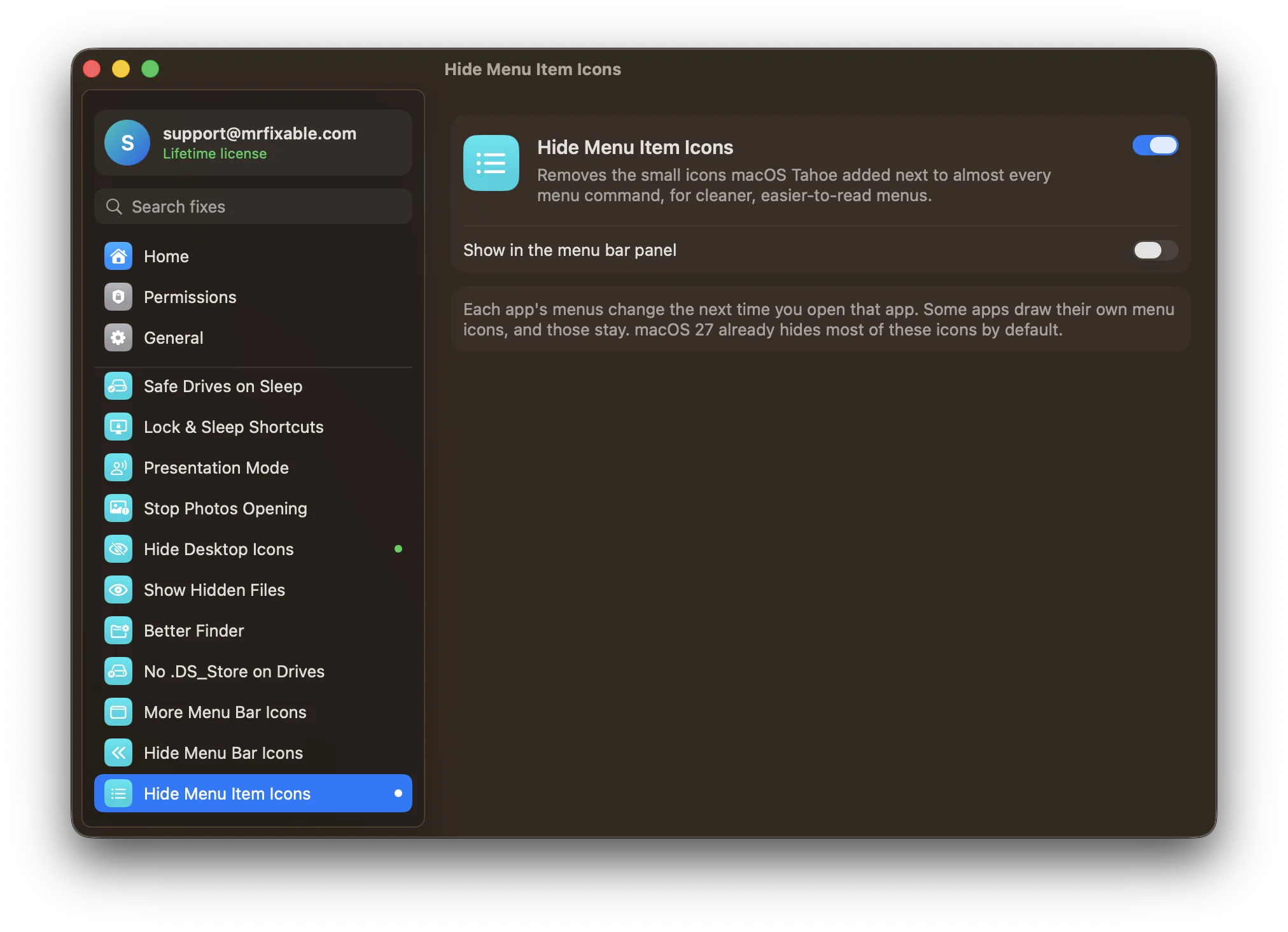
What Hide Menu Item Icons does
The problem
macOS 26 Tahoe added a small icon next to almost every menu command. Menus look busier and take longer to scan.
With Hide Menu Item Icons
Menus go back to plain text, as they were before Tahoe. Each app picks up the change the next time you open it.
- Cleaner menus everywhereOne switch removes the icons in every app that uses macOS’s standard menus.
- Applies as apps openEach app’s menus change the next time you open it. Quit and reopen an app to see it straight away.
- Easy to undoSwitch it off and the icons come back the next time you open each app.
Good to know
Made for macOS 26 Tahoe. macOS 14 Sonoma and 15 Sequoia don’t have these icons, and MrFixable doesn’t show the fix there.
Some apps draw their own menu icons, and those stay.
macOS keeps the setting, so it works even when MrFixable isn’t running.
Questions
How do I change menu bar icons on a Mac?
Open System Settings › Menu Bar. 1. Choose Apple menu › System Settings. 2. Click Menu Bar. 3. Turn the icons you want on or off, like Wi-Fi, Battery or Sound. That covers the icons at the top right. The small icons inside menus, next to commands like Copy, are removed by Hide Menu Item Icons.How do I remove menu icons in macOS Tahoe?
Turn on Hide Menu Item Icons. 1. Click MrFixable in the menu bar. 2. Turn on Hide Menu Item Icons. 3. Quit and reopen your apps. Their menus now show plain text, as before Tahoe. Apps you haven’t opened yet pick up the change when you open them. Some apps draw their own icons, and those stay.Can I turn off Tahoe menu icons with Terminal?
Yes. Open Terminal and run defaults write -g NSMenuEnableActionImages -bool false, then quit and reopen your apps. That’s the same setting Hide Menu Item Icons changes. To bring the icons back, run defaults delete -g NSMenuEnableActionImages. The fix does both with one switch, so you don’t need to remember the command.Does macOS 27 still have menu icons?
Mostly not. macOS 27 hides most of the icons Tahoe added next to menu commands, so menus there already read as plain text by default. Hide Menu Item Icons matters mainly on macOS 26 Tahoe. macOS 14 Sonoma and 15 Sequoia never had these icons, so there’s nothing to remove on them.Why do my Mac’s menus suddenly have icons?
Because macOS 26 Tahoe added icons next to most menu commands as part of its redesign. Every app that uses macOS’s standard menus shows them, which is why they appeared everywhere at once after the update. macOS has no setting to turn them off, but Hide Menu Item Icons removes them.What other macOS Tahoe tweaks does MrFixable have?
Classic Volume Overlay is the other Tahoe-only fix: it brings back the big on-screen volume indicator when you press the volume keys, which macOS 26 replaced with a small slider in the menu bar. Fit More Menu Bar Icons and Hide Menu Bar Icons also help with Tahoe’s crowded menu bar.