
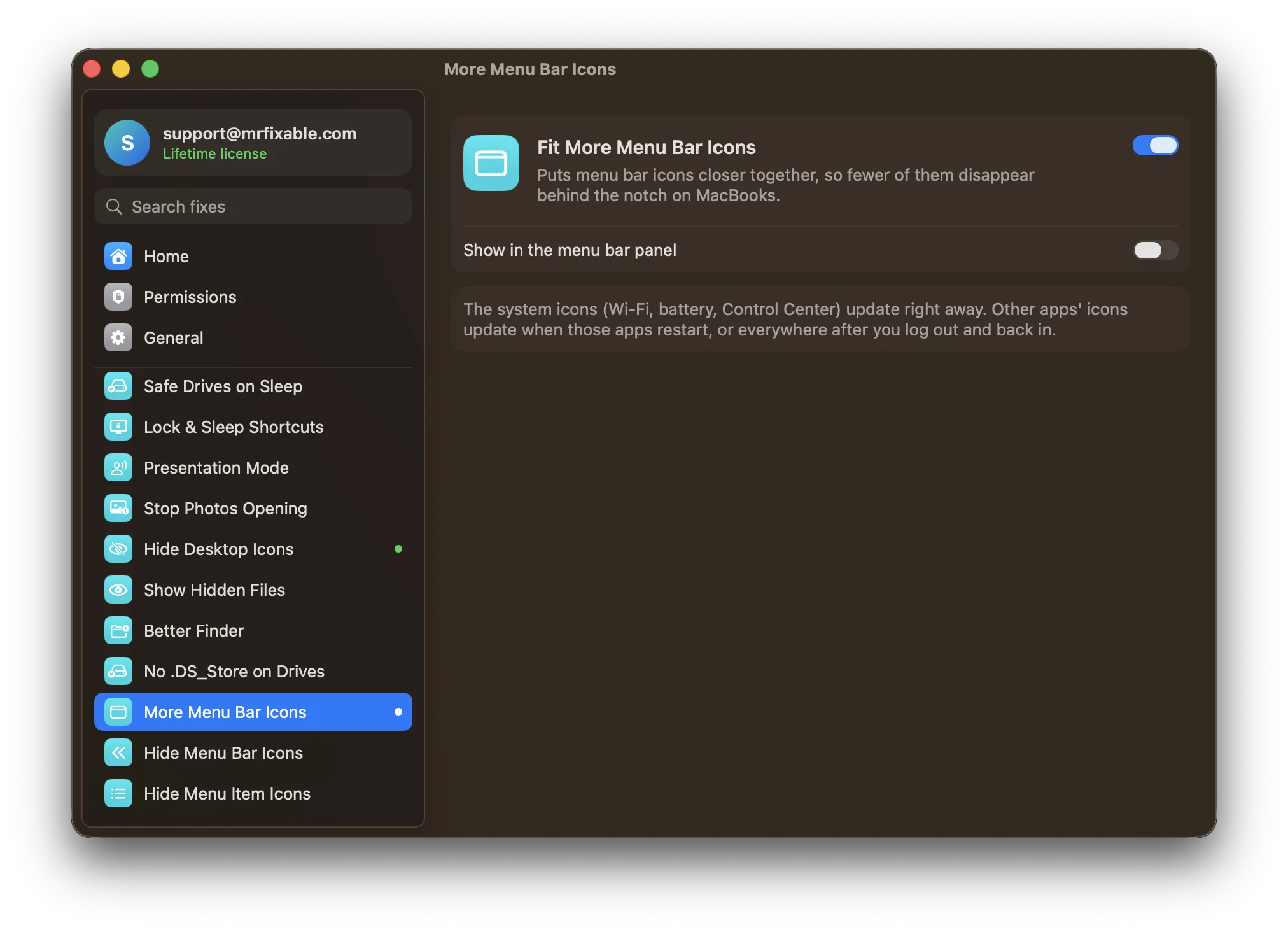
To see hidden icons on a Mac menu bar, make room: icons that don't fit beside the MacBook notch are not shown, and macOS has no way to scroll to them. Quit apps you don't need, ⌘-drag system icons off, or switch to an app with short menus. MrFixable's Fit More Menu Bar Icons puts the icons closer together.
The menu bar is shared. App menus (File, Edit, View and so on) fill it from the left, and icons fill it from the right. On a MacBook with a notch, the middle is gone. When the two sides meet, macOS hides the icons that don't fit, without any warning. That's why an icon can be there in Finder and vanish when you switch to an app with long menus.
Why menu bar icons go missing
- No room: too many icons, or an app with many menus, and the leftmost icons are hidden behind the notch.
- Switched off: on macOS 26 Tahoe, System Settings › Menu Bar has a list called Allow in the Menu Bar. An app that's turned off there doesn't show its icon at all.
- The app isn't running: most icons only appear while their app is open.
How to see hidden menu bar icons in macOS
- Switch to Finder. Click the desktop or Finder in the Dock. Finder's menus are short, so more icons fit. Check whether the missing icon shows up now.
- Remove icons you don't need. Hold ⌘ and drag a system icon (such as Wi-Fi or Spotlight) down off the menu bar. Many apps can also hide their icon in their own settings.
- Turn off icons in System Settings. On macOS Tahoe, open System Settings › Menu Bar. Switch off apps you don't need under Allow in the Menu Bar, and controls you don't use under Menu Bar Controls. If the missing icon's app is switched off here, switch it on.
- Quit apps whose icons you never use. Their icons go away and free up space for the rest.
Each icon you remove brings back one that was hidden.
Put the icons closer together
macOS leaves a fair gap between menu bar icons. Two hidden settings make it smaller, so more icons fit beside the notch. In Terminal:
defaults -currentHost write -globalDomain NSStatusItemSpacing -int 6
defaults -currentHost write -globalDomain NSStatusItemSelectionPadding -int 6
Then log out and back in. To undo it, run the same two lines with delete instead of write, and without -int 6 at the end, then log out and in again.
Fit more icons with one switch
Fit More Menu Bar Icons in MrFixable makes the same change for you: it puts menu bar icons closer together, so fewer of them disappear behind the notch.
- The system icons (Wi-Fi, battery, Control Center) move closer right away.
- Other apps' icons follow when those apps restart, or everywhere after you log out and back in.
- Switch it off and the spacing goes back to what you had before.
If there still isn't room, Hide Menu Bar Icons puts the icons you rarely use behind an arrow, like Bartender. Click the arrow to show them, and click again to tuck them away. There's more in how to hide menu bar icons on a Mac.
MrFixable costs $19.99 once (lifetime license), runs on macOS 14.2 Sonoma or later, and has a 14-day free trial.
Questions
How do I see hidden icons on the Mac menu bar?
Make room for them. Switch to Finder, whose menus are short, then remove icons you don't need: ⌘-drag system icons off the menu bar, or switch apps off in System Settings › Menu Bar on macOS Tahoe. Each icon you remove brings back one that the notch was hiding.
How do I unhide the menu bar on a Mac?
Move the pointer to the top of the screen and the hidden menu bar slides down. To keep it showing, open System Settings › Menu Bar on macOS Tahoe and set Automatically hide and show the menu bar to Never. On macOS 14 and 15 the same setting is in System Settings › Control Center.
How do I pin the menu bar on a Mac?
Open System Settings › Menu Bar on macOS Tahoe and set Automatically hide and show the menu bar to Never. The menu bar then stays on screen all the time, even in full screen apps. Choose In Full Screen Only if you want it to stay put everywhere except in full screen apps.