
System & FinderColor Picker
Color picker for Mac
The Mac color picker built into macOS is Digital Color Meter, in Applications › Utilities: point at a color and press ⇧⌘C to copy its values. Color Picker is quicker: press ⌥⇧⌘C (Option-Shift-Command-C) in any app, click any pixel under the magnifier, and its HEX, RGB or HSL code is copied, ready to paste.
Try free for 14 daysBuy for $19.99 Lifetime license
One of 68 fixes in MrFixable. Lifetime license, no subscription. Updated October 22, 2026. Works on macOS 14.2 Sonoma and later. Checked on macOS 26 Tahoe.
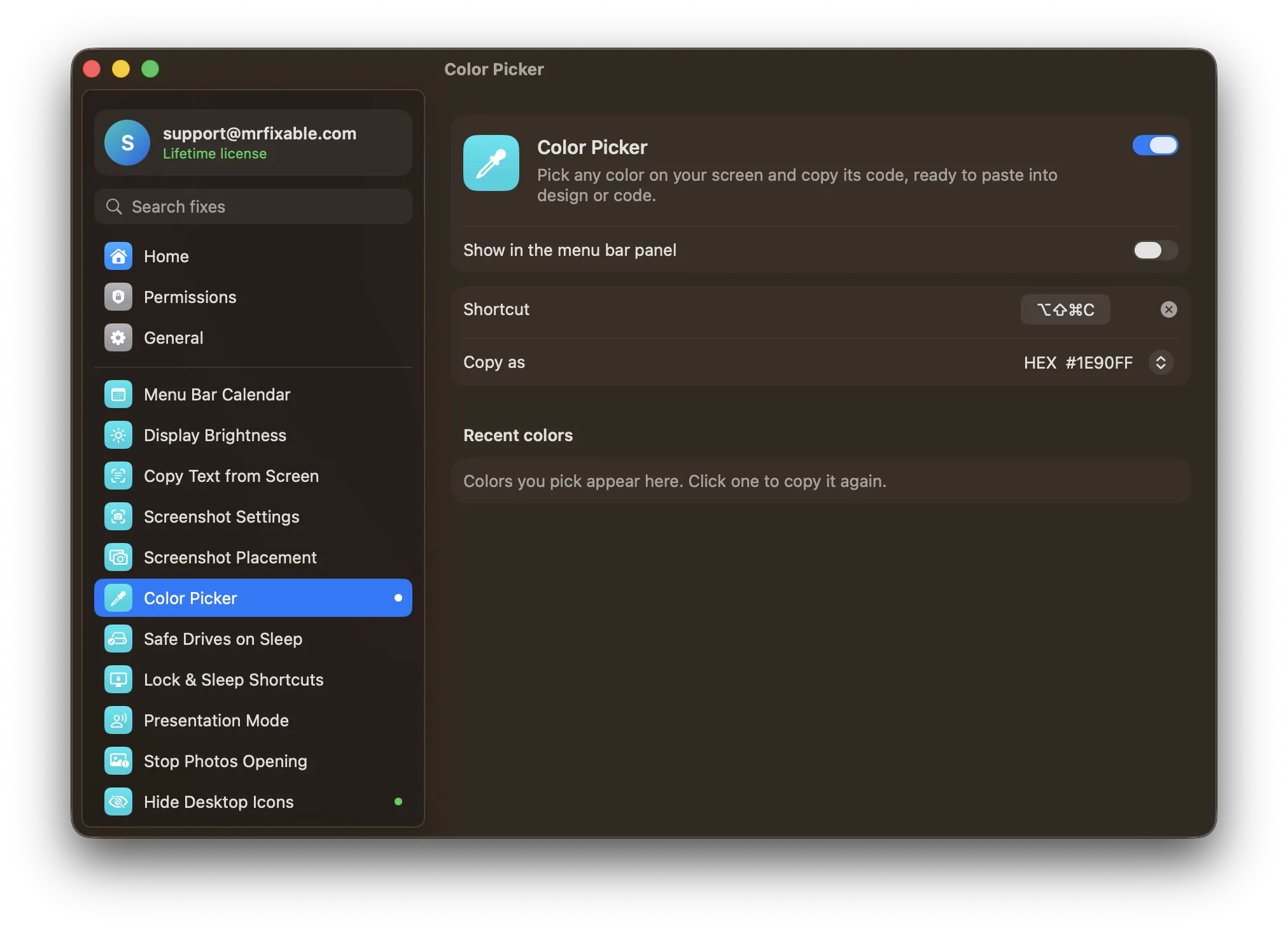
What Color Picker does
The problem
To reuse a color from a website, an image or an app, you need its code, and macOS doesn't make that quick. Its Digital Color Meter, in Applications › Utilities, shows a color's values, but you have to open it first, and getting a ready-to-paste code takes extra steps.
With Color Picker
Press ⌥⇧⌘C, click any pixel under the magnifier, and its code is on your clipboard. Paste it straight into your design app or your code.
- HEX, RGB or HSLCopy colors as #1E90FF, rgb(30, 144, 255) or hsl(210, 100%, 56%), whichever you use. HEX is the default.
- Pixel-precisemacOS's own magnifier follows your pointer, so you can pick a single pixel anywhere on screen, in any app.
- Your last 8 colorsThe colors you picked last sit in MrFixable's menu. Click one to copy it again, in the format you've chosen.
Good to know
Colors are copied as sRGB values, the color space used on the web.
Change the shortcut whenever you like. If another app already uses it, MrFixable marks it.
Needs no special permissions.
Questions
How do I use the color picker on a Mac?
Open Digital Color Meter from Applications › Utilities and move the pointer over a color to see its values. Choose View › Display Values › As Hexadecimal for hex codes, press ⌘L to lock the spot, then press ⇧⌘C to copy. With Color Picker on, press ⌥⇧⌘C and click the color instead.Is there a color picker app for Mac?
Yes. Every Mac has Digital Color Meter in Applications › Utilities, and the Colors window in apps like TextEdit and Pages has an eyedropper. Color Picker, one of MrFixable's fixes, adds a shortcut that works in any app, copies the code for you, and keeps your last 8 colors in MrFixable's menu.Is there an eyedropper on a Mac?
Yes. Open the Colors window in an app like TextEdit, with Format › Font › Show Colors, and click the eyedropper button to pick a color anywhere on screen. Color Picker uses the same macOS magnifier from any app with ⌥⇧⌘C, and copies the color's code to your clipboard instead of applying it.How do I use Digital Color Meter on a Mac?
Open it from Applications › Utilities. Move the pointer over a color and read its red, green and blue values in the window. Choose a color space from the pop-up menu, press ⌘L to lock the spot, and press ⇧⌘C to copy the values as text. It shows one color at a time.How do I get a color's hex code on a Mac?
Turn on Color Picker, press ⌥⇧⌘C and click the color. Its hex code, like #1E90FF, is copied, ready to paste into your code or design app. Without MrFixable, open Digital Color Meter, choose View › Display Values › As Hexadecimal, point at the color and press ⇧⌘C.Can I copy RGB or HSL instead of hex?
Yes. In Color Picker's settings, choose HEX, RGB or HSL under Copy as. Colors are copied as #1E90FF, rgb(30, 144, 255) or hsl(210, 100%, 56%), in sRGB, the color space used on the web. Recent colors in MrFixable's menu are copied again in whichever format you've chosen.