
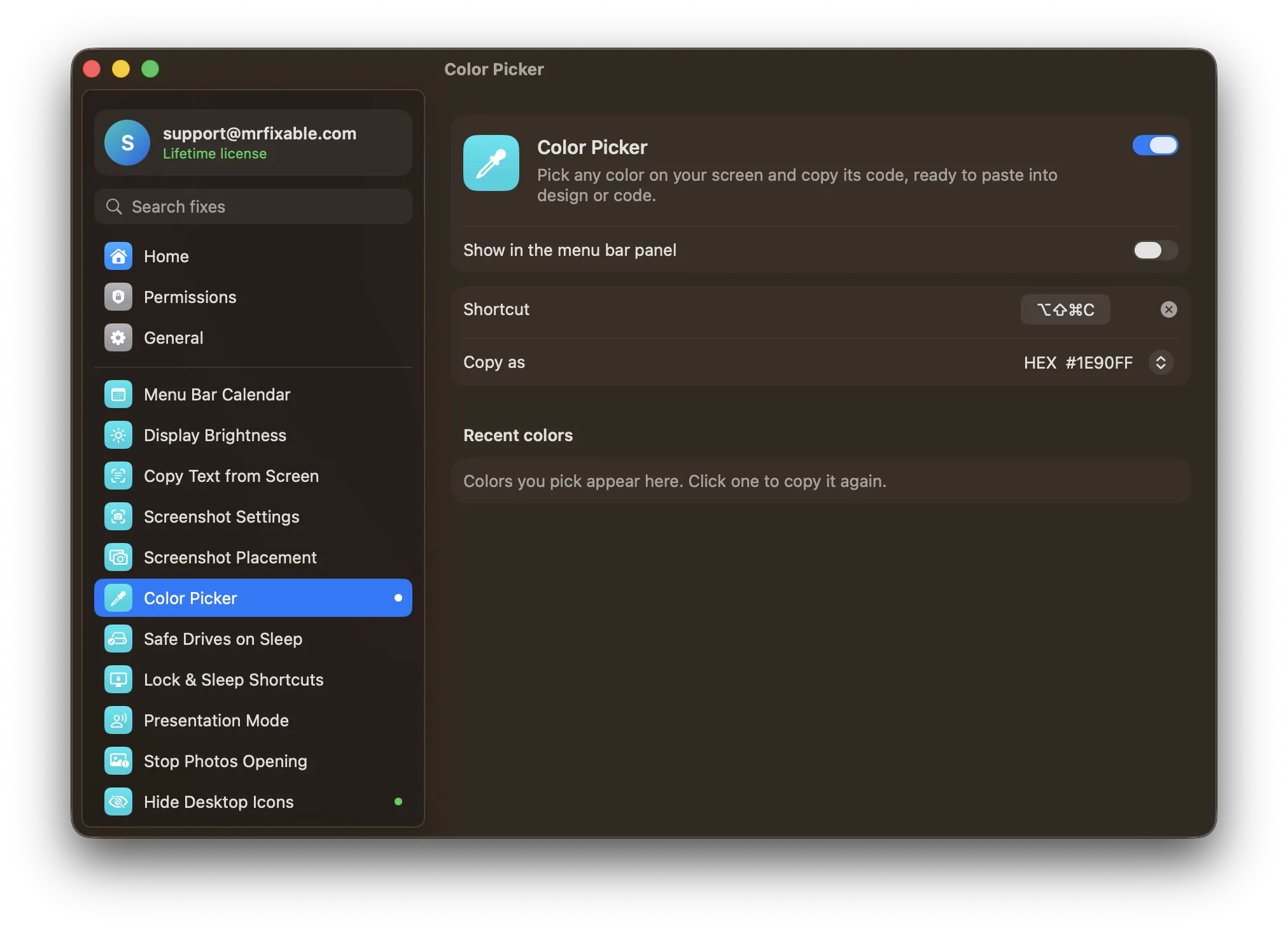
To use the color picker on a Mac, open Digital Color Meter from Applications › Utilities and point at any pixel to see its color values. Press ⌘L to lock it and ⇧⌘C to copy the color as text. For hex codes, choose View › Display Values › As Hexadecimal. MrFixable's Color Picker copies any color with one shortcut.
macOS has two color pickers built in. Digital Color Meter reads the color of any pixel on screen and gives you its values. The Colors window in apps like Pages and TextEdit has an eyedropper that picks a color from the screen and applies it in that app. Which one you want depends on whether you need the code or just the color.
How do I use Digital Color Meter?
Open Digital Color Meter, point at any pixel and read its values in the window, then press ⌘L to lock the color and ⇧⌘C to copy its values as text. If you want web-ready hex codes, set the color space to sRGB and the values to hexadecimal first. It comes with every Mac.
- Press ⌘Space (Command-Space), type
Digital Color Meterand press Return. It's also in Finder › Applications › Utilities. - If you'll use the color on the web or in a design app, choose sRGB from the color space pop-up menu in the window. Values are specific to the color space you pick.
- Choose View › Display Values › As Hexadecimal to see hex codes instead of numbers from 0 to 255.
- Move the pointer over the color you want. The window shows a magnified view of the pixels under the pointer and the color's values next to it.
- Press ⌘L to lock the position, so you can move the pointer away without losing the color. Press ⌘X to lock only horizontally, or ⌘Y only vertically.
- Choose Color › Copy Color as Text (⇧⌘C) to copy the values, then paste them where you need them. Color › Copy Color as Image (⌥⌘C) copies a swatch instead.
Digital Color Meter stays open in its own window while you use it, and you copy each color yourself.
How do I use the eyedropper in the Colors window?
Open the Colors window with ⇧⌘C in an app like Pages or TextEdit, click the magnifying glass, then click any color on your screen. The color is applied to the selected text or shape in that app. It's handy for matching colors inside a document, but it doesn't copy a code you can paste elsewhere.
- In an app that has text or shape colors, such as Pages, Keynote or TextEdit, select the text or shape you want to color.
- Press ⇧⌘C to open the Colors window. In some apps it's Format › Show Colors, Format › Font › Show Colors or View › Show Colors.
- Click the magnifying glass in the Colors window, then click anywhere on the screen to pick that color.
- The color is applied to what you selected. Click Color Sliders to see its values or adjust it.
Pick any color with one shortcut
Color Picker in MrFixable skips the extra window and the copying:
- Press ⌥⇧⌘C (Option-Shift-Command-C) in any app, or click Pick Color in MrFixable's menu.
- macOS's own magnifier follows your pointer, so you can pick a single pixel. Click the color you want.
- Its code is copied right away, and a card on screen shows the color and the code.
Choose how colors are copied: HEX like #1E90FF, which is the default, RGB like rgb(30, 144, 255) or HSL like hsl(210, 100%, 56%). Colors are always copied as sRGB, the color space used on the web.
The last 8 colors you picked stay in MrFixable's menu. Click one to copy it again, in the format you've chosen. You can change the shortcut, and if another app already uses it, MrFixable marks it. It needs no special permissions.
Questions
Does a Mac have a color picker?
Yes. macOS comes with Digital Color Meter, in Applications › Utilities, which shows the color values of any pixel under your pointer. Apps like Pages and TextEdit also have a Colors window, opened with ⇧⌘C, with an eyedropper that picks a color from your screen. Neither copies a hex code with a single click.
How do I get the hex code of a color on my Mac screen?
Open Digital Color Meter, choose View › Display Values › As Hexadecimal, point at the color and press ⌘L to lock it. Then press ⇧⌘C to copy the values as text. With MrFixable's Color Picker, press ⌥⇧⌘C, click the color, and the hex code is copied straight away.
Is there an eyedropper tool on a Mac?
Yes. The Colors window, which most apps open with ⇧⌘C, has a magnifying glass button that works as an eyedropper: click it, then click any color on your screen. It applies the color in that app. To copy the color's code instead, use Digital Color Meter or MrFixable's Color Picker.
Why does the color code look different from my design file?
Usually because of the color space. Digital Color Meter can show values in different color spaces, and the same pixel has different numbers in each. Choose sRGB in its pop-up menu to get the values used on the web and in most design apps. MrFixable's Color Picker always copies sRGB values.