
System & FinderApp Uninstaller
How to uninstall apps on Mac
To uninstall apps on a Mac, quit the app, open Applications in Finder and drag it to the Trash, or select it and press ⌘⌫ (Command-Delete), then empty the Trash. That leaves its settings, caches and data in your Library folder. App Uninstaller finds those leftovers and moves them to the Trash with the app.
Try free for 14 daysBuy for $19.99 Lifetime license
One of 68 fixes in MrFixable. Lifetime license, no subscription. Updated October 22, 2026. Works on macOS 14.2 Sonoma and later. Checked on macOS 26 Tahoe.
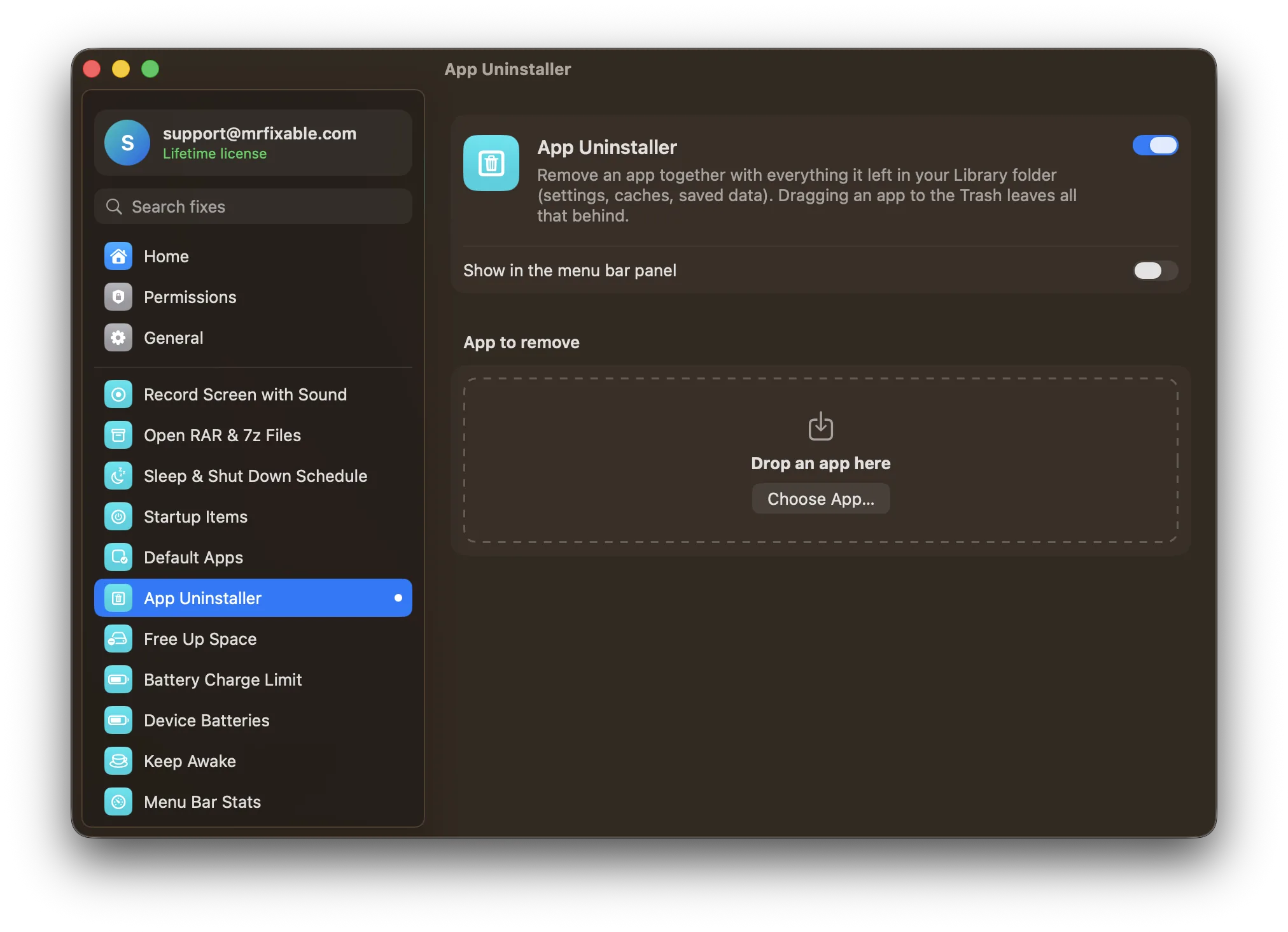
What App Uninstaller does
The problem
Dragging an app to the Trash removes the app, but its settings, caches and saved data stay behind in your Library folder, sometimes gigabytes of them. Finding them by hand means searching several folders, where names aren't always obvious.
With App Uninstaller
Drop an app on App Uninstaller and it lists everything the app left in your Library, with sizes. Click Move to Trash, and the app and its leftovers go together.
- Only what's really its ownFiles are matched by the app's ID or exact name in the usual places, such as Application Support, Caches, Preferences, Containers and Logs. Names that another installed app uses are skipped.
- You decide what goesEvery leftover has a tick box, and anything matched only by name starts unticked for you to check. Untick settings you'd want back if you reinstall.
- Easy to undoEverything goes to the Trash, so you can put it back until you empty it. If the app is open, it's asked to quit first.
Good to know
Some apps, such as ones from the App Store or an installer, can only be moved by Finder, which asks for your password. The first time, macOS asks whether MrFixable may control Finder.
It looks in your own Library folder. Sizes of sandboxed app data aren't measured, because macOS asks permission to read other apps' private data.
Apps that are part of macOS, like Safari and Mail, can't be removed. If an app comes with its own uninstaller, use that too, since it may remove items outside your Library.
Nothing runs in the background. It's a page you open when you need it.
Questions
How do I uninstall an app on a Mac?
Move it to the Trash from Finder. 1. Quit the app. 2. Open Finder and click Applications in the sidebar. 3. Drag the app to the Trash, or select it and press ⌘⌫. 4. Type your password if macOS asks. 5. Choose Finder › Empty Trash to free the space.How do I delete applications on a Mac?
For App Store apps, use the Apps view. 1. Click Apps in the Dock. 2. Click and hold the app's icon until it jiggles. 3. Click its close button. For other apps, Control-click the app in Finder's Applications folder and choose Move to Trash. Apps that come with macOS can't be deleted.How do I remove a program from a MacBook?
Check for an uninstaller first. 1. Open the app's folder in Applications, or its installer disk image, and look for Uninstall. 2. If there's one, run it, since it can remove login items and extensions too. 3. If not, drag the app to the Trash, or use App Uninstaller to catch its leftovers.How do I completely remove an app from a Mac?
Remove the app and its Library files. 1. Open MrFixable and click App Uninstaller. 2. Drop the app on the page, or click Choose App…. 3. Check the leftovers list and untick anything to keep. 4. Click Move to Trash. Leftovers live in folders like ~/Library/Application Support, Caches and Preferences.How do I delete apps on a Mac that won't delete?
Quit the app first, since an app that's open can't be moved. 1. Press ⌥⌘⎋ (Option-Command-Escape) and force quit it. 2. Try moving it to the Trash again, with your password. 3. Still stuck? Restart and try again. Apps that are part of macOS, like Mail and Safari, can't be deleted.How do I remove an app from the Dock on a Mac?
Drag the icon out of the Dock until Remove appears, then let go. Or Control-click the icon and choose Options › Remove from Dock. This only removes the shortcut. The app stays in Applications, so to delete it, move it to the Trash or use App Uninstaller.How do I uninstall Mac apps completely?
Delete the app's files in your Library folder too. 1. In Finder, choose Go › Go to Folder and type ~/Library. 2. Check Application Support, Caches, Preferences, Containers and Logs for folders named after the app or its ID. 3. Move them to the Trash. App Uninstaller does this search for you.
Sources
Guides
- How to delete apps on a Mac: every way in macOS TahoeHow to delete apps on a Mac in macOS Tahoe: from Finder, from Storage settings or with the app's own uninstaller, and how to remove the files apps leave.
- How to delete apps on a Mac that won't deleteHow to delete apps on a Mac that won't delete: why Finder says an app is open or required by macOS, how to quit hidden helpers, and when to use Safe Mode.
- How to uninstall Adobe Creative Cloud on Mac completelyHow to uninstall Adobe Creative Cloud on Mac: remove each Adobe app first, then run Adobe's Creative Cloud Uninstaller. The right order and the leftovers.
- How to uninstall Grammarly on Mac completelyHow to uninstall Grammarly on Mac: quit it in the menu bar, trash the app, then remove its leftovers, browser extension and Word add-in. Free 14-day trial.
- How to uninstall Microsoft Office on Mac completelyHow to uninstall Microsoft Office on Mac: remove Word, Excel and the rest, then their Containers and Group Containers folders. Microsoft's own steps.
- How to uninstall Parallels Desktop on Mac completelyHow to uninstall Parallels Desktop on Mac, and how to keep or delete your Windows virtual machines first. Exact folder paths and a one-step way to do it.
- How to uninstall Spotify on Mac completelyHow to uninstall Spotify on Mac: quit it, drag it to the Trash, then delete its cache and data folders. The exact paths, plus a one-step way to do it all.
- How to uninstall Steam on Mac completelyHow to uninstall Steam on Mac: quit it, trash the app, then delete its Library folder, keeping or removing your games. Exact paths and a one-step way.
- How to uninstall apps on a Mac completely, without leftoversTo uninstall an app on a Mac, quit it and drag it to the Trash. Where its settings, caches and data stay behind, how to remove them by hand, and a one-step way.
- How to clear System Data on a Mac, and what's safe to removeHow to clear System Data on a Mac: what System Data is, why Storage settings won't let you delete it, and the safe steps that shrink it. Free 14-day trial.
- Mac storage full? See what takes up space and free it upMac storage full? How to see what takes up space in Storage settings, which files to delete first, why storage keeps filling up, and how to free up space.
Compare
- App Uninstaller vs AppCleanerAppCleaner is a free download from FreeMacSoft: drop an app on its window and it finds the related files so you can delete them together. MrFixable's App Uninstaller does the same job, shows each leftover with its size and a tick box, and moves the app and its files to the Trash, so you can still put them back.
- App Uninstaller vs CleanMyMacCleanMyMac is MacPaw's all-in-one Mac cleaner, sold as a subscription from $3.33 a month on its site. MrFixable covers two of its jobs: App Uninstaller removes apps with their leftovers, and Free Up Space clears app caches, Xcode build files, old Downloads and the Trash. Both come with MrFixable's other fixes for $19.99 once.
- App Uninstaller vs OnyXThe best OnyX alternative for Mac depends on what you use OnyX for. OnyX is a free utility that checks your disk, rebuilds indexes, clears caches and changes many hidden settings. MrFixable covers the everyday parts as simple switches, such as Free Up Space, App Uninstaller, Show Hidden Files and Screenshot Settings, for $19.99 once.