
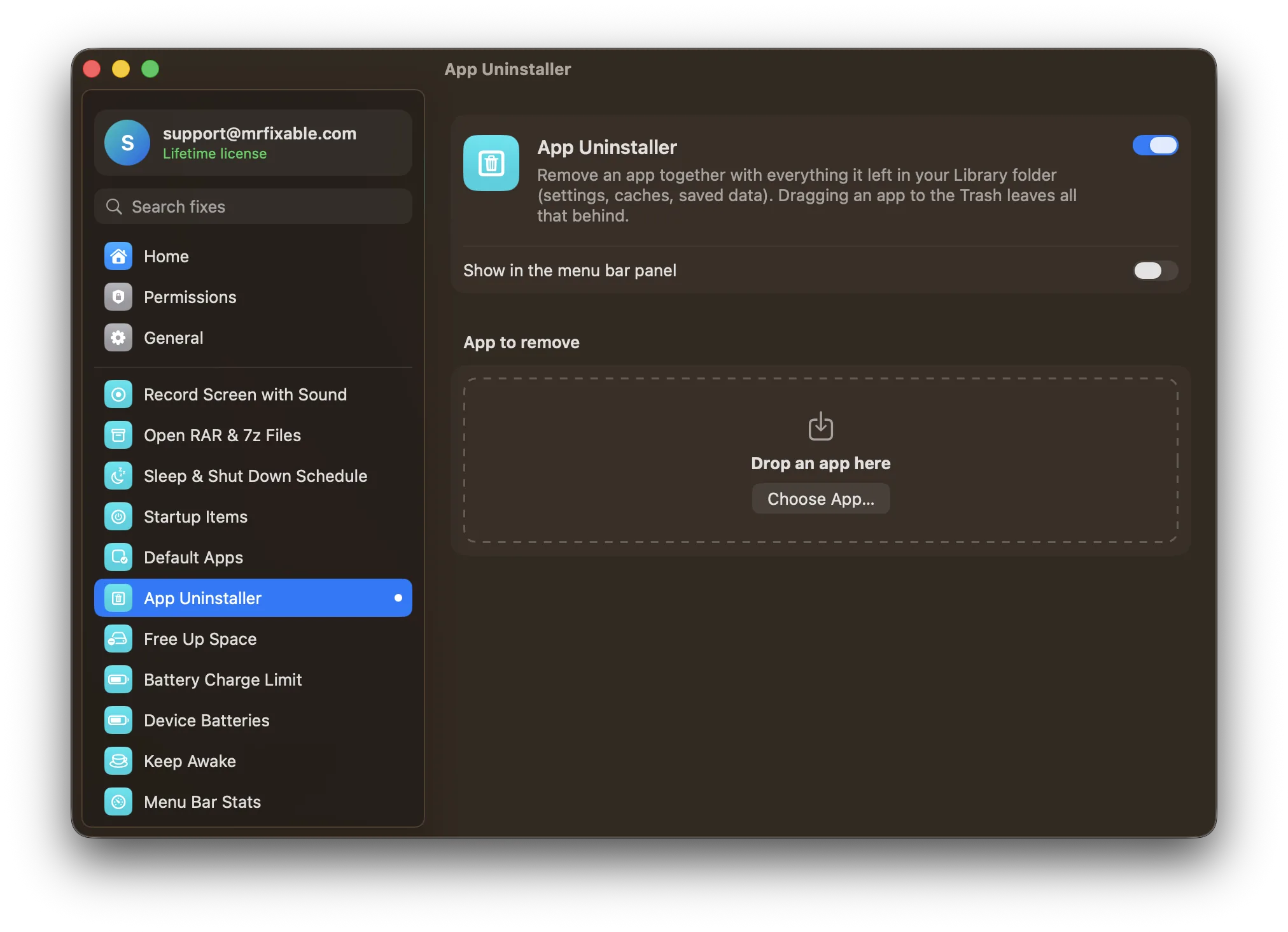
To uninstall Steam on Mac, quit Steam, drag it from Applications to the Trash, then open ~/Library/Application Support/Steam. Delete the whole folder to remove everything, or everything except steamapps to keep your games. Steam says dragging the app alone doesn't fully uninstall it. App Uninstaller in MrFixable removes Steam and its leftovers together.
Steam is unusual: the app itself is small, but its folder in your Library holds every game you've downloaded. That's why Steam's own support article warns that dragging Steam to the Trash isn't enough, and why you need to decide what happens to your games before you delete anything.
Keeping or deleting your games
Your games live in the steamapps folder inside ~/Library/Application Support/Steam (Steam's help calls it SteamApps). According to Steam, it holds your game downloads and any local save files.
- Keep it if you might install Steam again. Steam can pick up the games you already downloaded instead of downloading them again.
- Delete it if you're done with Steam games on this Mac or need the space back. The games you bought stay on your Steam account. Steam warns that you'll need your account name and password to install them again.
Uninstall Steam by hand
These steps follow Steam's support article, with the extra leftover files at the end.
- Quit Steam: choose Steam › Quit Steam.
- Open Finder › Applications and drag Steam to the Trash.
- In Finder, choose Go › Go to Folder… (⇧⌘G), type
~/Library/Application Support/Steamand press Return. - Choose what to delete:
- To keep your games, move everything in this folder to the Trash except
steamapps. - To remove everything, go up one level and move the whole
Steamfolder to the Trash.
- To keep your games, move everything in this folder to the Trash except
- For the smaller leftovers, press ⇧⌘G for each folder and move these to the Trash if they're there:
~/Library/Caches/com.valvesoftware.steam~/Library/Preferences/com.valvesoftware.steam.plistandcom.valvesoftware.steam.helper.plist~/Library/Saved Application State/com.valvesoftware.steam.savedState~/Library/Logs/Steam~/Library/LaunchAgents/com.valvesoftware.steamclean.plist
- Empty the Trash.
com.valvesoftware.steam is Steam's app ID, the name macOS uses for its files. Anything else in your Library that starts with it belongs to Steam too.
Uninstall Steam in one step
App Uninstaller in MrFixable finds Steam's files for you and moves them to the Trash together:
- Open App Uninstaller in MrFixable and drop Steam onto it, or click Choose App… and pick it from Applications.
- Check the list. It shows each leftover with its path and size. Files named after Steam's app ID, like its cache, settings and saved window state, are ticked.
- The
Steamfolder in Application Support is matched by name only, so it starts unticked, with a note to check it. That's the folder with your games: leave it unticked to keep them, or tick it to remove them too. - Click Move to Trash and confirm. If Steam is open, App Uninstaller quits it first.
App Uninstaller works on whole folders, so it can't keep steamapps while deleting the rest of the Steam folder. If you want that, do step 4 of the manual way instead. It also lists only exact matches, so the steamclean launch agent and the helper settings file from step 5 aren't in its list: remove those by hand. Everything goes to the Trash, so you can put it back until you empty it.
For how leftovers work with other apps, see how to uninstall apps on a Mac completely.
Questions
Does uninstalling Steam delete my games?
Only if you delete its folder. Dragging Steam to the Trash leaves your games in ~/Library/Application Support/Steam/steamapps, still taking up space. Delete that folder to remove them. The games stay on your Steam account either way, so you can download them again later after logging in.
Will I lose my saved games?
You can. Steam says the steamapps folder holds your game downloads and any local save files, so deleting it deletes those saves for good. If you want them, keep steamapps when you uninstall, or copy the folder to an external drive or another folder first, then delete the rest.
Can I reinstall Steam later and keep my games?
Yes. Keep the steamapps folder when you uninstall, as Steam suggests, and delete everything else in the Steam folder. When you install Steam again and log in, it uses the games already on your Mac. You'll need your Steam account name and password to log in.
How do I uninstall just one Steam game?
Do it in Steam rather than in Finder. Open your Library in Steam, right-click the game and choose Manage › Uninstall. Steam deletes the game's files from the steamapps folder and keeps it in your library, so you can install it again whenever you want.