
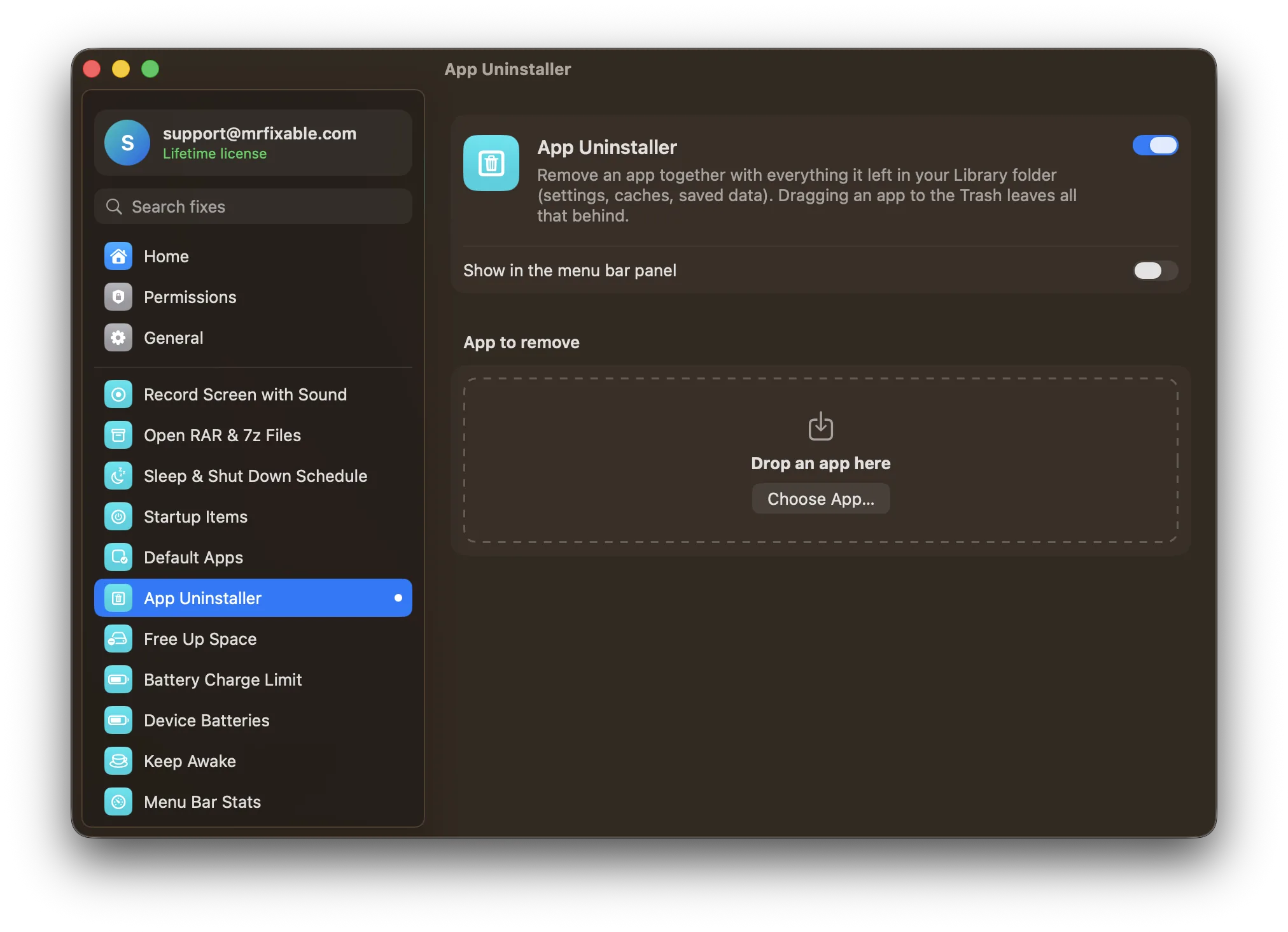
To uninstall an app on a Mac, quit it, open Applications in Finder, drag the app to the Trash and empty the Trash. If the app came with its own uninstaller, use that instead. Dragging removes the app, but its settings, caches and data stay in your Library folder, so here's how to remove those too.
On a Mac, uninstalling looks easy: drag the app to the Trash. But the app itself is only part of what it put on your Mac. Its settings, caches and saved data stay behind, sometimes gigabytes of them.
Where do Mac apps leave files after you delete them?
Most leftovers live in your user Library folder. In Finder, choose Go › Go to Folder… (⇧⌘G) and type ~/Library. Then look for folders and files named after the app or its developer in:
- Application Support: saved data, sometimes very large
- Caches: temporary files the app can rebuild
- Preferences: settings files, named like
com.developer.appname.plist - Containers and Group Containers: data for App Store and sandboxed apps
- Logs, HTTPStorages, WebKit and Saved Application State
How do I remove an app's leftover files by hand?
- Quit the app, then drag it from Applications to the Trash.
- Open each folder above and move anything clearly belonging to that app to the Trash.
- Empty the Trash.
Be careful: names aren't always obvious, and some folders are shared between apps from the same developer. Deleting the wrong one can reset another app's settings.
Questions
Why won't an app delete on my Mac?
Usually it's still running: quit it, or force quit it with ⌥⌘⎋, and try again. Apps that are part of macOS, like Safari, can't be removed. Some apps from the App Store or an installer ask for your administrator password before they move to the Trash.
How do I remove an app from the Dock?
Drag its icon out of the Dock until Remove appears, then let go, or right-click it and choose Options › Remove from Dock. This only removes the shortcut. The app stays installed.
Do I need to empty the Trash?
Yes, to get the space back. Until you empty it, the app and its files still take up room, and you can put them back by right-clicking them in the Trash and choosing Put Back.
In one step
App Uninstaller in MrFixable finds an app's files across your Library and shows you exactly what it will remove, each with its size. Files it's sure about are ticked; ones that only match by name are left unticked for you to check. Then it moves them all to the Trash together, so you can still put them back until you empty it.
Looking for space more broadly? Free Up Space finds the big hidden files that are safe to delete, like app caches, Xcode build files, npm downloads and old Downloads, and lets you choose what to clean.