
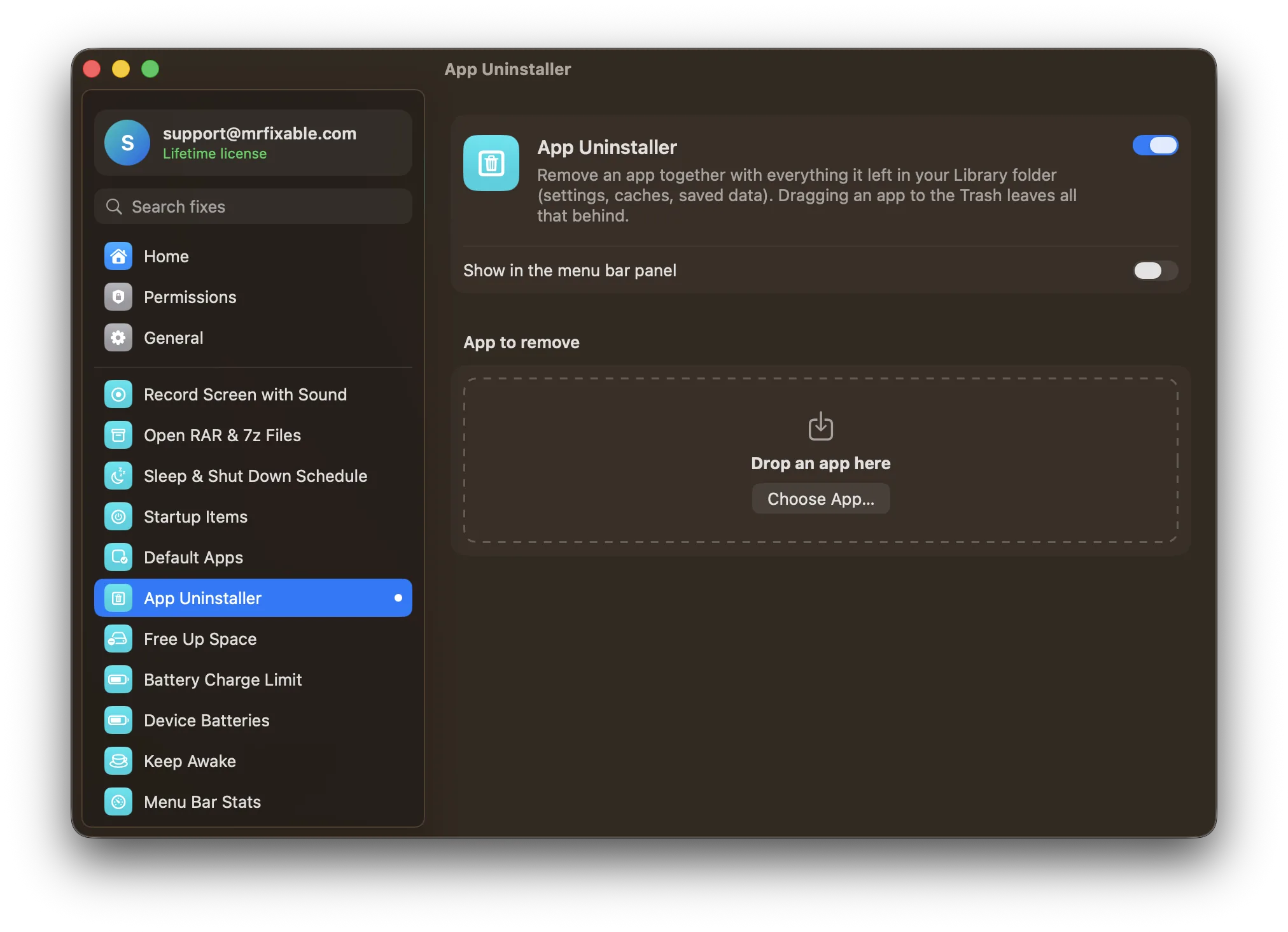
To uninstall Grammarly on Mac, click the Grammarly icon in the menu bar and choose Quit, then open Finder › Applications and move Grammarly Desktop to the Trash. Grammarly's browser extension and its Microsoft Word add-in are separate, so remove those too. App Uninstaller in MrFixable removes the app and its leftover files together.
Grammarly can be on your Mac in three places at once: the Grammarly Desktop app (some of Grammarly's help pages call it Grammarly for Mac), an extension in your web browser, and an add-in inside Microsoft Word. Removing one doesn't remove the others, which is why Grammarly often seems to keep working after you've deleted it.
Uninstall the Grammarly app by hand
- Click the Grammarly icon in the menu bar and choose Quit. Grammarly runs in the background, so closing its window isn't enough.
- Open Finder › Applications and move Grammarly Desktop to the Trash.
- For the leftovers, in Finder choose Go › Go to Folder… (⇧⌘G) and open each of these folders:
~/Library/Application Support~/Library/Caches~/Library/Saved Application State~/Library/Preferences
- In each one, move anything with Grammarly in its name, or starting with
com.grammarly, to the Trash. Grammarly's app ID iscom.grammarly.ProjectLlama, so many of its files carry that name. - Empty the Trash.
If macOS says Grammarly "can't be moved to the Trash because it's open"
Grammarly's support page gives these steps:
- Click the Grammarly icon in the menu bar and choose Quit, then try again.
- If that doesn't help, click the Grammarly icon, choose Settings…, and in the Customization tab switch off Launch at startup.
- Choose Apple menu › Restart…, and untick the option to reopen windows when logging back in.
- After the restart, move Grammarly Desktop from Applications to the Trash.
Remove the browser extension and the Word add-in
Deleting the app doesn't touch these. Remove each one where it lives:
- Safari: choose Safari › Settings…, click Extensions, select Grammarly and click Uninstall.
- Chrome: right-click the Grammarly button in the toolbar and choose Remove from Chrome. If you can't see it, type
chrome://extensionsin the address bar and remove Grammarly there. - Microsoft Word: Grammarly's steps are to open Word, go to Insert › My Add-ins, select Grammarly for Microsoft Word, click the three dots next to it and choose Remove.
Uninstall Grammarly in one step
App Uninstaller in MrFixable handles the app and the Library folders:
- Open App Uninstaller in MrFixable and drop Grammarly Desktop onto it, or click Choose App… and pick it from Applications.
- Check the list. It shows each leftover with its path and size. Files named after Grammarly's app ID,
com.grammarly.ProjectLlama, are ticked. Anything it found by name only starts unticked, with a note to check it. - Click Move to Trash and confirm. If Grammarly is running, App Uninstaller asks it to quit first. If it doesn't quit, App Uninstaller tells you, so you can quit it from the menu bar and try again.
App Uninstaller only works on the app and your Library folder, so remove the browser extension and the Word add-in as shown above. Everything goes to the Trash, so you can put it back until you empty it.
For how leftovers work with other apps, see how to uninstall apps on a Mac completely.
Questions
Why is Grammarly still working after I uninstalled it?
The browser extension or the Word add-in is still installed. They're separate from the Grammarly Desktop app, so deleting the app leaves them running. Remove the extension from your browser's extension settings, and the add-in from Insert › My Add-ins in Word. Then restart the browser and Word.
Does uninstalling Grammarly delete my account?
No. Your Grammarly account and subscription stay as they are when you remove the app, the extension and the add-in from your Mac. You can still sign in on the web or on another device. To close the account or stop a paid plan, do it from your account settings on Grammarly's website.
How do I stop Grammarly from opening at startup without uninstalling it?
Click the Grammarly icon in the menu bar, choose Settings…, open the Customization tab and switch off Launch at startup. Grammarly stays installed but no longer starts by itself when you log in. You can open it from Applications whenever you want to use it.
Why can't I move Grammarly to the Trash?
Grammarly is still running in the background. Click its menu bar icon and choose Quit, then try again. If it keeps coming back, switch off Launch at startup in Grammarly's Settings… › Customization, restart your Mac without reopening windows, and move it to the Trash right away.
Sources
- How to uninstall Grammarly for Windows or Grammarly for Mac
- I can't uninstall Grammarly for Mac
- Uninstall the Grammarly browser extension
- How do I uninstall Grammarly for Microsoft Word on Mac?
- How do I cancel my subscription?
- Delete your Grammarly account
- Get extensions to customize Safari on Mac
- Install and manage extensions
- Go directly to a specific folder on Mac
- Mac keyboard shortcuts