
When an app won't delete on a Mac, it's usually still running. Quit it, or press ⌥⌘⎋ (Option-Command-Escape) to force quit it, then drag it from Applications to the Trash again. Apps that are part of macOS, like Mail and Safari, can't be deleted. If Finder still says the app is in use, restart and try again.
Deleting an app on a Mac is normally just a drag to the Trash. When that fails, Finder usually tells you why, and each reason has its own fix.
Why won't an app delete on my Mac?
Usually because the app, or a helper that came with it, is still running. The other common reasons are that the app is part of macOS, that deleting it needs an administrator password, or that something else still uses it. The message Finder shows tells you which one you have, and each has its own fix.
- The app is open. Finder won't move an app that's running. Some apps keep running in the menu bar or in the background after you close their windows.
- The app is part of macOS. Apps such as Mail, Music, Books, Notes, Maps and Safari are required by macOS and can't be removed.
- You need an administrator password. Apps from the App Store or an installer may ask for an administrator name and password. If you aren't an administrator on the Mac, ask the person who is.
- Something is still using it. A helper, extension or login item from the app can keep it busy even after you quit it.
How do I delete an app that says it's open?
Quit it properly, including any menu bar icon or background helper, then drag it to the Trash again. Press ⌘Q first, use ⌥⌘⎋ to force quit it if it won't close, and check Activity Monitor for helper processes that keep it busy. Turning off its background item stops it starting again.
- Click the app in the Dock and press ⌘Q to quit it. Look in the menu bar too: if the app has an icon there, click it and choose Quit.
- Still open? Press ⌥⌘⎋, select the app and click Force Quit.
- If it keeps coming back, open Activity Monitor from Applications › Utilities. Type the app's name in the search field, select every process with that name, click the Stop button (the ⓧ in the toolbar) and choose Quit or Force Quit.
- Open System Settings › General › Login Items & Extensions and turn off the app under App Background Activity, so it doesn't start again.
- Drag the app from Applications to the Trash, then choose Finder › Empty Trash.
What if Finder still says the app is in use?
Restart your Mac, then delete the app straight away, before you open anything else. That's Apple's advice too. If it still won't move, start up in Safe Mode, which loads only what macOS needs, and delete it from there. Safe Mode doesn't change your apps or files, and a normal restart takes you back.
To start up in Safe Mode on a Mac with Apple silicon:
- Choose Apple menu › Shut Down.
- Press and hold the power button until Loading startup options appears.
- Select your startup disk, then hold ⇧ (Shift) and click Continue in Safe Mode.
- Delete the app, then restart normally.
On a Mac with an Intel processor, restart and hold ⇧ right away until you see the login window.
Use the app's own uninstaller
Security software, VPNs, drivers, backup tools and big suites often install parts outside the app: system extensions, background helpers and login items. Those can stop the app from deleting, or keep running after the app is gone. Look in the app's folder in Applications for Uninstall [App] or [App] Uninstaller, or for an uninstall option in the app's own menus or settings. Apple recommends this as the best way to remove such apps.
Delete it with App Uninstaller
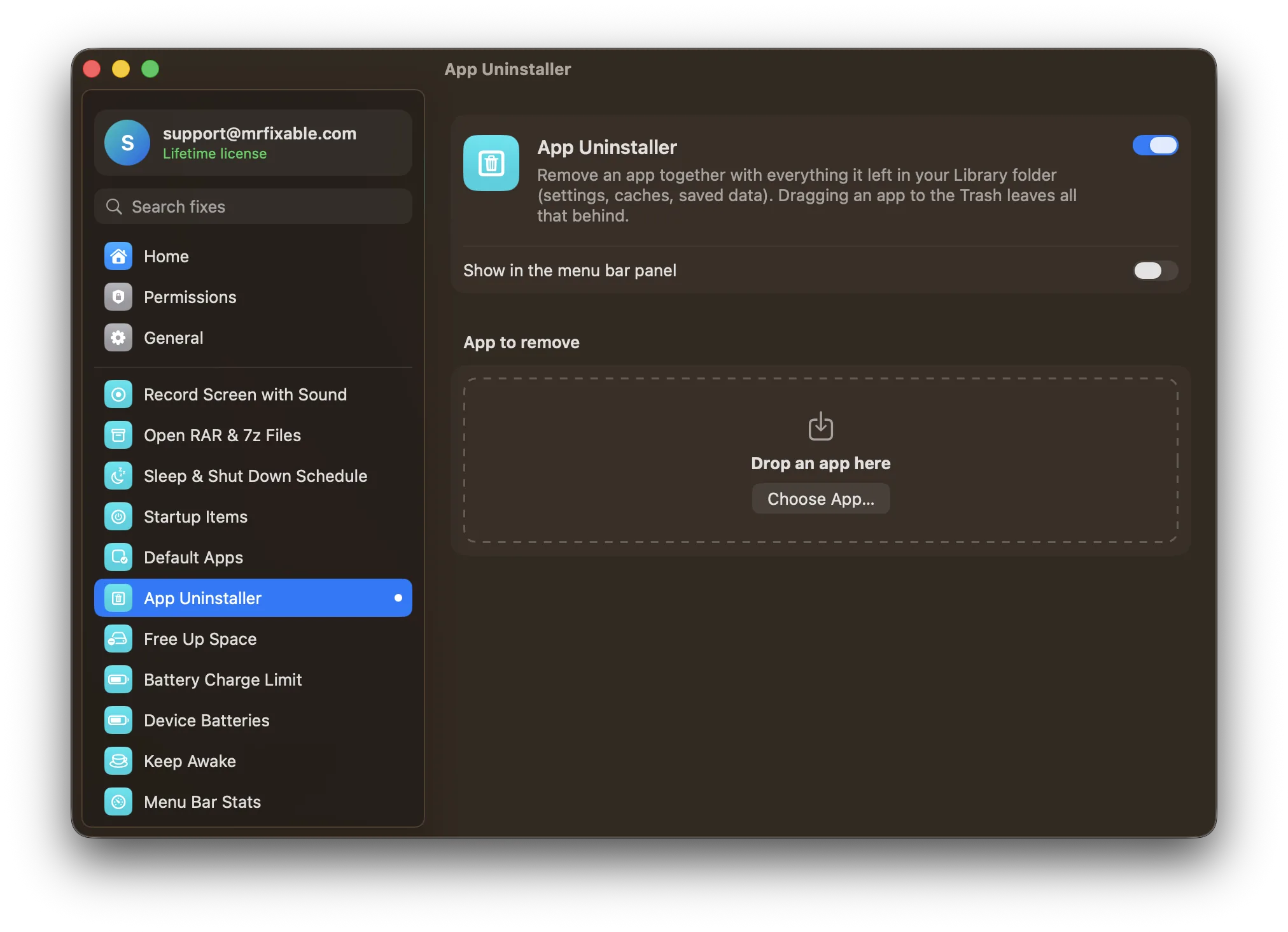
App Uninstaller in MrFixable takes care of the usual problems for you:
- It quits the app first. If the app is open, it's asked to quit before anything is moved. If it doesn't quit within a few seconds, App Uninstaller tells you, so you can quit it yourself and try again.
- It handles apps that need a password. Apps installed by the App Store or an installer are moved by Finder, which asks for your password.
- It removes the leftovers too. Settings, caches and saved data named after the app are listed with their sizes, and the ones you tick go to the Trash with the app.
- It tells you when an app can't go. Apps that are part of macOS show a message instead of a failed attempt.
Everything goes to the Trash, so you can still put it back until you empty it. If an app's helper keeps starting again, Startup Items lists everything that starts with your Mac, including hidden background helpers, and lets you turn them off.
Questions
How do I delete apps on a Mac?
Quit the app, click Applications in the Finder sidebar and drag the app to the Trash, then choose Finder › Empty Trash. You can also open System Settings › General › Storage, click ⓘ next to Applications, select the app and click Delete. See every way to delete apps on a Mac.
Can I delete Safari or other built-in apps?
No. Apps that are part of macOS, such as Safari, Mail, Music, Notes and Maps, are protected and can't be removed. They live on a read-only part of the disk, so deleting them wouldn't free up space anyway. Apple apps you got from the App Store, like Pages or GarageBand, can be deleted.
Why does my Mac ask for a password to delete an app?
The app was installed for every user on the Mac, usually by the App Store or an installer, so macOS asks an administrator to confirm. Enter the name and password of an administrator account. If you don't have one, ask whoever set up the Mac to delete the app for you.
How do I remove apps from my Mac completely?
Delete the app, then remove the files it left in your Library folder, in places like Application Support, Caches, Preferences and Containers. Look for folders named after the app or its developer. See how to uninstall apps on a Mac completely for every folder to check.