
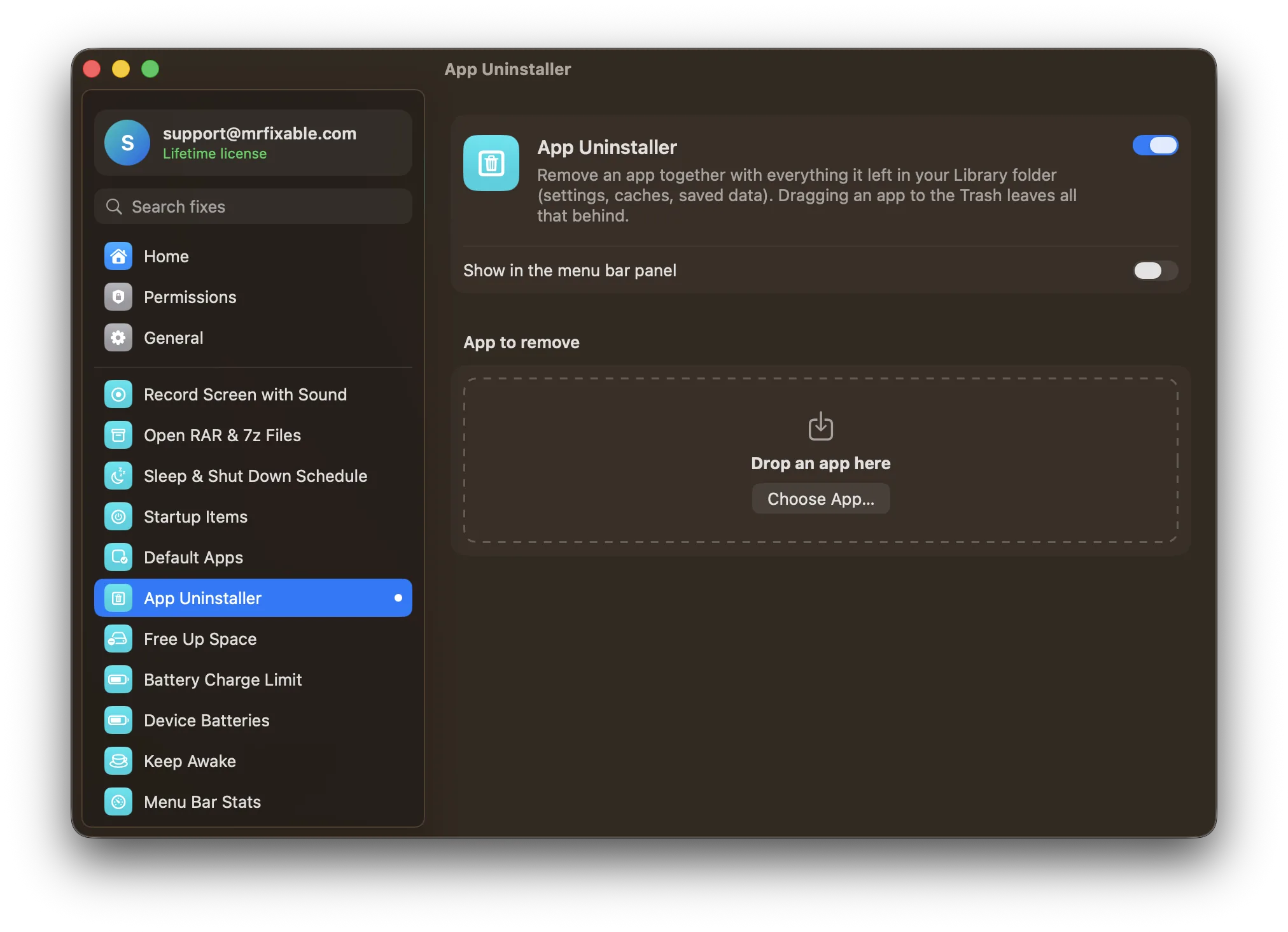
To delete apps on a Mac, quit the app, click Applications in the Finder sidebar and drag the app to the Trash, then choose Finder › Empty Trash. You can also delete apps in System Settings › General › Storage. MrFixable's App Uninstaller removes an app together with the settings and caches it leaves behind.
In macOS 26 Tahoe, Launchpad has been replaced by the Apps view, so older guides that tell you to hold an icon until it jiggles no longer match what you see. The ways below all work in Tahoe, and they work the same for apps you downloaded from a website and apps from the App Store.
How do I delete an app in Finder?
Finder is the standard way to delete apps on a Mac, and it's the way Apple describes first. It works for almost every app you installed yourself. If the app isn't made by Apple, check its folder for an uninstaller before you drag it to the Trash.
- Quit the app if it's open: click it in the Dock and press ⌘Q (Command-Q).
- Open Finder and click Applications in the sidebar. Some apps live in an Applications folder inside your home folder instead: choose Go › Home to look there.
- Can't find it? Press ⌘Space, type the app's name, then hold ⌘ and double-click the result to show it in Finder.
- Drag the app to the Trash at the end of the Dock, or select it and choose File › Move to Trash (⌘⌫).
- If your Mac asks, enter an administrator name and password.
- Choose Finder › Empty Trash to delete it for good and get the space back.
Until you empty the Trash, you can still get the app back: open the Trash, right-click the app and choose Put Back.
How do I delete apps from Storage settings?
Open System Settings › General › Storage, click ⓘ next to Applications, select the app and click Delete. Storage settings list every app you installed with its size, which helps when you're deleting apps to free up space. Apps that are part of macOS aren't listed, so you can't delete them by mistake.
- Choose Apple menu › System Settings, then click General in the sidebar.
- Click Storage.
- Click the ⓘ button next to Applications.
- Select the app you want to remove.
- Click Delete and confirm.
When should I use the app's own uninstaller?
Use it whenever an app comes with one. Apple says an app's own uninstaller is the best way to remove it together with its login items, extensions and other data. This matters most for security software, VPNs, drivers and big suites that install parts outside the app itself.
- In Finder, open Applications and look for a folder with the app's name.
- Open the folder and look for Uninstall [App] or [App] Uninstaller.
- Double-click it and follow the instructions on screen.
Some apps put the uninstall option in their own menus or settings instead, often called Uninstall, Remove or Reset.
What does dragging an app to the Trash leave behind?
Dragging an app to the Trash removes the app itself. Its settings, caches and saved data stay in the Library folder in your home folder, sometimes taking up gigabytes. If you're deleting the app for good, or because it misbehaves and you want a clean reinstall, those files are worth removing too.
They're spread over folders like Application Support, Caches, Preferences and Containers. To find and remove them by hand, see how to uninstall apps on a Mac completely.
Delete an app and its leftovers together
App Uninstaller in MrFixable does both steps at once:
- Drop an app on its page in MrFixable, or click Choose App… and pick it from Applications.
- It lists the leftovers it found, such as app data, caches, settings, cookies and window state, each with its path and size.
- Files matched by the app's ID are ticked. Anything matched only by name starts unticked, so you can check it really belongs to that app. Names that another installed app uses are skipped.
- Click Move to Trash. If the app is open, it's asked to quit first. The app and the files you ticked go to the Trash, so you can still put them back until you empty it.
Apps that are part of macOS, like Safari, can't be removed. Apps installed by the App Store or an installer are moved by Finder, which asks for your password.
Questions
How do I remove a program from a MacBook?
Quit the program, open Applications in Finder and drag it to the Trash, then choose Finder › Empty Trash. A MacBook works the same as any other Mac. If the program came with an uninstaller, use that instead, because it also removes the extensions and background parts it installed.
How do I completely remove an app from a Mac?
Drag the app to the Trash, then remove the files it left in your Library folder: look in Application Support, Caches, Preferences and Containers for folders named after the app or its developer. App Uninstaller in MrFixable finds those files for you and moves them to the Trash with the app.
How do I remove an app from the Dock on a Mac?
Drag its icon out of the Dock until Remove appears, then let go. You can also right-click the icon and choose Options › Remove from Dock. This only removes the shortcut from the Dock. The app stays installed, and you can still open it from Applications or Spotlight.
How do I delete apps on a Mac that won't delete?
Quit the app first, or press ⌥⌘⎋ (Option-Command-Escape) to force quit it, then drag it to the Trash again. Apps that are part of macOS, like Mail and Safari, can't be deleted. If Finder still says it's in use, restart your Mac and try again. See deleting apps that won't delete.