
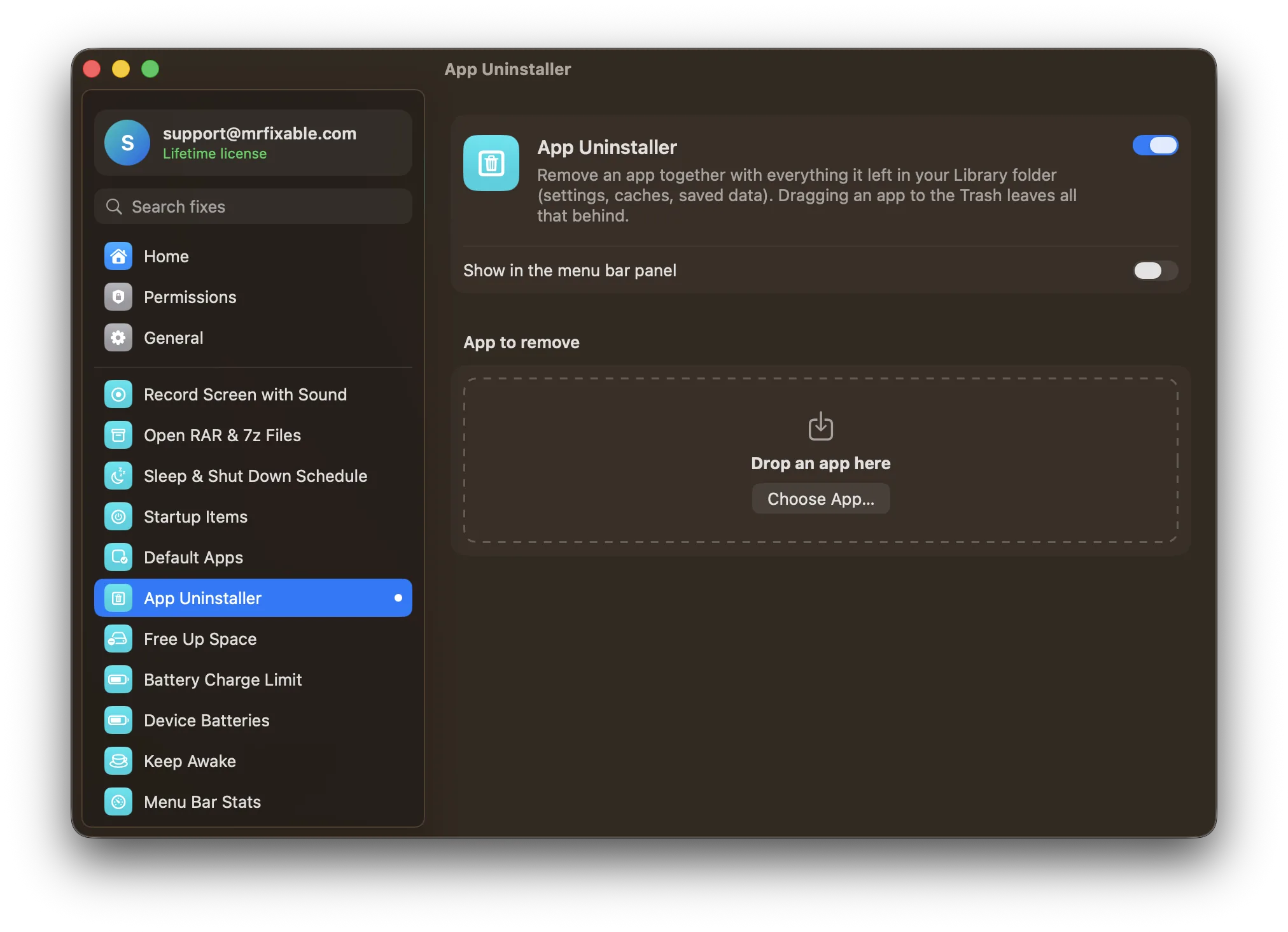
To uninstall Spotify on Mac, quit Spotify, drag it from Applications to the Trash, then delete its leftovers: the com.spotify.client and com.spotify.client.helper folders in ~/Library/Caches and the Spotify folder in ~/Library/Application Support. Spotify has no uninstaller of its own. App Uninstaller in MrFixable removes the app and its leftovers together.
Dragging Spotify to the Trash removes the app, but its cache and saved data stay in your Library folder. Spotify's own support article calls removing them a clean reinstall, and suggests it when a normal reinstall doesn't fix a problem. The steps below follow that article, so they work whether you want Spotify gone for good or want to start fresh.
Uninstall Spotify by hand
- Quit Spotify: choose Spotify › Quit Spotify, or press ⌘Q (⌘ is the Command key) while Spotify is in front.
- Open Finder › Applications and drag Spotify to the Trash.
- In Finder, choose Go › Go to Folder… (⇧⌘G), type
~/Library/Cachesand press Return. - Move the
com.spotify.clientandcom.spotify.client.helperfolders to the Trash. - Press ⇧⌘G again, go to
~/Library/Application Supportand move theSpotifyfolder to the Trash. - If you also want Spotify's settings gone, look in
~/Library/Preferencesforcom.spotify.client.plistand in~/Library/Saved Application Stateforcom.spotify.client.savedState, and move them to the Trash. - Empty the Trash. Spotify's article also says to restart your Mac before you install Spotify again.
The folder names start with com.spotify.client because that's Spotify's app ID, the name macOS uses to tell apps apart. If you find other files that start with it, they're Spotify's too.
What you lose and what you keep
Spotify keeps your account, playlists and liked songs online, so they come back as soon as you log in again. What's stored on your Mac is lost: Spotify's article says that after a clean reinstall you have to download your music and podcasts again. If you use local files, check Spotify's settings afterwards to point it at your music folder again.
To install Spotify again, download it from spotify.com and log in.
Uninstall Spotify in one step
App Uninstaller in MrFixable does the dragging and the folder hunting for you:
- Open App Uninstaller in MrFixable and drop Spotify onto it, or click Choose App… and pick it from Applications.
- Check the list. It shows each leftover with its path and size. Files named after Spotify's app ID, like the
com.spotify.clientcache and its settings file, are ticked. - The
Spotifyfolder in Application Support is matched by name only, so it starts unticked with a note to check it. Tick it to remove your downloads and local data too. - Click Move to Trash and confirm. If Spotify is open, App Uninstaller quits it first.
App Uninstaller only lists exact matches, so the com.spotify.client.helper cache folder isn't in its list: remove that one by hand (step 4 above). Everything goes to the Trash, so you can put it back until you empty the Trash.
For how leftovers work with other apps, see how to uninstall apps on a Mac completely.
Questions
Does uninstalling Spotify delete my playlists?
No. Your playlists and liked songs are saved to your Spotify account, not to your Mac. Uninstalling Spotify and deleting its folders only removes the app, its cache and your downloads. Log in again after reinstalling and your playlists are there, ready to play or download again.
Does uninstalling Spotify cancel Premium?
No. Removing the app from your Mac doesn't change your plan, and Premium keeps billing as usual. To stop paying, cancel Premium from your account on Spotify's website. You can uninstall Spotify and keep Premium for your phone, or cancel Premium and keep using the free version on your Mac.
Will I lose my downloaded songs?
Yes, if you delete Spotify's folders. Downloads for offline listening are stored on your Mac, and Spotify's support article says you have to download your music and podcasts again after a clean reinstall. If you only drag the app to the Trash and keep the folders, they stay, but they still take up space.
Why can't I move Spotify to the Trash?
Spotify is most likely still running. Quit it with ⌘Q, or choose Apple menu › Force Quit… (⌥⌘⎋), select Spotify and click Force Quit. Then drag it to the Trash again. If it still refuses, restart your Mac and try once more before it opens again.