
To uninstall Adobe Creative Cloud on Mac, remove each Adobe app first: open the Creative Cloud app, go to Apps › Your apps, click More actions (•••) next to the app and choose Uninstall. Then download Adobe's Creative Cloud Uninstaller to remove the Creative Cloud app itself. Don't just drag Adobe apps to the Trash.
Adobe apps are different from most Mac apps. Photoshop, Illustrator, Premiere and the rest are installed and managed by the Creative Cloud desktop app, and Adobe's help says to remove them the same way. The order matters too: Adobe says you can only uninstall the Creative Cloud app once every Creative Cloud app is gone.
Before you start
- Sync your files. Adobe warns that files not yet synced to your Creative Cloud account could be lost when you remove the Creative Cloud app. Open the Creative Cloud app and make sure syncing has finished.
- Work or school Mac? If your Adobe apps came from your employer or school, you may not have the rights to uninstall them. Adobe says to contact your admin.
Step 1: Uninstall each Adobe app
- Click the Creative Cloud icon in the menu bar to open the Creative Cloud desktop app.
- In the Apps tab on the left, select Your apps.
- Click the More actions icon (•••) next to the app you want to remove, and choose Uninstall.
- Choose what happens to the app's settings:
- Remove deletes its notifications, alerts, interface settings, plugins and other preferences.
- Keep saves them, so a future install picks them up again.
- Cancel stops the uninstall.
- Repeat for every Adobe app in the list.
Choose Remove if you want each app gone completely. That's Adobe's own way of clearing the settings that would otherwise stay in your Library folder.
Step 2: Uninstall the Creative Cloud app
- Quit the Creative Cloud app: with it in front, choose Creative Cloud › Quit Creative Cloud in the menu bar.
- Download the Creative Cloud Uninstaller for your Mac from Adobe's help page "Uninstall Creative Cloud desktop app". Adobe offers versions for Macs with Apple silicon, for macOS 10.12 or later, and for older macOS.
- Open the downloaded zip file, then double-click Creative Cloud Uninstaller. If macOS warns you about opening it, click Open.
- The uninstaller first offers Repair. If you're uninstalling to fix a problem, try that first. Otherwise, choose Uninstall.
- Click Close when it's done.
If the uninstaller fails or Adobe apps won't install again afterwards, Adobe has a separate tool for that: the Creative Cloud Cleaner tool, described on Adobe's help page "How and when to use the Creative Cloud Cleaner tool".
Step 3: Check for leftovers
Adobe's uninstallers do most of the work. To check what's left, in Finder choose Go › Go to Folder… (⇧⌘G) and look in:
~/Library/Application Supportfor a folder namedAdobe~/Library/Preferencesfor folders and files with Adobe in the name, likeAdobe Photoshop [version] Settings, the folder Adobe says Photoshop keeps its settings in
These folders can hold data for more than one Adobe app, so only move them to the Trash once no Adobe app is left on your Mac. Then empty the Trash.
Where App Uninstaller fits
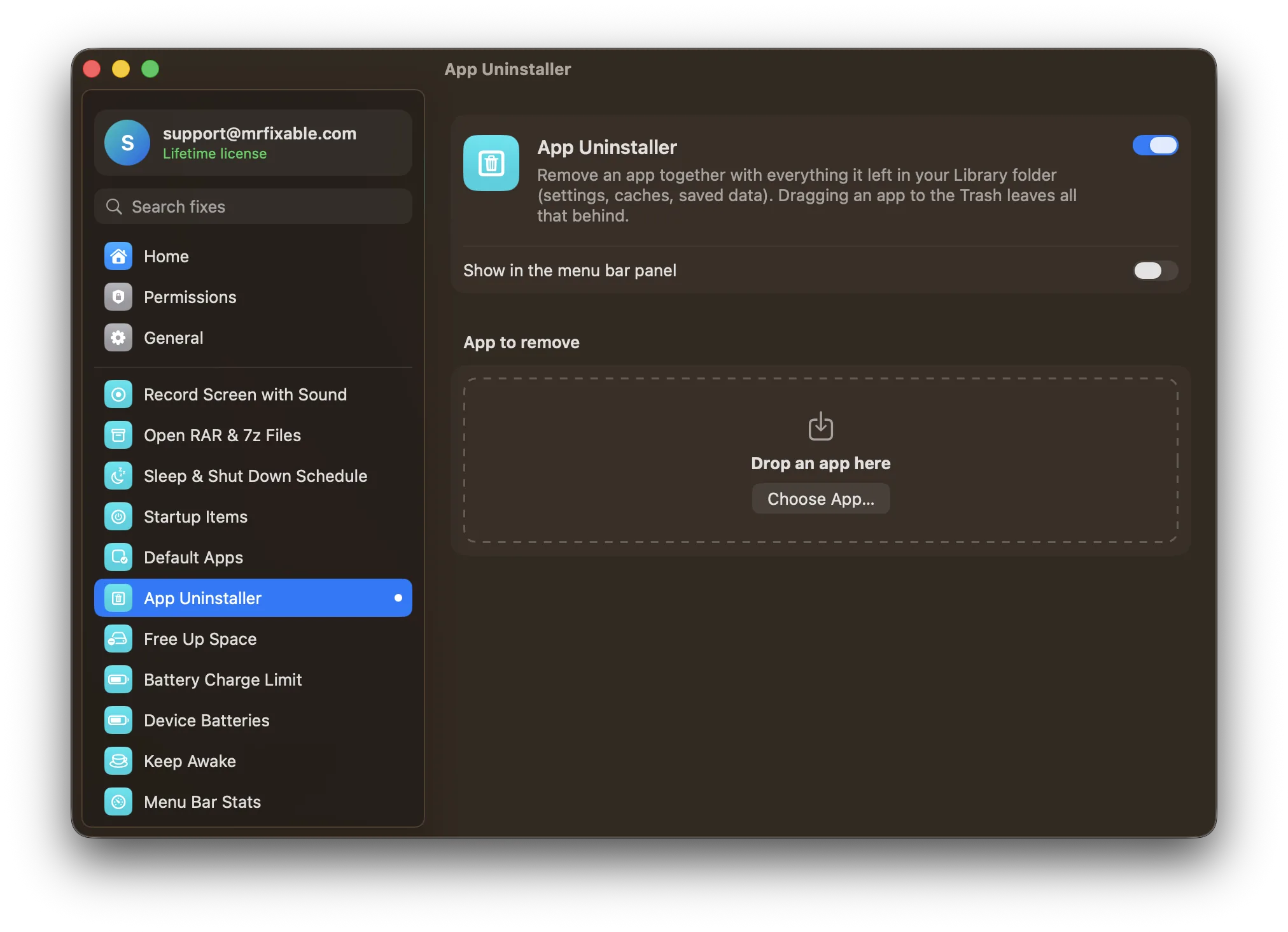
App Uninstaller in MrFixable removes an app by moving it, and the files named after it in your Library folder, to the Trash. For Adobe Creative Cloud apps, that's the same as dragging them to the Trash, which is what Adobe asks you not to do. So for Adobe apps, use Adobe's tools above.
App Uninstaller also starts from the app itself: you drop an app onto it and it looks for that app's files. Once Adobe's uninstaller has removed an app, there's nothing left to drop, so check the folders in step 3 by hand.
For your other apps, App Uninstaller is the quick way: it shows every leftover with its path and size, quits the app if it's open, and moves everything to the Trash together. See how to uninstall apps on a Mac completely for how that works.
Questions
Can I just drag Adobe apps to the Trash?
No. Adobe's help says to uninstall Creative Cloud apps from the Creative Cloud desktop app, not by dragging them to the Trash, because they won't uninstall properly that way. Open Creative Cloud, go to Apps › Your apps, click More actions next to the app and choose Uninstall instead.
Why can't I uninstall the Creative Cloud app?
Adobe apps are probably still installed. Adobe says you can only uninstall the Creative Cloud desktop app once every Creative Cloud app, like Photoshop, Illustrator or Premiere, is uninstalled. Remove them first from Apps › Your apps in Creative Cloud, then run the Creative Cloud Uninstaller again.
Does uninstalling Creative Cloud cancel my subscription?
No. Removing the apps from your Mac doesn't change your Adobe plan, and Adobe keeps billing you as usual. To stop paying, cancel the plan from your Adobe account online, at account.adobe.com. You can also keep your plan and simply reinstall the apps later from the Creative Cloud desktop app.
Should I choose Keep or Remove when uninstalling an Adobe app?
Choose Remove to uninstall completely. Adobe says it deletes the app's notifications, alerts, interface settings, plugins and other preferences. Choose Keep if you plan to install the app again and want your settings and plugins back, since Adobe reuses them during a future installation.