
System & FinderStop Photos Opening
Stop Photos opening when an iPhone is connected to a Mac
To stop Photos opening when an iPhone is connected to your Mac, connect it, open Photos, select the iPhone in the sidebar and deselect Open Photos. That covers only that device. Stop Photos Opening turns it off for every iPhone, iPad and camera at once, including ones you connect later, and keeps working when MrFixable isn’t running.
Try free for 14 daysBuy for $19.99 Lifetime license
One of 68 fixes in MrFixable. Lifetime license, no subscription. Updated October 22, 2026. Works on macOS 14.2 Sonoma and later. Checked on macOS 26 Tahoe.
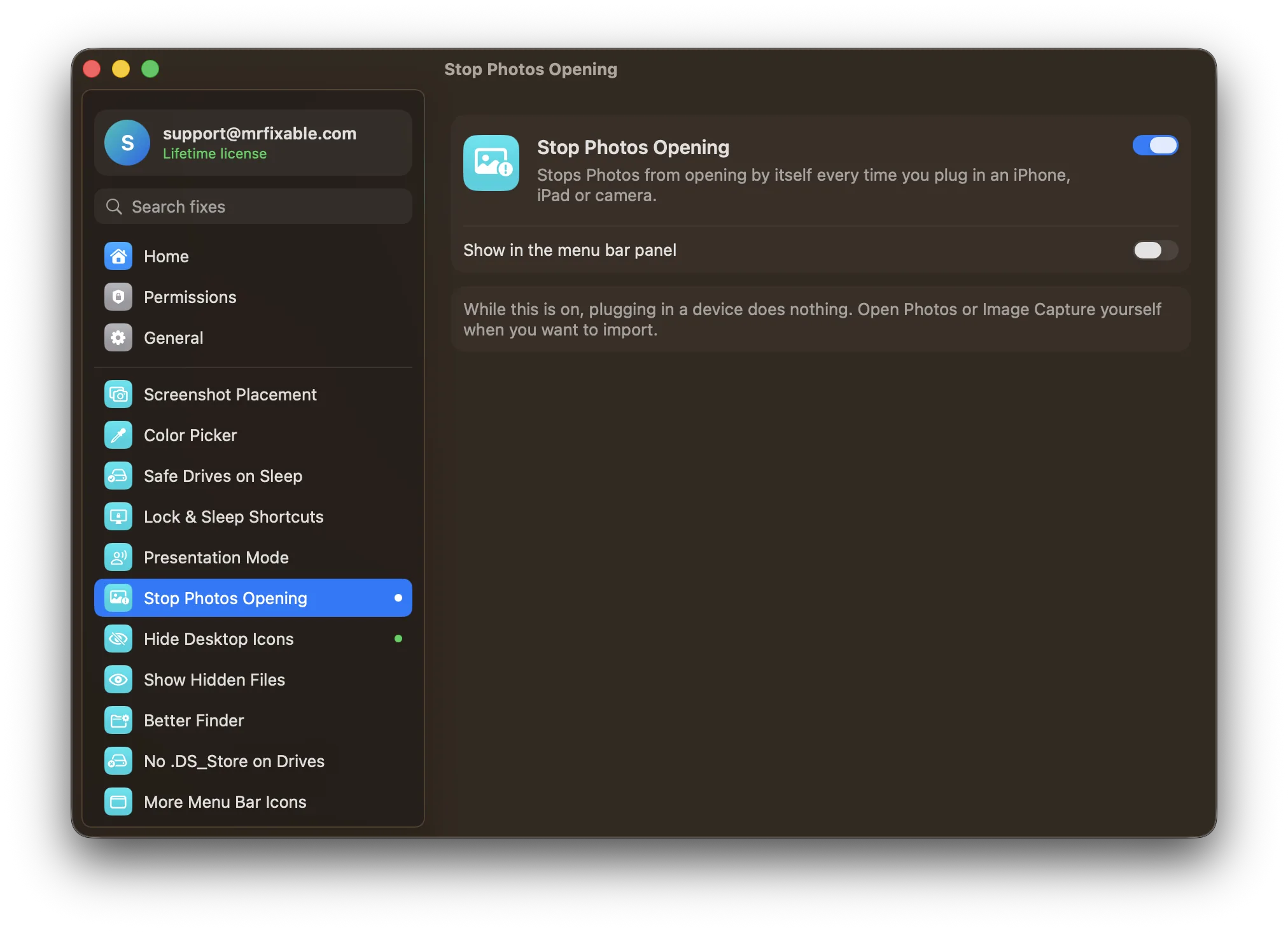
What Stop Photos Opening does
The problem
Plug in an iPhone to charge it and Photos jumps open, every time. You can turn this off for one device in Photos or Image Capture, but a new iPhone, an iPad or a camera starts opening Photos again until you repeat the steps.
With Stop Photos Opening
Plugging in an iPhone, iPad or camera no longer opens anything. Open Photos or Image Capture yourself when you want to import.
- Every device at onceWorks for every iPhone, iPad and camera, including ones you haven’t plugged in yet. No more setting it device by device.
- Importing works as usualOpen Photos or Image Capture, select your device, and import as before. Only the automatic opening stops.
- Works with MrFixable closedIt changes the same setting Image Capture uses, which macOS keeps, so it works even when MrFixable isn’t running.
Good to know
Needs no special permissions.
Switch it off and the setting you had before comes back.
Questions
How do I stop Photos opening when I connect my iPhone to my Mac?
Turn off Open Photos for that iPhone. 1. Connect the iPhone and unlock it. 2. Open Photos. 3. Select the iPhone in the sidebar. 4. Deselect the Open Photos checkbox. This only covers that one device. To stop it for every iPhone, iPad and camera at once, turn on Stop Photos Opening.How do I stop Photos opening for every device?
Turn on Stop Photos Opening in MrFixable. macOS only lets you turn it off one device at a time, in Photos or Image Capture. This fix turns it off for every iPhone, iPad and camera at once, including new ones you connect later. Switch the fix off and your previous setting comes back.Why does Photos open every time I plug in my iPhone?
Because Photos is set to open when that device connects, and the setting is saved per device. Turning it off for your iPhone doesn’t cover your iPad, a camera or your next iPhone, so Photos can keep opening. Stop Photos Opening turns it off for all of them in one go.Can I stop Photos opening with Image Capture?
Yes, one device at a time. 1. Connect the iPhone and open Image Capture from the Applications folder. 2. Select the iPhone under Devices. 3. Click the options button in the Image Capture toolbar and set Connecting this iPhone opens to No application. Stop Photos Opening changes that same setting for every device at once.Does it stop Image Capture opening too?
Yes. While Stop Photos Opening is on, plugging in an iPhone, iPad or camera opens nothing at all, neither Photos nor Image Capture. When you want to import pictures, open Photos or Image Capture yourself, select your device and import as usual. Nothing about the import itself changes.Will my iPhone still charge?
Yes. Charging isn’t affected in any way. Your iPhone charges, syncs and shows up in Finder exactly as before. The only thing Stop Photos Opening changes is that Photos no longer jumps open by itself each time you plug the iPhone into your Mac with a cable.Can I still import photos from my iPhone?
Yes. 1. Connect your iPhone and unlock it. 2. Open Photos or Image Capture yourself. 3. Select your iPhone in the sidebar. 4. Choose the photos and import them as usual. Stop Photos Opening only stops the app opening by itself, so importing works the same as it always did.