
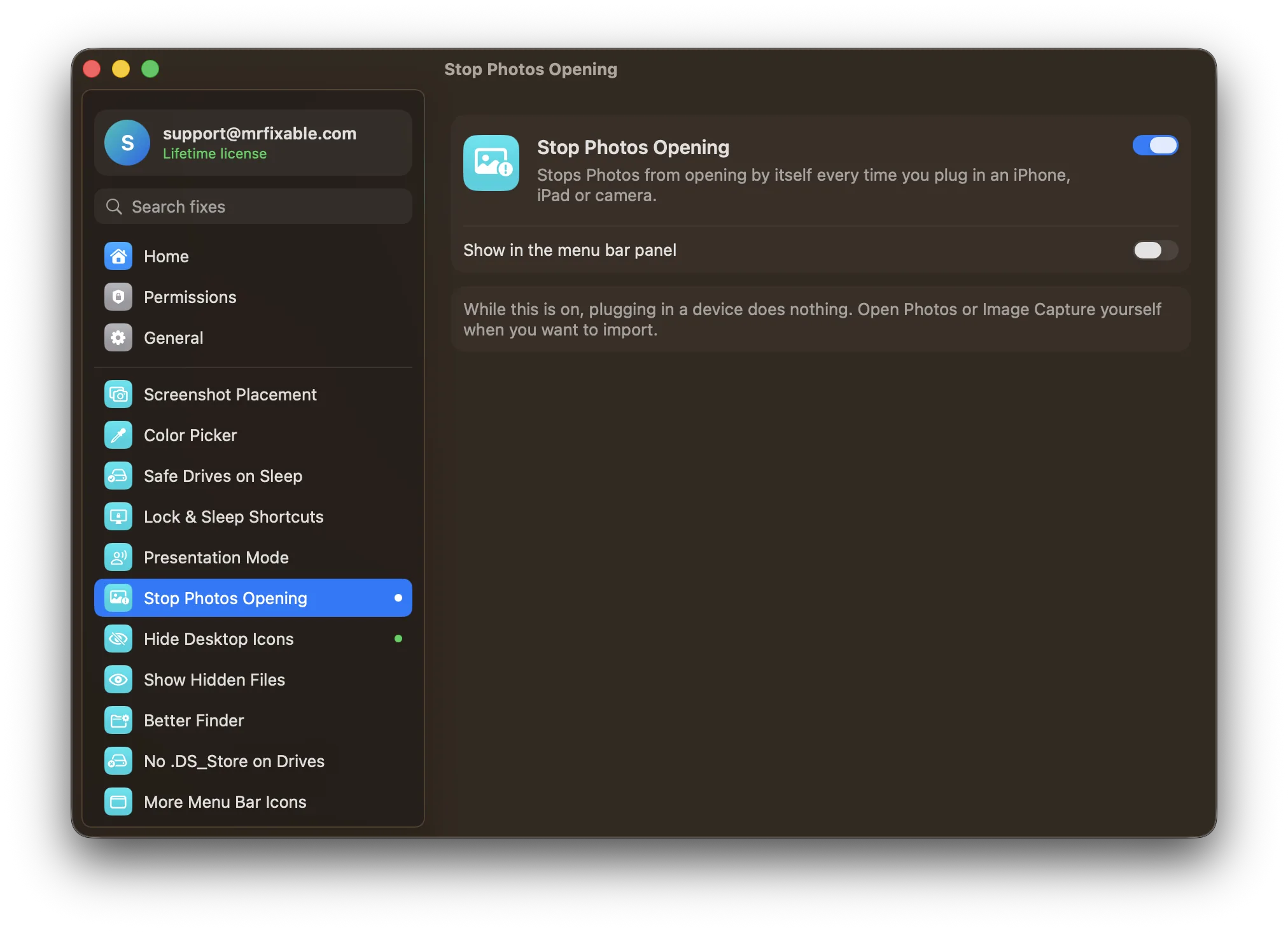
To stop Photos opening when you connect an iPhone, open Photos, select the iPhone under Devices in the sidebar, and uncheck Open Photos. Image Capture has the same choice. Both cover only that one device, so a new iPhone, an iPad or a camera opens Photos again until you repeat the steps.
You plug your iPhone into your Mac to charge it, and Photos opens itself and starts showing you imports. Every single time.
The built-in fix, one device at a time
macOS remembers this choice per device, in two places:
In Photos: connect the device, open Photos, select the device in the sidebar under Devices, and uncheck Open Photos at the top of the window.
In Image Capture: open Image Capture (in Applications), select your iPhone in the sidebar, then click the options button in the Image Capture toolbar and set Connecting this iPhone opens to No application.
The catch: it's per device. A new iPhone, your partner's iPad, or a camera all start opening Photos again until you repeat the steps for each one.
Stopping it for every device
Stop Photos Opening in MrFixable turns off Photos' automatic opening for every iPhone, iPad and camera you connect, including ones you haven't plugged in yet. Photos still works normally when you open it yourself.