
SoundKeep Sound Output
Fix Mac sound output that keeps changing
If your Mac sound output keeps changing to a monitor, TV or AirPlay speaker, switch it back in System Settings › Sound › Output, or click Control Center, click Sound and choose a device. macOS will do it again on the next connection. Keep Sound Output moves the sound straight back to the speakers or headphones you were using.
Try free for 14 daysBuy for $19.99 Lifetime license
One of 68 fixes in MrFixable. Lifetime license, no subscription. Updated October 22, 2026. Works on macOS 14.2 Sonoma and later. Checked on macOS 26 Tahoe.
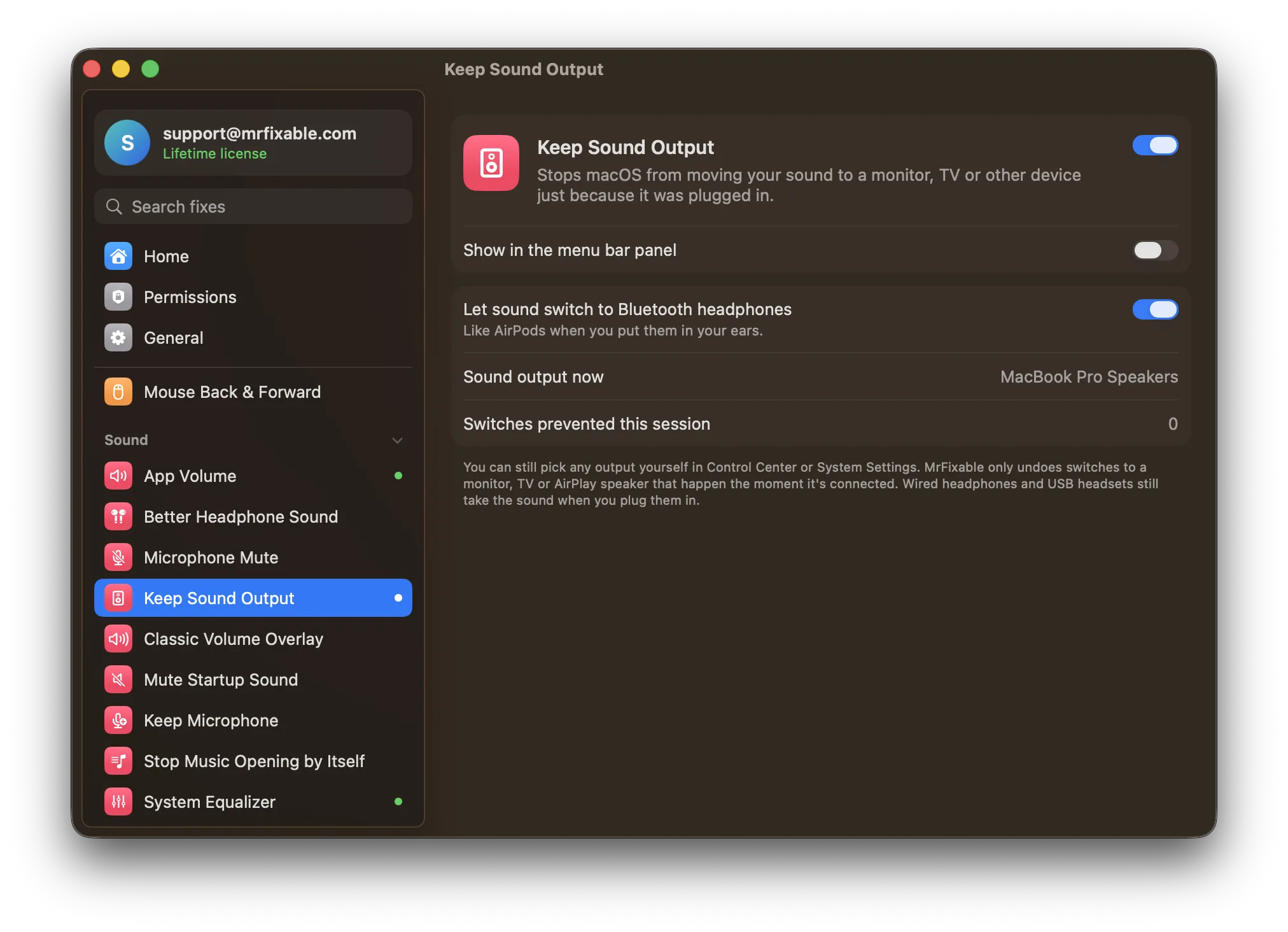
What Keep Sound Output does
The problem
Plug in a monitor or TV, and macOS often moves your sound to it, so music suddenly plays through thin monitor speakers. You can switch it back in Control Center or System Settings › Sound, but macOS does it again the next time.
With Keep Sound Output
When macOS moves your sound to a screen, TV or AirPlay speaker the moment it connects, MrFixable puts it straight back on the speakers or headphones you were using. A short notice tells you where the sound stayed.
- Only surprise switchesMrFixable only undoes a switch to a monitor, TV or AirPlay speaker that happens the moment it connects. You can still pick any output yourself in Control Center or System Settings.
- Headphones still take overWired headphones and USB headsets get the sound when you plug them in, and so do AirPods and other Bluetooth headphones. Turn off Let sound switch to Bluetooth headphones to stop those taking it too.
- See what it stoppedSettings show which output is playing now and how many switches were prevented this session.
Good to know
The speakers or headphones you were using must still be connected. If they're gone, the sound stays on the new device.
Switch it off and macOS switches sound outputs as before.
Questions
How do I change sound output on Mac?
1. Choose Apple menu › System Settings. 2. Click Sound in the sidebar. 3. Click Output. 4. Select the speakers or headphones you want in the list. For a device plugged into the headphone port, choose Headphones. Keep Sound Output never undoes a choice you make yourself, only switches macOS makes on its own.How do I change Mac audio output from the menu bar?
1. Click Control Center in the menu bar. 2. Click Sound. 3. Choose your speakers, headphones or AirPods from the list. This is the quickest way to switch. If macOS keeps moving sound to a monitor or TV you just plugged in, Keep Sound Output moves it back for you.Why does my Mac sound output keep changing?
Because macOS often makes a newly connected device the sound output: a monitor or TV with speakers over HDMI or DisplayPort, or an AirPlay speaker. That's handy for headphones, not for thin monitor speakers. Keep Sound Output notices that kind of switch and puts the sound back where it was.How do I stop my Mac sending sound to my monitor or TV?
Turn on Keep Sound Output. The moment a monitor or TV connects and macOS moves the sound to it, MrFixable moves it straight back to the speakers or headphones you were using, and a notice tells you. Without it, choose your speakers again in System Settings › Sound › Output each time.Will my AirPods still take over when I put them in?
Yes, by default. Sound moving to AirPods and other Bluetooth headphones is usually what people want, so Keep Sound Output allows it. If you'd rather keep the sound where it is, open the fix's settings and turn off Let sound switch to Bluetooth headphones. Wired headphones always take over.Can I still play sound through my monitor on purpose?
Yes. Choose it in Control Center or System Settings › Sound › Output, and the sound stays there. Keep Sound Output only undoes switches that happen the moment a monitor, TV or AirPlay speaker connects, never a choice you make yourself. Switch the fix off and macOS behaves as before.
Sources
Guides
- Is there an equalizer on a Mac? How to EQ all your Mac's soundMacs have no system-wide equalizer. Where the Music app's EQ is (Window › Equalizer, ⌥⌘E), what it can't do, and how to EQ everything your Mac plays.
- How to stop Apple Music opening automatically on a MacApple Music opens when you press play or connect AirPods, and macOS has no setting to stop it. Why it happens, what helps, and how to keep Music closed.
- How to change the volume of one app on a MacmacOS has no volume mixer, only one slider for everything. What works built in, how to give each app its own volume, and what System Audio Recording means.
- Why AirPods sound muffled on Mac calls, and how to fix itAirPods turn muffled the moment a Mac app uses their microphone. Why Bluetooth does this, the fix in System Settings › Sound › Input, and how to keep it fixed.