
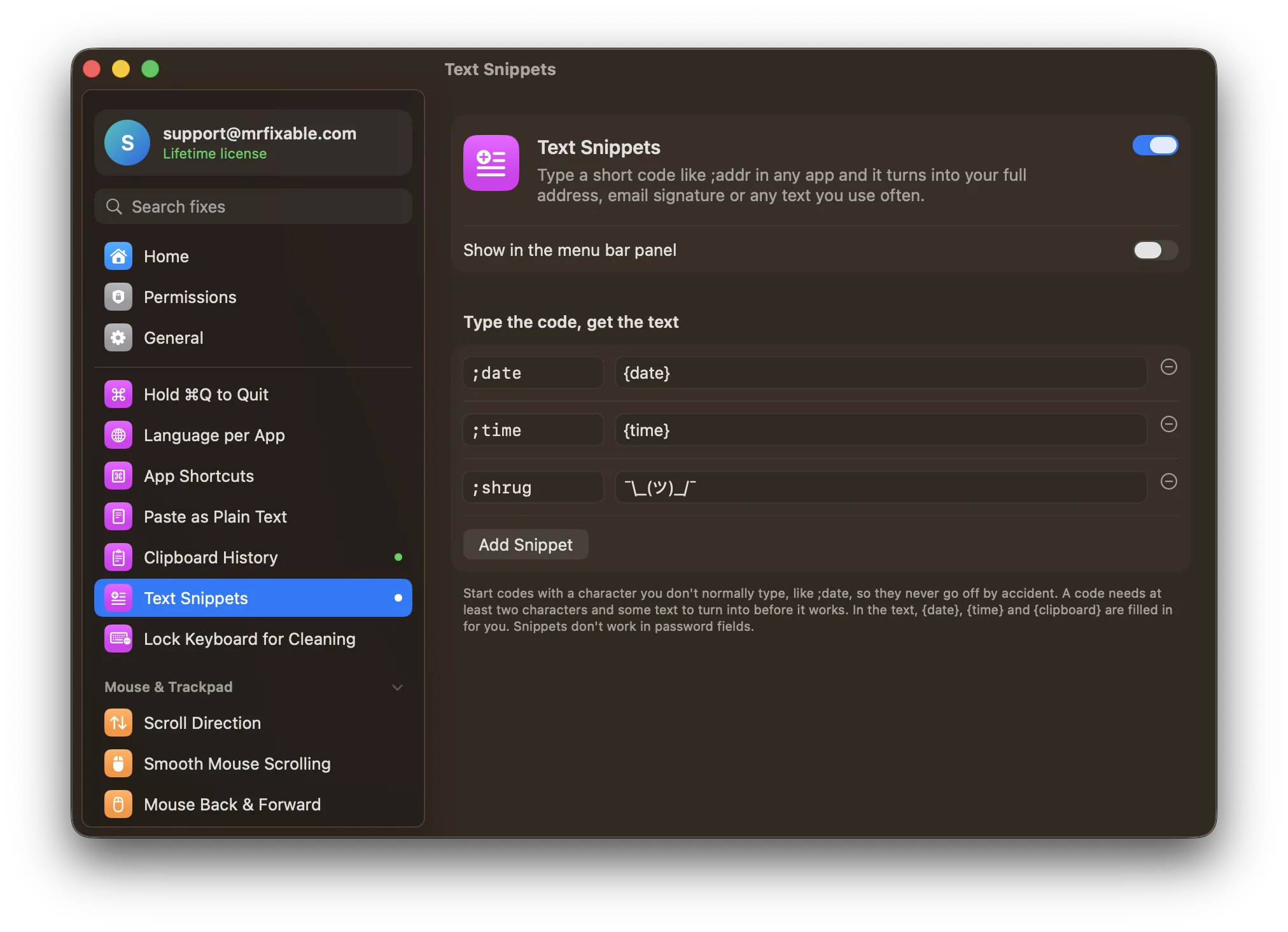
To make text snippets on a Mac, use its built-in text expander: open System Settings › Keyboard, click Text Replacements, click +, and type a short code and the text it should become. Type the code in an app and it turns into the full text. Text Snippets in MrFixable adds today's date, the time and your clipboard.
A snippet is text you type often, like your address, an email sign-off or a standard reply, saved behind a short code. Type ;addr and your whole address appears. macOS calls this text replacement, and it's been built in for years.
How to add a text replacement on a Mac
- Choose Apple menu › System Settings.
- Click Keyboard in the sidebar. You may need to scroll down.
- Click Text Replacements.
- Click +. Type the code in Replace, for example ;addr, and the full text in With.
- Click Add, then Done.
- In any app that supports it, type the code followed by a space or punctuation. It turns into the full text.
You can also get there from inside an app: choose Edit › Substitutions › Show Substitutions and click Text Settings.
Two tips:
- Start codes with a character you don't normally type, like ; or //. A code that's a real word, like "addr", would also fire when you didn't mean it.
- Your replacements sync to your iPhone and iPad when iCloud Drive is on and you're signed in with the same Apple Account.
Looking for a screen snip instead, like the Snipping Tool on Windows? Press ⇧⌘4 and drag over the part of the screen you want. More in how to screenshot on a Mac.
Why do Mac text replacements stop working?
Usually because the app you're typing in doesn't support them: Apple says text replacements aren't available in all apps, so a code that works in Notes may do nothing elsewhere. In apps that do support them, check Edit › Substitutions and make sure Text Replacement is ticked. The code also needs a space or punctuation after it before it's replaced.
Text snippets that work in any app
Text Snippets in MrFixable works like a dedicated text expander:
- Turn on Text Snippets and allow Accessibility when MrFixable asks.
- Click Add Snippet. Type a code like ;addr and the text it turns into. The text can be several lines long, like an email signature.
- Type the code in any app. It's replaced the moment you finish typing it, with no space needed.
What it adds to the built-in way:
- It works anywhere you can paste. It deletes the code and pastes the text, then puts back whatever was on your clipboard.
- Dates, times and your clipboard. Put {date}, {time} or {clipboard} in a snippet and they're filled in when it's typed. It starts with ;date, ;time and ;shrug as examples.
- It warns about codes that can never work. If ;addr2 starts with ;addr, it tells you ;addr will always fire first, so you can rename one.
- It stays out of your clipboard history. Snippets are marked so that clipboard managers, including Clipboard History, don't keep them.
Codes need at least two characters, and snippets don't work in password fields, which macOS protects. Unlike macOS's text replacements, MrFixable's snippets stay on this Mac and don't sync to your iPhone.
Related
- Paste as Plain Text: paste copied text without its fonts and colors. See how to paste without formatting.
- Clipboard History: see and paste anything you copied recently. See how to see your clipboard history.
Questions
How do I set up text shortcuts on a Mac?
Open System Settings › Keyboard and click Text Replacements. Click +, type a short code under Replace and the full text under With, then click Add and Done. Typing the code followed by a space now turns it into the full text in apps that support text replacement.
Why is my Mac text replacement not working?
Check the app first. Text replacement isn't available in all apps, and in those that support it, Edit › Substitutions › Text Replacement must be ticked. Then make sure you type a space or punctuation after the code. If it works in Notes but not in another app, that app doesn't support it.
Do Mac text replacements sync with my iPhone?
Yes. Turn on iCloud Drive on your Mac, iPhone and iPad and sign in with the same Apple Account. A replacement you add on one device then appears on the others. To share them with another Mac, drag them out of the Text Replacements window to make a file you can copy.
Do I need a snippet manager app on a Mac?
Not for short phrases in apps that support text replacement: macOS does that well. A snippet manager helps when your snippets must work in every app, include today's date or your clipboard, or replace right away without a space. Text Snippets in MrFixable covers those cases.