
KeyboardText Snippets
Mac text expander
The Mac text expander built into macOS is Text Replacements: open System Settings › Keyboard, click Text Replacements, then + to add a code and its text. They work only in apps that support them and can't add the date. Text Snippets expands a code like ;addr in any app, and can add today's date, the time or your clipboard.
Try free for 14 daysBuy for $19.99 Lifetime license
One of 68 fixes in MrFixable. Lifetime license, no subscription. Updated October 22, 2026. Works on macOS 14.2 Sonoma and later. Checked on macOS 26 Tahoe.
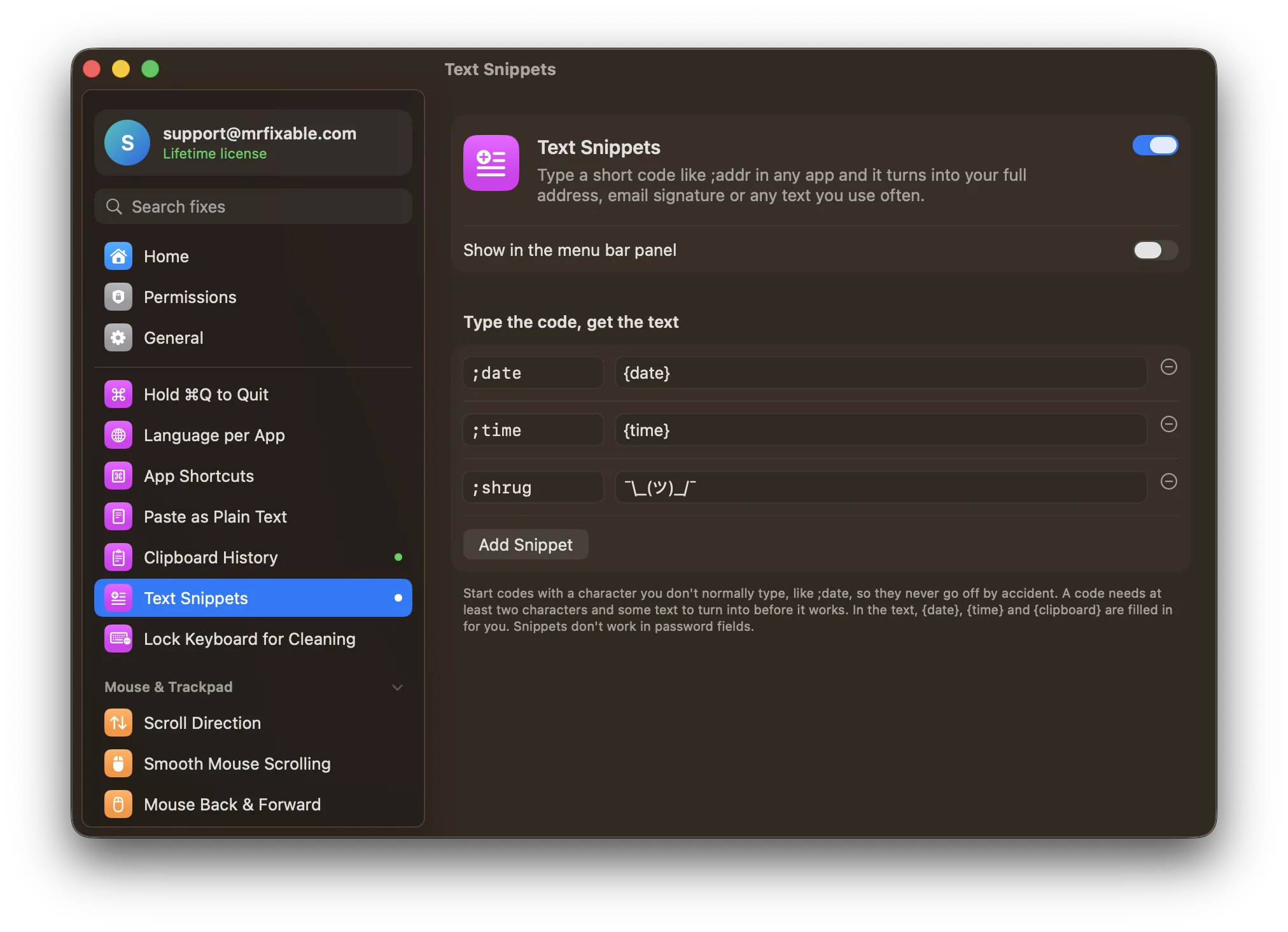
What Text Snippets does
The problem
You type the same address, email sign-off or reply over and over. macOS has Text Replacements in System Settings › Keyboard, but they only work in apps that support them, and they can't fill in today's date or what you copied.
With Text Snippets
Type a code like ;addr in any app and it turns into your full text as soon as you finish the code. Whatever was on your clipboard is put back afterwards.
- Date, time and clipboardWrite {date}, {time} or {clipboard} in a snippet and it's filled in as it expands. ;date, ;time and ;shrug come ready to use.
- Codes that don't misfireStart codes with a character you don't normally type, like ;. If a code can never fire because a shorter one starts the same way, MrFixable warns you.
- Kept out of your historyExpanded text is marked so Clipboard History and other clipboard managers don't keep it.
Good to know
Needs Accessibility access, which macOS requires for an app that watches what you type to spot your codes and then types the text for you.
A code needs at least two characters and some text to turn into. Snippets don't work in password fields.
Switch it off and codes stay as you type them. Your snippets are kept.
Questions
How do you snippet on a Mac?
For text snippets: 1. Turn on Text Snippets in MrFixable. 2. Click Add Snippet, type a code like ;addr and the text it turns into. 3. Type the code in any app and it expands. If you meant a screenshot snippet, press ⇧⌘4 and drag over the part of the screen you want.How do I set up text replacement on a Mac?
1. Open System Settings › Keyboard. 2. Click Text Replacements. 3. Click +, type the short code under Replace and the full text under With, then click Done. macOS swaps the code as you type in apps that support it, such as Notes, Mail and Messages. Text Snippets does the same in any app.How do I make text shortcuts work in every app on a Mac?
macOS Text Replacements only work in apps that support them, so they're skipped in many others. Text Snippets watches what you type in any app and expands your code wherever you are, except in password fields. Add your codes once in its settings, and start each code with a character like ; so it never fires by accident.Can a Mac text expander put in today's date?
Yes, with Text Snippets. Write {date} or {time} in a snippet's text and it's filled in as it expands, in your Mac's date and time format. {clipboard} puts in what you last copied. The ready-made ;date and ;time snippets do this out of the box. macOS Text Replacements can't fill in the date.Why isn't my text snippet expanding?
Check three things. A code needs at least two characters and some text to turn into. A longer code that starts with a shorter one, like ;addr2 after ;addr, never fires, and MrFixable shows a warning when that happens. And snippets don't expand in password fields, where macOS blocks apps from reading what you type.
Sources
Guides
- How to make text snippets on a Mac with text replacementHow to make text snippets on a Mac with the built-in text expander, step by step, why replacements stop working, and how to add dates and your clipboard.
- How to see your clipboard history on a MacSee your clipboard history on a Mac: open macOS Tahoe's Spotlight clipboard with ⌘Space, then ⌘4, learn where it falls short, and get a history like Win+V.