
SoundKeep Microphone
Fix Mac input volume that keeps changing
If your Mac input volume keeps changing, an app is often moving it: Zoom, Teams and browsers turn your microphone up and down. Set the level in System Settings › Sound › Input, and turn off automatic volume in Zoom. Browsers have no such switch. Keep Microphone holds the level and microphone you chose, and puts them back.
Try free for 14 daysBuy for $19.99 Lifetime license
One of 68 fixes in MrFixable. Lifetime license, no subscription. Updated October 22, 2026. Works on macOS 14.2 Sonoma and later. Checked on macOS 26 Tahoe.
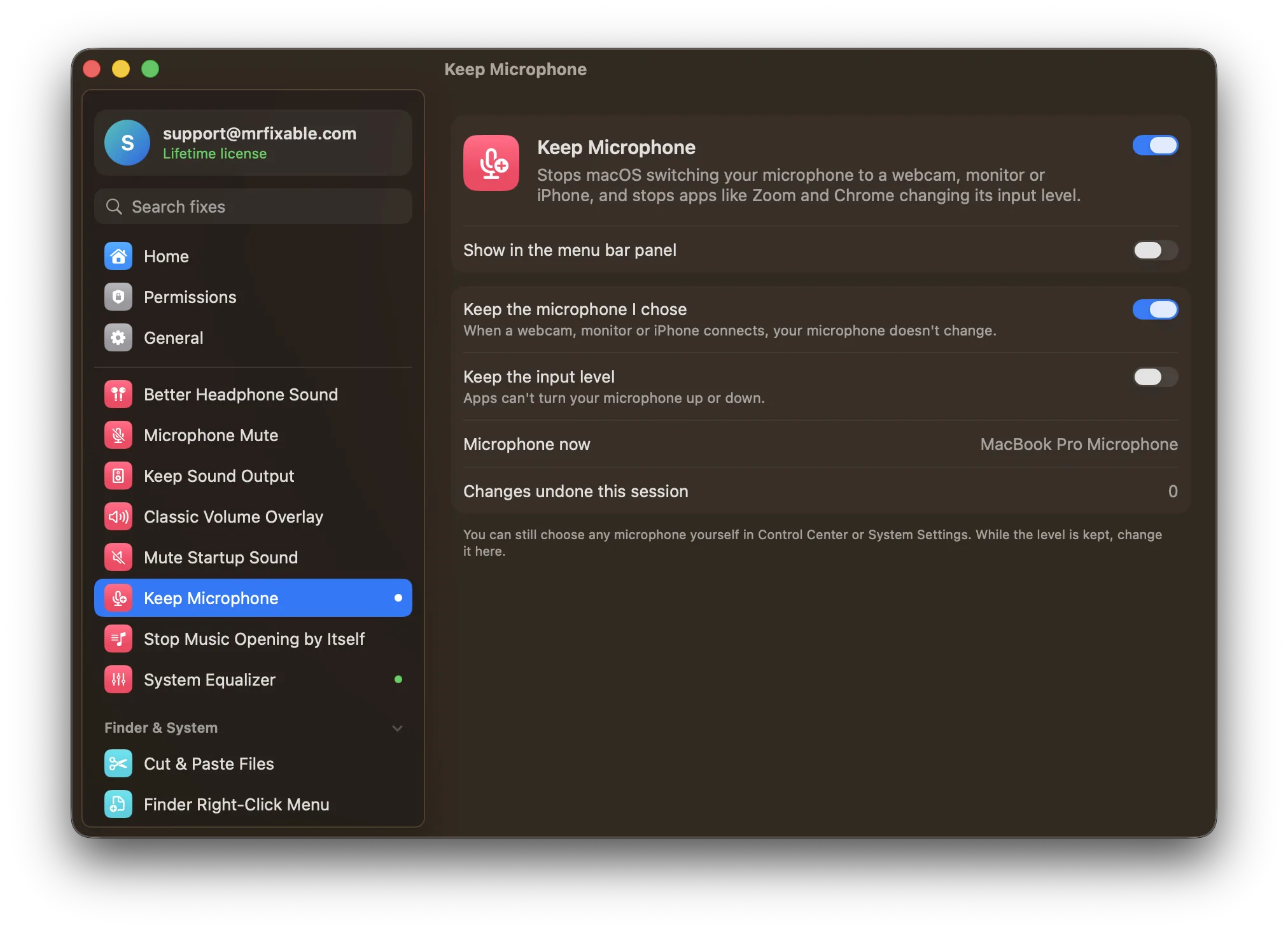
What Keep Microphone does
The problem
Call apps like Zoom, Teams and Chrome quietly move your input level up and down, so people say you sound far away or too loud. And when a webcam, a monitor or your iPhone connects, macOS often starts using its microphone instead of yours.
With Keep Microphone
Your input level stays where you set it, and your microphone stays the one you chose. If either changes, MrFixable puts it back right away.
- Keep the input levelTurn on Keep the input level and set the level, 75% to start. Zoom, Chrome, Teams and other apps can't move it. To change it, use the slider in the fix's settings.
- Keep the microphone you choseOn by default. When a webcam, monitor or iPhone connects, your microphone doesn't change, and a short notice says which one it stayed on.
- Still your choicePick any microphone yourself in Control Center or System Settings. Settings show the microphone in use and how many changes were undone this session.
Good to know
Keep the input level is off until you turn it on. Keep the microphone I chose is on from the start.
Some microphones have no level control macOS can set. For those, only your choice of microphone is kept.
Only switches that happen the moment a microphone connects are undone, and only while your previous microphone is still connected.
Switch it off and macOS and your apps change the microphone as before.
Questions
Why does my Mac input volume keep changing?
Usually an app is doing it. Zoom, Teams, Chrome and other call apps use automatic gain control: they move the Input volume slider up and down to match your voice, and don't always put it back. Keep Microphone holds the level where you set it, whichever app tries to change it.Why does my Mac mic input volume automatically lower or raise?
A call app or browser is adjusting it while you talk, so it drops when you're loud and climbs when you're quiet. Zoom lets you turn this off in Settings › Audio by unchecking Automatically adjust microphone volume. Browsers have no such setting, and Keep Microphone covers those too.How do I stop the microphone input level auto adjusting on macOS?
1. Set your level in System Settings › Sound › Input. 2. In Zoom, open Settings › Audio and uncheck Automatically adjust microphone volume. 3. For browsers and other apps, switch on Keep Microphone, turn on Keep the input level and set the level there. It's put back whenever an app moves it.Why is my Mac microphone input level not working?
Some USB and other external microphones have no level control macOS can set, so the Input volume slider in System Settings › Sound does nothing or is missing. Set the level on the microphone itself or in its own app. Keep Microphone can still keep that microphone chosen, but not its level.Why does my Mac switch to my iPhone or webcam microphone?
macOS often switches to a microphone the moment it connects, such as a webcam, a monitor with a microphone, or your iPhone through Continuity. Keep Microphone notices that switch and goes straight back to the microphone you were using, as long as it's still connected, with a short notice.Can I still change my microphone level myself?
Yes, in the fix's settings. While Keep the input level is on, the slider in System Settings › Sound is put back like any other change, so use the Level slider on the Keep Microphone page instead. You can still choose any microphone yourself in Control Center or System Settings.
Sources
Guides
- Mac input volume or microphone keeps changing? How to stop itZoom or Chrome keeps moving your Mac's mic input volume, or your Mac switches to a webcam or iPhone mic. Why it happens, the settings that help, and the fix.
- How to turn off the microphone on a MacHow to turn off the microphone on a Mac in Sound settings, block apps from using it, see why a mic icon shows, and mute every app with one shortcut.