
SoundClassic Volume Overlay
Volume bar on Mac not working after macOS Tahoe
If the volume bar on your Mac seems not to be working after updating to macOS 26 Tahoe, it moved: the big on-screen overlay was replaced by a small slider at the top right of the menu bar. macOS has no setting to bring it back. Classic Volume Overlay shows a large overlay again, with the level and your speakers.
Try free for 14 daysBuy for $19.99 Lifetime license
One of 68 fixes in MrFixable. Lifetime license, no subscription. Updated October 22, 2026. For macOS 26 Tahoe and later: earlier versions of macOS don't need it, so it only appears there.
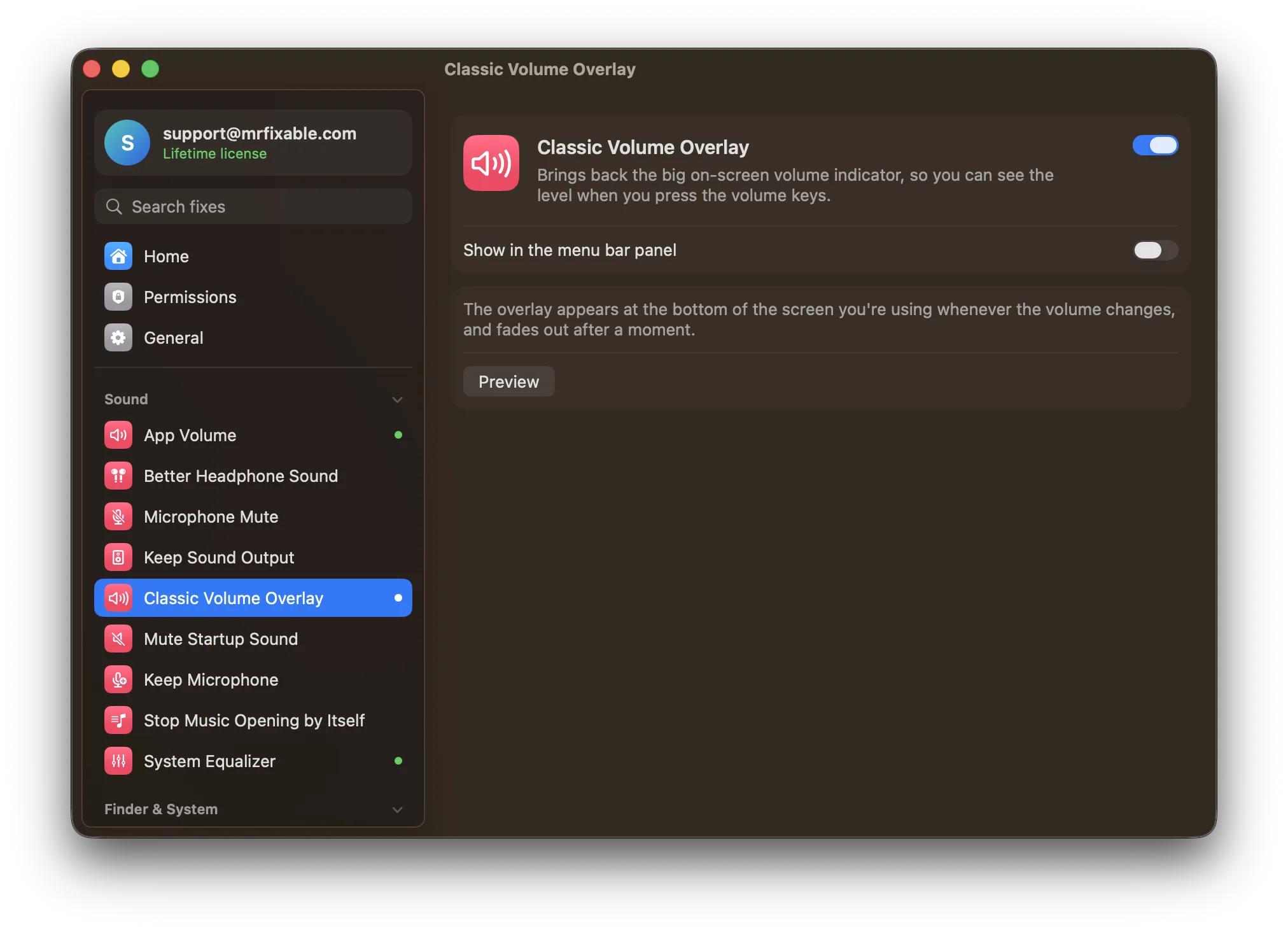
What Classic Volume Overlay does
The problem
macOS 26 replaced the big on-screen volume indicator with a small slider in the menu bar. Press the volume keys and it's easy to miss how loud you've set it, or whether you've muted it.
With Classic Volume Overlay
Change the volume and a large overlay appears at the bottom of the screen you're using, showing the level. It fades out after a moment.
- See the level at a glanceA bar shows the volume, and the speaker icon changes with it. When sound is muted, the overlay says Muted.
- Know where the sound goesThe overlay shows the name of the speakers or headphones you're using, so you can see that sound is going to the right place.
- Any way you change itIt appears for the volume keys, Control Center or any other way the Mac's volume changes. Click Preview in the fix's settings to see it.
Good to know
Only on macOS 26. On macOS 14 and 15, macOS still shows its own big indicator, so this fix isn't offered there.
It shows your Mac's output volume. An app's own volume slider, or a change in App Volume, doesn't bring it up.
Switch it off and only macOS's own indicator shows.
Questions
Why is the volume bar on my Mac not working?
On macOS 26 Tahoe, it isn't broken, it moved. The big bar in the middle of the screen was replaced by a small slider that opens at the top right of the menu bar when you press the volume keys. Look there, or turn on Classic Volume Overlay to see a large bar again.Where is the volume indicator in macOS Tahoe?
In the menu bar. On macOS 26 Tahoe, pressing a volume key shows a small slider at the top right of the screen, by Control Center, instead of the big overlay older versions showed. It's easy to miss on a large screen. Classic Volume Overlay brings back a large indicator you can't miss.Can I get the old volume indicator back in macOS 26?
Not with a macOS setting. Turn on Classic Volume Overlay in MrFixable, and each time the volume changes, a large overlay appears at the bottom of the screen you're using. It shows the level, the speaker or headphone name, and Muted when sound is off, then fades out after a moment.Does the overlay show when I mute?
Yes. Press the mute key, or mute from Control Center, and the overlay appears with Muted and an empty bar. Unmute and it shows your level again. It follows the Mac's own output volume, so changing one app's volume in App Volume or inside an app doesn't bring it up.Does it work with headphones and external speakers?
Yes. Classic Volume Overlay follows whichever sound output you're using, whether that's the built-in speakers, wired headphones, AirPods or a USB speaker. The overlay shows that device's name with the level, so you can see at a glance where your sound is going and how loud it is.Does it work on macOS Sonoma or Sequoia?
No, and it isn't needed there. macOS 14 Sonoma and macOS 15 Sequoia still show their own big volume indicator, so MrFixable only offers Classic Volume Overlay on macOS 26 Tahoe. A second overlay on older versions would only cover the one macOS already shows.