
To open a 7z file on a Mac, double-click it. On macOS Tahoe 26, Archive Utility extracts it next to the original. If that doesn't work, open Terminal, type tar -xf (with a space), drag the 7z file into the window and press Return. That built-in command reads 7z files on Sonoma and Sequoia too.
7z is the format of 7-Zip, the free archiver many Windows users rely on. It squeezes files smaller than ZIP, so it's common for large downloads, game mods and files sent from a Windows PC.
Double-click on macOS Tahoe
On macOS Tahoe, Archive Utility lists 7z as one of the formats it opens. In a test on macOS 26.1, a double-clicked 7z file extracted into the same folder, just like a ZIP.
- Double-click the 7z file in Finder.
- The files appear next to it, in the same folder.
If double-clicking shows an error, opens a different app, or you're on Sonoma or Sequoia, use the Terminal command below. It works on all of them.
Extract a 7z file with Terminal
- Open Terminal: press ⌘Space, type "Terminal" and press Return.
- Type
cd(with a space), drag the folder that holds the 7z file into the window, and press Return. - Type
tar -xf(with a space), drag the 7z file into the window, and press Return.
The files appear in that folder. To send them somewhere else, add -C and drag in another folder before pressing Return. To see what's inside without extracting anything, use tar -tf instead.
7-Zip for Mac
7-Zip's official download page has a Mac version, but it's a command-line tool only: a "console version" with no window or menus, run from Terminal. Since tar already reads 7z files, most people never need it. If you'd rather click than type, a free app such as The Unarchiver from the Mac App Store opens 7z files with a double-click.
7z files split into parts: .7z.001, .7z.002
7-Zip can split a big archive into numbered parts. Those parts are just one file cut into pieces, so you can join them back together and extract the result:
- Put every part in the same folder.
- In Terminal, type
cd(with a space), drag in that folder and press Return. - Type this, using your file's name, and press Return:
cat archive.7z.0* > archive.7z
- Then extract the joined file:
tar -xf archive.7z.
If a part is missing, the joined file is incomplete and tar reports an error. You can delete the numbered parts afterwards.
Password-protected 7z files
tar can't open 7z files that need a password. Use an app such as The Unarchiver, which asks for the password when you open the file.
How do I make a 7z file on a Mac?
Use the same built-in tar command. In Terminal, cd to the folder that holds what you want to pack, then type tar -acf archive.7z followed by the file or folder name, and press Return. The ending .7z tells tar to make a 7z file. Finder's own Compress command only makes ZIP files.
Right-click Extract Here
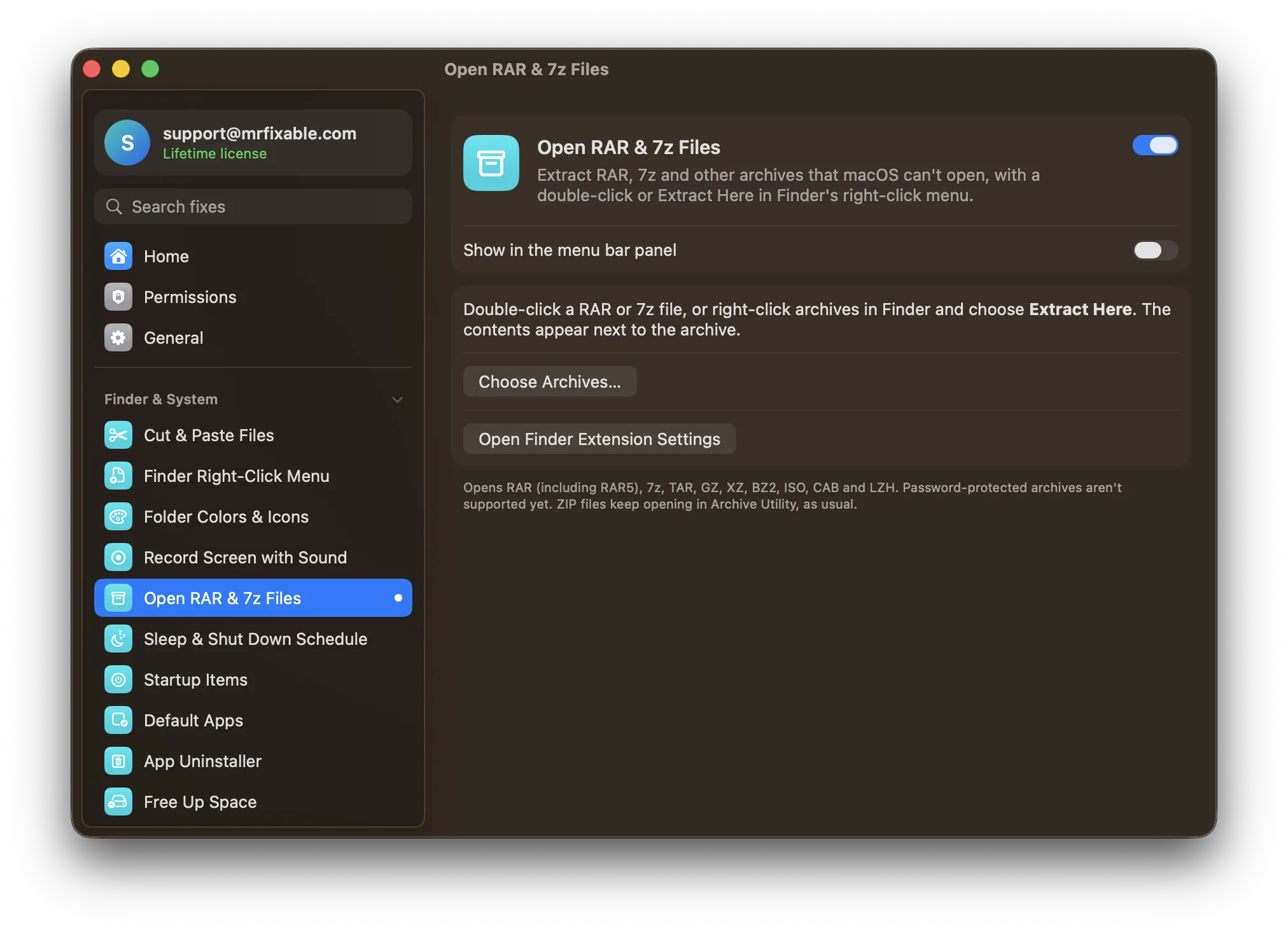
Open RAR & 7z Files in MrFixable adds Extract Here to Finder's right-click menu, using the same built-in reader as tar:
- Select one or more 7z files, right-click and choose Extract Here.
- An archive with a single folder inside gives you that folder. Anything else goes into a new folder named after the archive.
- Finder shows you the result when it's done.
It works the same on Sonoma, Sequoia and Tahoe, and also opens RAR (including RAR5), TAR, GZ, XZ, BZ2, ISO, CAB and LZH files. Password-protected archives aren't supported yet. For RAR files, see how to extract RAR files on a Mac.
Questions
How do I unzip 7z files on a Mac?
Double-click the file: on macOS Tahoe, Archive Utility extracts it next to the original. On any recent macOS, you can also open Terminal, type tar -xf with a space, drag the 7z file into the window and press Return. The files appear in your home folder unless you cd to another folder first.
How do I open 7-Zip on a Mac?
There's no 7-Zip app with a window for Mac. 7-Zip's official Mac version is a command-line tool you run in Terminal. You don't need it to open 7z files: double-click them on macOS Tahoe, use the built-in tar -xf command, or install a free app such as The Unarchiver.
How do I open a password-protected 7z file on a Mac?
Use an app such as The Unarchiver, which is free on the Mac App Store and asks for the password when you open the archive. The built-in tar command can't unlock 7z files, and neither can MrFixable's Extract Here yet. You need the password the sender used: no app can open the file without it.
Can a Mac create 7z files?
Yes, with the built-in tar command. In Terminal, go to the right folder with cd, then type tar -acf archive.7z followed by the file or folder to pack, and press Return. The .7z ending makes tar write 7z format. Finder's Compress command only makes ZIP files.