
To extract a RAR file on a Mac, open Terminal, type tar -xf (with a space), drag the RAR file into the window and press Return. macOS can read RAR files, Archive Utility just doesn't use that ability. Add -C and a folder to choose where the files go. For a double-click or right-click way, you need an app.
This guide goes further than how to open RAR and 7z files on a Mac: choosing where the files end up, checking what's inside first, extracting a whole folder of RAR files, and the two kinds of RAR file the built-in command can't open.
Extract a RAR file into the folder you choose
- Make the folder you want the files in. In Finder, press ⇧⌘N for a new folder.
- Open Terminal: press ⌘Space, type "Terminal" and press Return.
- Type
tar -xfwith a space at the end, then drag the RAR file from Finder into the Terminal window. - Type
-Cwith a space before and after, then drag the folder from step 1 into the window. - Press Return.
The finished line looks like this:
tar -xf /Users/you/Downloads/photos.rar -C /Users/you/Desktop/Photos
When the files are out, Terminal shows nothing and waits for the next command. Open the folder in Finder to see them. If you leave out -C and the folder, the files land in your home folder instead.
The same command reads RAR5, the newer RAR format, as well as older RAR files.
See what's inside before you extract
Some RAR files hold hundreds of loose files that would spill all over a folder. To list the contents without extracting anything, type tar -tf (with a space), drag in the RAR file and press Return. Use tar -tvf instead to see each file's size and date too.
Extract several RAR files at once
To extract every RAR file in a folder, each into its own folder named after the archive:
- In Terminal, type
cd(with a space), drag in the folder that holds the RAR files and press Return. - Paste this line and press Return:
for f in *.rar; do mkdir "${f%.*}" && tar -xf "$f" -C "${f%.*}"; done
If a folder with the same name already exists, that archive is skipped, so nothing gets overwritten.
Split RAR files: part1.rar, part2.rar
Big downloads are often split into parts named name.part1.rar, name.part2.rar and so on. tar reads one file at a time, so it can't join the parts. Use The Unarchiver, a free app on the Mac App Store that handles split archives:
- Download every part into the same folder. If one is missing, the extraction can't finish.
- Open the first part with The Unarchiver.
Password-protected RAR files
tar can't open RAR files that need a password. An app such as The Unarchiver asks for the password when you open the file.
When it doesn't work
- "Unrecognized archive format": the file isn't a complete RAR file. The download may not have finished, it may be one part of a split archive, or it may not be a RAR at all despite its name. Download it again.
- "could not chdir": the folder after
-Cdoesn't exist. Make it first, or drag it in again rather than typing its name. - Nothing seems to happen: look in your home folder. Without
-C, that's where the files go.
Extract RAR files without Terminal
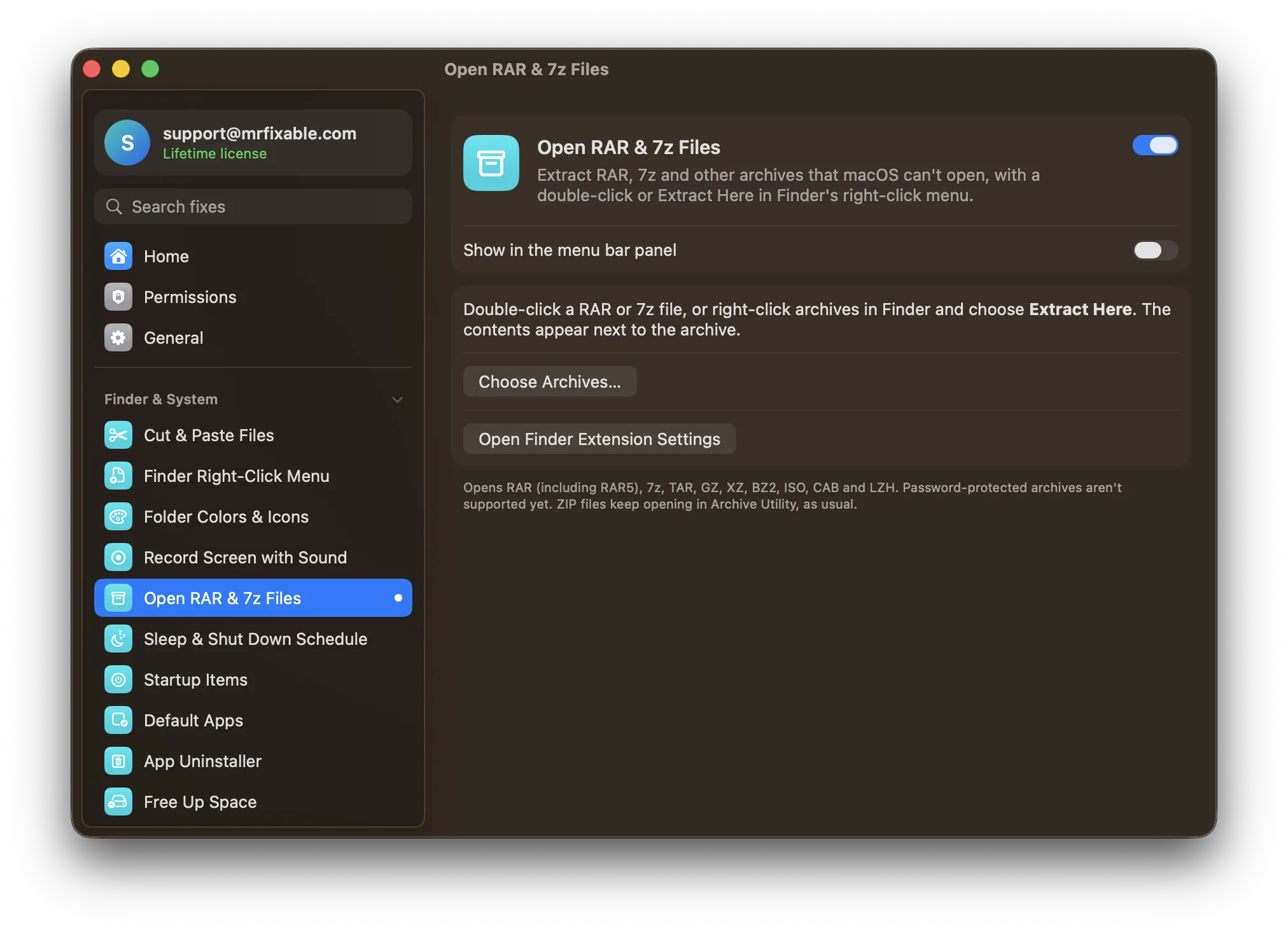
Open RAR & 7z Files in MrFixable runs the same built-in RAR reader for you:
- Double-click a RAR file and it extracts next to itself.
- Or select several RAR files, right-click and choose Extract Here. They're extracted one after the other.
- An archive with a single folder inside gives you that folder. Anything else goes into a new folder named after the archive, so loose files never spill out. If that name is taken, MrFixable adds a number instead of overwriting.
- When it's done, Finder shows you the result.
It also opens 7z, TAR, GZ, XZ, BZ2, ISO, CAB and LZH files. Password-protected and split archives aren't supported yet: use The Unarchiver for those.
If another archive app is already set to open RAR files, double-clicking still goes to that app. Use Extract Here, or change the default in Get Info. If Extract Here doesn't appear in the right-click menu, open the fix's page in MrFixable and click Open Finder Extension Settings to check MrFixable is turned on there.
Questions
How do I unzip a RAR file on a Mac?
Open Terminal, type tar -xf with a space, drag the RAR file into the window and press Return. The files appear in your home folder. Double-clicking won't work, because Archive Utility, the Mac's built-in unzipper, doesn't open RAR files. For a double-click, you need an app such as The Unarchiver or MrFixable.
How do I open RAR files on a Mac without Terminal?
Install an app that opens them. The Unarchiver is free on the Mac App Store and opens RAR files with a double-click, including split and password-protected ones. MrFixable's Open RAR & 7z Files adds a double-click and Extract Here to Finder's right-click menu, using the RAR reader built into macOS.
Where do extracted RAR files go on a Mac?
With tar -xf and no -C, they go into the folder Terminal is in, which is your home folder in a new Terminal window. Add -C and a folder to pick the place. Apps like The Unarchiver and MrFixable put the files next to the RAR file, in the same folder.