
BlackHole alternative for Mac
By Mohammed Chaara. Updated October 21, 2026. Facts about BlackHole come from its own website or App Store page, listed at the end.
What BlackHole is
BlackHole, by Existential Audio, is a virtual audio loopback driver for macOS. It adds an audio device that one app can send sound to and another app can listen to, with zero additional latency. It comes in 2, 16 and 64 channel versions. It doesn’t record anything by itself: to record your Mac’s sound, you create a Multi-Output Device in Audio MIDI Setup, make it your sound output, and record from BlackHole in an app like GarageBand or Audacity. It is free and open source under the GPL-3.0 license, with optional donations, and works on macOS 10.10 Yosemite or later, on Intel and Apple silicon Macs.
BlackHole vs MrFixable
| BlackHole | MrFixable | |
|---|---|---|
| Price | Free, optional donation | $19.99 once (lifetime license) for all 68 fixes, with a 14-day free trial |
| Record the Mac’s sound | Yes, through a Multi-Output Device and a separate recording app | Yes: Record Screen with Sound records it with the video, no setup |
| Record the screen | No, you need a separate screen recorder | Yes, a whole display or one window, saved as an MP4 video |
| Your microphone too | Up to your recording app, because BlackHole itself doesn’t record | Yes, on macOS 15 Sequoia or later, as a second sound track in a MOV video |
| Route sound from one app into another | Yes, for example from Logic Pro into Zoom or FaceTime | No |
| Audio-only recordings | Yes, in any app that can record from BlackHole | No, recordings are videos |
| Volume while recording | macOS can’t change a Multi-Output Device’s volume, so you set it in Audio MIDI Setup | Your volume keys keep working, because your sound output doesn’t change |
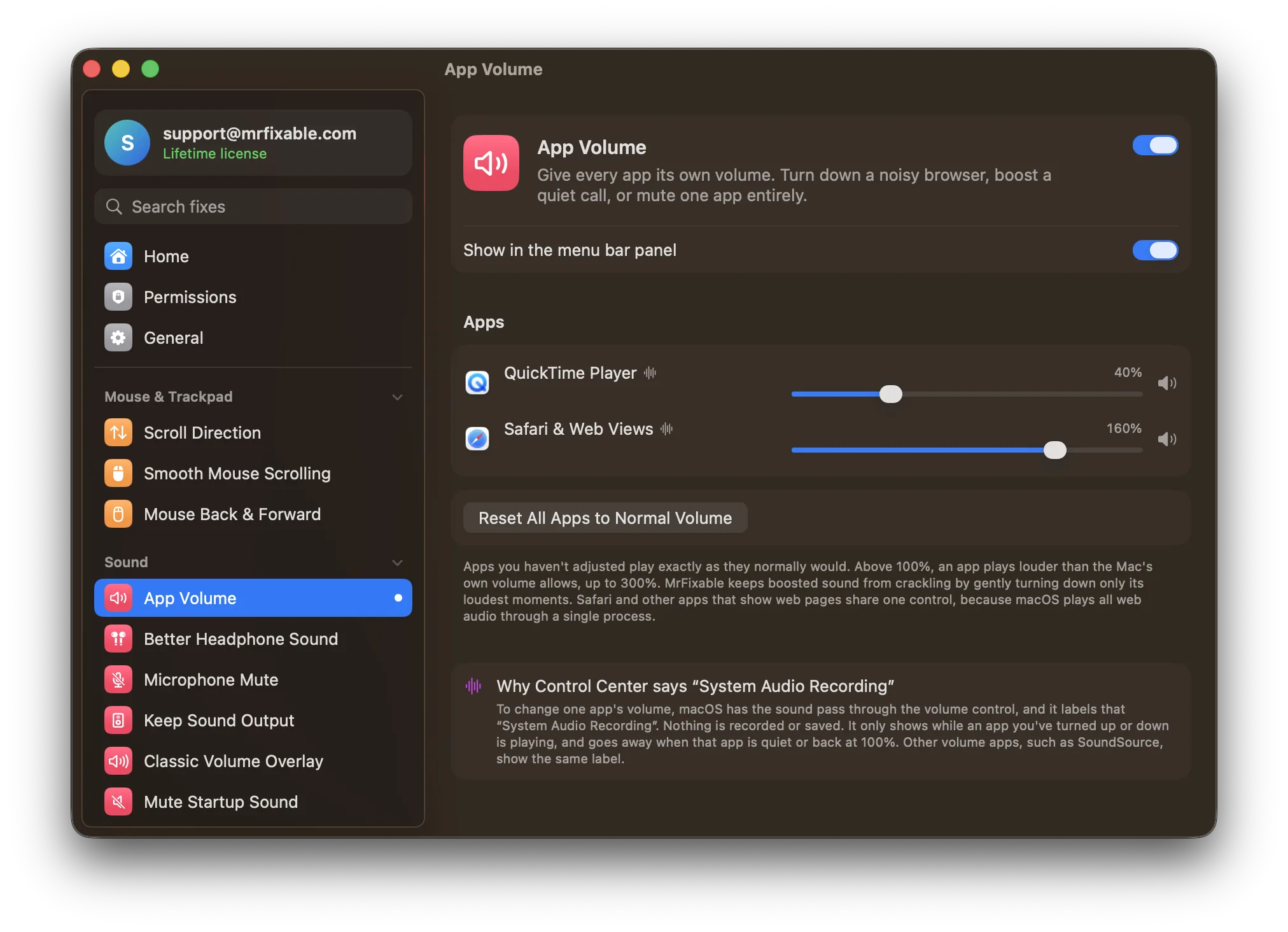
| Volume for each app | No | Yes, App Volume: from muted to 300% for each app |
| Setup | Installer and restart, or Homebrew. Then a Multi-Output Device in Audio MIDI Setup. | Turn on the fix and allow Screen Recording once |
| macOS support and source | macOS 10.10 Yosemite or later, Intel and Apple silicon. Open source (GPL-3.0). | macOS 14.2 Sonoma or later, tested on macOS 26 Tahoe. Not open source. |
Where each one is better
- It routes audio between apps: send a music app, a DAW or a soundboard into Zoom, FaceTime or a streaming app. MrFixable can’t do this.
- It makes audio-only recordings possible in any app that records, such as GarageBand or Audacity.
- It’s free and open source, works back to macOS 10.10 Yosemite, and offers up to 64 channels for studio setups.
- It adds zero additional latency, so it suits live audio work.
- Recording your screen with your Mac’s sound is one step: press ⌃⇧⌘R and pick a display or a window. There is no Multi-Output Device to create and no output to switch back afterwards.
- Your volume keys keep working while you record.
- It can add your microphone as a second sound track on macOS 15 Sequoia or later.
- App Volume gives each app its own volume, from muted to 300%, which BlackHole doesn’t do.
Switching from BlackHole
If you used BlackHole only to record your screen with sound, set your sound output back to your speakers or headphones in System Settings › Sound. Then turn on Record Screen with Sound and press ⌃⇧⌘R. Keep BlackHole if you also send sound from one app into another: both can be installed. To remove it, run the uninstaller for your version from existential.audio.
Questions
How do I record my Mac’s internal audio?
Turn on Record Screen with Sound and press ⌃⇧⌘R: the sound your Mac plays is recorded with the video. Before macOS 27, the built-in recorder (⇧⌘5) can’t capture it. With BlackHole, you create a Multi-Output Device in Audio MIDI Setup and record BlackHole in an app like GarageBand.Do I still need BlackHole to screen record with sound?
No, not for screen recordings. Record Screen with Sound captures the sound your Mac plays directly, with no driver to install and no output to switch back. Keep BlackHole if you want audio-only recordings in a music app, or need to send sound from one app into another.Is BlackHole free?
Yes. BlackHole is free and open source under the GPL-3.0 license. Its website asks for an optional donation, offers a free download link by email, and you can also install it with Homebrew. MrFixable costs $19.99 once for 68 fixes, with a 14-day free trial.Can MrFixable route audio between apps like BlackHole?
No. MrFixable doesn’t add an audio device, so it can’t send one app’s sound into another, for example music into a Zoom call. It records your Mac’s sound into screen recordings and sets each app’s volume. For routing, BlackHole is the right tool, and you can keep both.Why can’t I change the volume when using BlackHole?
Recording with BlackHole means sending sound to a Multi-Output Device, and macOS can’t change a Multi-Output Device’s volume. BlackHole’s guide suggests setting each device’s volume in Audio MIDI Setup instead. Record Screen with Sound leaves your sound output alone, so your volume keys keep working while you record.