
To change the default app for a file type on a Mac, select a file of that type in Finder, press ⌘I, open Open with, choose the app and click Change All. Every file of that type then opens in it. Your default web browser is in System Settings › Desktop & Dock, and your email app in Mail's settings.
Windows has one Default Apps page for all of this. macOS splits it into three places: Finder for files, System Settings for the browser, and the Mail app for email. Here's each one.
Set the default app for a file type
This changes which app opens every file of one kind, for example every PDF.
- In Finder, select one file of that kind.
- Press ⌘I, or choose File › Get Info. You can also right-click the file and choose Get Info.
- In the Info window, click the arrow next to Open with to show that section.
- Click the pop-up menu and choose the app. If it isn't listed, choose Other… and find it in Applications.
- Click Change All, then Continue when macOS asks if you're sure.
From now on, double-clicking any file of that kind opens it in the app you chose. Repeat this for each kind of file: PNG and JPEG pictures are separate kinds, and so are MP4 and MOV videos.
Change the app for just one file
Sometimes you want one file to open differently, like a single document that belongs to an older app.
- Just this once: right-click the file, choose Open With, and pick the app. The default doesn't change.
- Always, for this file only: follow steps 1 to 4 above and close the Info window without clicking Change All. Only that file changes.
Change your default web browser
- Choose Apple menu › System Settings.
- Click Desktop & Dock in the sidebar.
- Scroll down and choose your browser from the Default web browser menu.
The browser must be installed first. Links in Mail, Messages and other apps then open in it.
Change your default email app
- Open the Mail app.
- Choose Mail › Settings (⌘,) and click General.
- Choose your email app from the Default email reader menu. If it isn't listed, choose Select… and find it.
Mail may ask you to add an email account before it lets you change this. You can remove the account afterwards.
How do I see all my default apps on a Mac?
macOS has no single list. There's no page in System Settings that shows which app opens each kind of file: you find out one file at a time, in the Open with section of Get Info. Only the web browser has its own setting. For one page with every default, like Windows has, you need an app.
All your default apps on one page
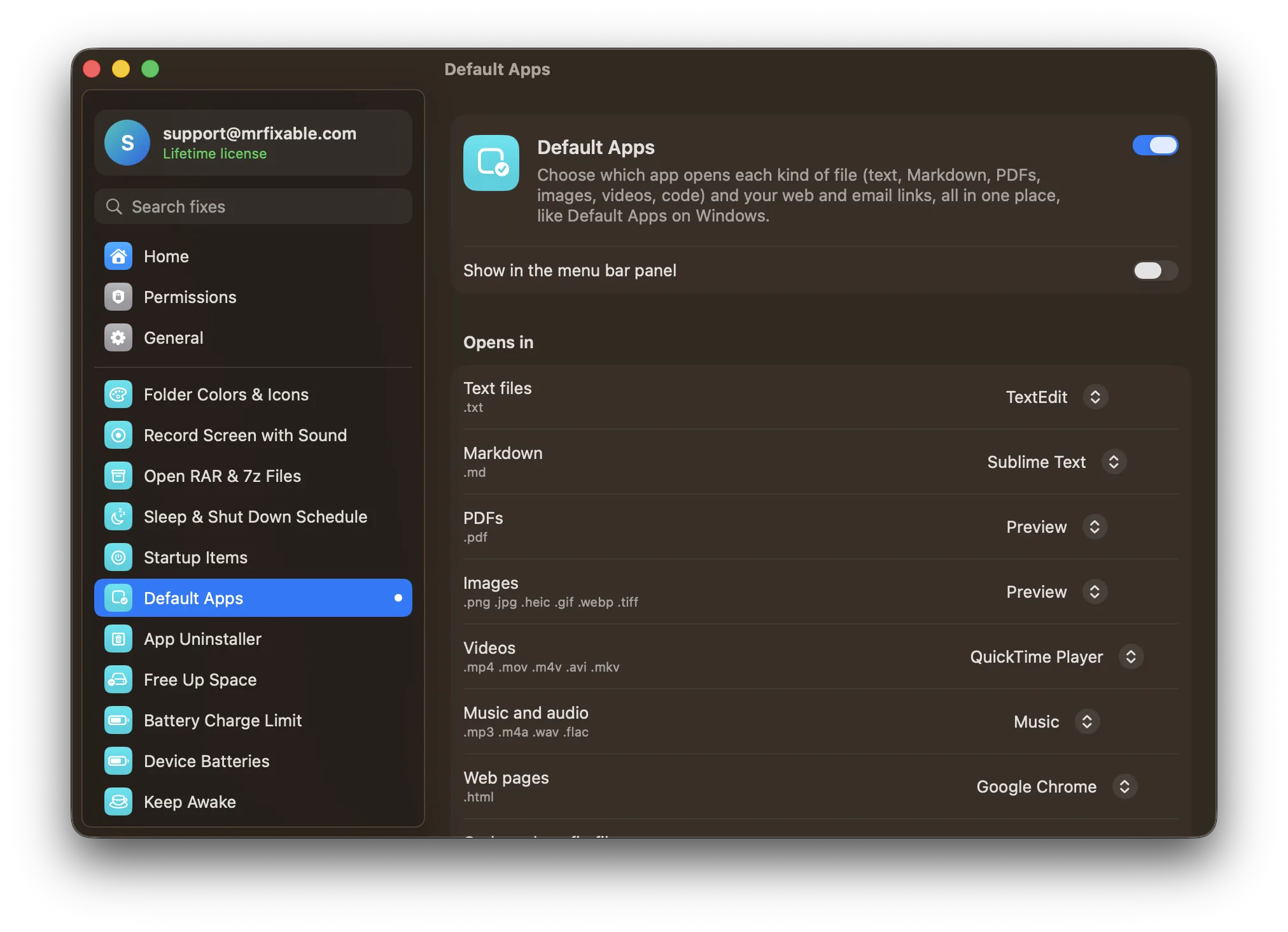
Default Apps in MrFixable puts every default on one page, each with a menu of the apps on your Mac that can open it:
- Common kinds of file: text files, Markdown, PDFs, images, videos, music and audio, web pages, code and config files, CSV spreadsheets and ZIP archives.
- One choice covers a whole family. Picking an app for images sets it for PNG, JPEG, HEIC, GIF, WebP and TIFF at once, wherever that app can open them.
- Add your own, like .docx or .csv, by typing the file ending.
- Web links and email links too. macOS asks you to confirm a new default browser or email app, as usual.
These are your Mac's own settings, the same ones Change All makes, so they stay even if you turn the fix off or quit MrFixable.
Questions
How do I set default applications on a Mac?
For files, select one in Finder, press ⌘I, choose an app under Open with and click Change All. For the web browser, open System Settings › Desktop & Dock › Default web browser. For email, open Mail and choose Mail › Settings › General › Default email reader. Each setting stays until you change it.
How do I change the default app for one file only on a Mac?
Select the file, press ⌘I, and choose the app in the Open with section, then close the Info window without clicking Change All. Only that file opens in the new app. To open a file in another app just once, right-click it and choose Open With instead.
Why didn't Change All change my other files?
Change All only covers files of the same kind as the one you picked. PNG and JPEG pictures are different kinds, so set each one. A file that was set to its own app in Get Info also keeps that app. Select it, press ⌘I and choose the app under Open with again.